fixed : get an M1 or M2 Mac mini inside a Space Grey housing

Question :

I have a 2018 Mac mini with a Space Grey housing and I love the color. Now time has come to upgrade to a new Mac mini with an M1 or M2 processor, but for some mysterious reasons Apple doesn’t sell the Mac mini in Space Grey any longer… you can get any color as long as it’s old-fashioned aluminium-white…

Is there any way to get the internals of a M1 or M2 Mac mini into a Space Gray Mac mini housing from 2018 ?

Answer :

Mh… well, yes and no… it can be done, but not in the way you would ideally envision it… there are 3 options that get you close and work :

Option 1 :
Get an M1 or M2 Mac mini’s internals out of it’s housing and build that into a Space Grey 2018 Mac mini housing… this can be done, as the size is nearly identical so it will fit inside, but it will not be perfect as the inner suspension and fixation layout is different, the front LED is extremely hard to swop as it has a different connector… and you will loose your Apple warranty…

If you want a ‘proof of concept’, there are some YouTube videos on this, that you should definitely have a look at before you consider attempting this :
https://www.youtube.com/watch?v=I9md09BcQiE

So… if you don’t want to break your Apple warranty, there are 2 alternative options :

Option 2 :
This looks great, if you put a little effort into it (and you probably won’t mind doing so, as you were willing to replace the entire housing yourself). Get yourself a Space Grey vinyl wrapping from Ultra Skins or SlickWraps :
Click here for the M2 Mac mini (2023) skins from Ultra Skins
Click here for the M1 Mac mini (2020) skins from Ultra Skins
>>>> click here to watch te installation video on YouTube <<<<

Click here for the M1 Mac mini (2020) skins from SlickWraps
Click here for the M2 Mac mini (2023) skins form SlickWraps

Note that Amazon offers something similar : the SkinOmi Carbon Fiber TechSkin …but it is officially for the Late 2012 Mac mini, so the outside sizing is the same, but the exact location of the holes for the ports might (and probably will) differ :
Click here to see and buy it from Amazon US
Click here to see and buy it from Amazon UK
Click here to see and buy it from Amazon DE

Option 3 :
This isn’t the most sophisticated option, but it works quick&dirty and is fool-proof : get yourself a Dark Grey bumper skin from Elago for about $20 or €35 :
Click here to see and buy it from Amazon US
Click here to see and buy it from Amazon UK
Click here to see and buy it from Amazon DE

Please note that we get a small kick-back fee from Amazon for referring you to their website, but you will still get their best price so this does not affect you.

fixed : How to split up an existing table in a Word document

Question :
I have received a Word document from someone else and it has a large table in it that spreads over multiple pages. But the table consists of various chapters, so it would be more logical to split the table up into smaller tables. So one small table for each chapter. That would make the table’s content far easier to read and understand when reading it form paper after having it printed out.

Is there any way to split an existing table in a Word document ?

Answer :
Yes, there is… and it isn’t hard to do ; if it’s a large table spreading across multiple pages you might even want to split it both vertically and horizontally.

To split a table vertically (to divide it into an upper and a lower table) in Word 16 (from Office 365 and Office for Mac 2021 & 2019), do this :

  • open the document in Word
  • scroll down to the table you want to split
  • in the table, select the cell that should be the first (upper left) cell of the lower table after the split
  • then goto the top menu bar (the one that is fixed, not the one that is floating with the window) and select “Table” (in-between “Tools” and “Window”) and select “Split Table” from the pull-down menu that appears
  • now the table has been split vertically into an upper and a lower table

That’s it ! …and of course you can repeat this as many times as you like πŸ˜‰

To split a table horizontally (to divide it into a left and a right table) in Word 16 (from Office 365 and Office for Mac 2021 and 2019), do this :

  • open the document in Word
  • scroll down to the table you want to split
  • if the table spreads across the page from the left to the right page margin, you will need to make some separation space first, to do that do this :
  • > select the entire table and resize the width a little to the right, enough to have the space that you eventually need in-between the separated tables is on the right of the original table first (in short : squeeze the entire table a little)
  • then, make sure there is at least two empty lines (of no text) below the table (in short : put the cursor behind or directly under the table and hit the ENTER-key 2 times, to create 2 empty lines)
  • then, select all cells of the table that you want in the right table after the split ; they will turn blue
  • then, drag the upper left blue cell ; that part of the table will now start moving along with your cursor
  • drag your cursor below your table and release ; now you will have the split table that you would like on the right below the split table that you would like on the left
  • then, hover over the lower table with your cursor
  • when the drag-sign (little square with vertical and horizontal arrows inside) appears, select it and drag it
  • when the dashed outline of the lower table starts moving with your cursor, drag it to the right of the upper table and release if it’s in place
  • if it’s hard to get both tables aligned, you can use the zoom-slider in the bottom-right corner to zoom in and/or you can temporarily switch on page grid lines (not table grid lines) ; to switch on (and off) page grid lines, do this :
  • > in the top bar of the Word document window, select “Layout” so a blue line will appear under it, then in the icons bar click on “Align” (in-between “Selection Pane” and “Group”) and select “View Gridlines” from the pulldown menu

    That’s it !
    enjoy πŸ˜‰

fixed : AppleID password not accepted on Apple website

Question :

I am trying to make a reservation for a repair of my iPhone through the Apple website, and I can go through all the steps until I need to give my password to login with my Apple ID… it just won’t accept the correct password !

What is going on ? And How can I fix this ?

Answer :

Yes, it’s bizar that Apple isn’t clear why this doesn’t work the way you would expect it to…
But the solution is simple :

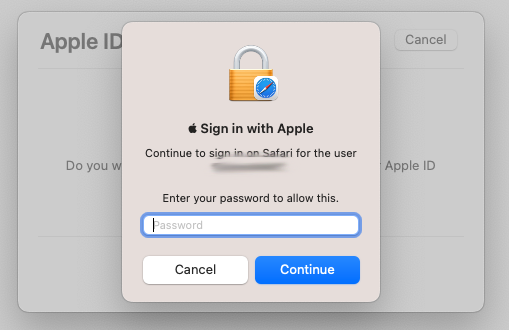
  • when you get the “Do you want to sign in to dims.apple.com with your AppleID?” window, click the blue “Continue with Password” button
  • then you will get the “Sign in with Apple” window… and then, DO NOT enter your AppleID password !! ; you need to enter the password you use to unlock your Mac !!

…there is some (weird Apple) logic behind this, but it is completely unclear why Apple made this so confusing… [ Apple is asking for your password to unlock your passwords keychain in Safari ; but you will only get that from the text “Continue to login on Safari for the user” AFTER you have figured out some other way what the solution is… ]

On the other hand… that’s it !

enjoy πŸ˜‰