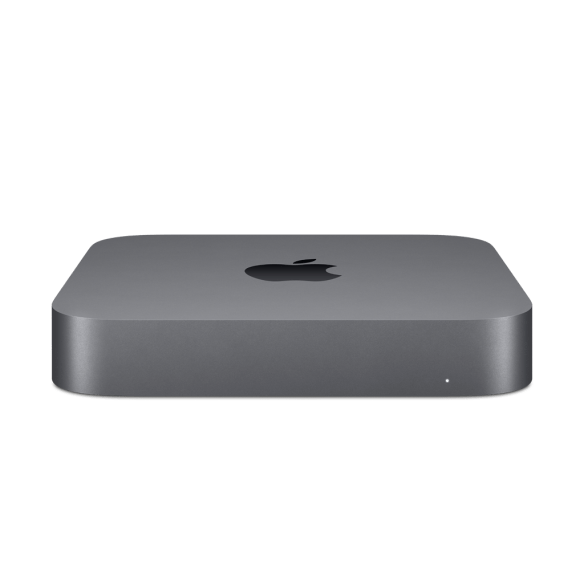
fixed : get an M1 or M2 Mac mini inside a Space Grey housing

Question :

I have a 2018 Mac mini with a Space Grey housing and I love the color. Now time has come to upgrade to a new Mac mini with an M1 or M2 processor, but for some mysterious reasons Apple doesn’t sell the Mac mini in Space Grey any longer… you can get any color as long as it’s old-fashioned aluminium-white…

Is there any way to get the internals of a M1 or M2 Mac mini into a Space Gray Mac mini housing from 2018 ?

Answer :

Mh… well, yes and no… it can be done, but not in the way you would ideally envision it… there are 3 options that get you close and work :

Option 1 :
Get an M1 or M2 Mac mini’s internals out of it’s housing and build that into a Space Grey 2018 Mac mini housing… this can be done, as the size is nearly identical so it will fit inside, but it will not be perfect as the inner suspension and fixation layout is different, the front LED is extremely hard to swop as it has a different connector… and you will loose your Apple warranty…

If you want a ‘proof of concept’, there are some YouTube videos on this, that you should definitely have a look at before you consider attempting this :
https://www.youtube.com/watch?v=I9md09BcQiE

So… if you don’t want to break your Apple warranty, there are 2 alternative options :

Option 2 :
This looks great, if you put a little effort into it (and you probably won’t mind doing so, as you were willing to replace the entire housing yourself). Get yourself a Space Grey vinyl wrapping from Ultra Skins or SlickWraps :
Click here for the M2 Mac mini (2023) skins from Ultra Skins
Click here for the M1 Mac mini (2020) skins from Ultra Skins
>>>> click here to watch te installation video on YouTube <<<<

Click here for the M1 Mac mini (2020) skins from SlickWraps
Click here for the M2 Mac mini (2023) skins form SlickWraps

Note that Amazon offers something similar : the SkinOmi Carbon Fiber TechSkin …but it is officially for the Late 2012 Mac mini, so the outside sizing is the same, but the exact location of the holes for the ports might (and probably will) differ :
Click here to see and buy it from Amazon US
Click here to see and buy it from Amazon UK
Click here to see and buy it from Amazon DE

Option 3 :
This isn’t the most sophisticated option, but it works quick&dirty and is fool-proof : get yourself a Dark Grey bumper skin from Elago for about $20 or €35 :
Click here to see and buy it from Amazon US
Click here to see and buy it from Amazon UK
Click here to see and buy it from Amazon DE

Please note that we get a small kick-back fee from Amazon for referring you to their website, but you will still get their best price so this does not affect you.

tested : does the Satechi USB-C hub for Mac mini also work with the iPad Pro ?

Question :

I am looking for a USB-C hub to extend the ports on my iPad Pro. I found this Satechi USB-C hub that is designed for the 2018 Mac mini that looks like an interesting option.

Does the iPad Pro work with this Satechi USB-C hub ?


Answer :

Simply put : Yes, the Satechi USB-C hub for Mac mini works with iPad Pro, but…

What does work :

  • the iPad Pro will recognize the following devices when plugged into the Satechi hub :
    • a mini-jack headphone
    • a USB-keyboard
    • a wireless RF-keyboard (connected through a USB-dongle)
    • a micoSD memory card

What doesn’t work :

  • the Satechi hub’s USB-C port can not be used to charge the iPad Pro
  • the Satechi hub’s USB-C connection cable is too short (when the iPad Pro is in the official Bluetooth keyboard-stand the Satechi hub will not be able to stand on it’s four feet, it will hang from the connection cable)
  • the Satechi hub’s size is large, mainly to fit under a Mac mini and to house a cooling fan, both are completely useless for an iPad Pro… is just too bulky

Final advise : even though it works okay, do not buy this Satechi USB-C hub if you want to use it with an iPad Pro primarily.

That’s it. Sorry. 😉

NOTE : the Satechi USB-C hub works great with the space grey Mac mini (2018 and newer).


fixed : macOS Big_Sur installer hangs at 95%

Question :
I just downloaded the new macOS 11 Big_Sur on my Mac mini (2018) and started installing. But even though it said that installing would take about 28 minutes, it’s now about 40 minutes and the installer hangs, the screen is black with just the white Apple-logo and an installer bar that hangs at about 95%.

What can I do ?


Answer :

Just wait for about 15 to 20 minutes more, and it might just finish the last 5% of the installing process. If it doesn’t, press the power button on your Mac mini until it shuts down completely. Then, restart your Mac mini by pressing the power button again.

Note : this will probably work for any Mac, but it has been tested only on Mac mini (2018).

That’s it !

enjoy 😉


fixed : hi-res icons for the new Mac mini 2018

Question :

I have just gotten my new space grey Mac mini 2018, and as I’ve always done, I would like to change the icon to the official Apple icon, but I can’t find an official logo anywhere…

What can I do ?


Answer :

The current version of macOS 10.14 Mojave doesn’t include an official icon for the new space grey Mac mini 2018 yet, but you can use one of these :

  • you can get a ‘front view’ icon here :

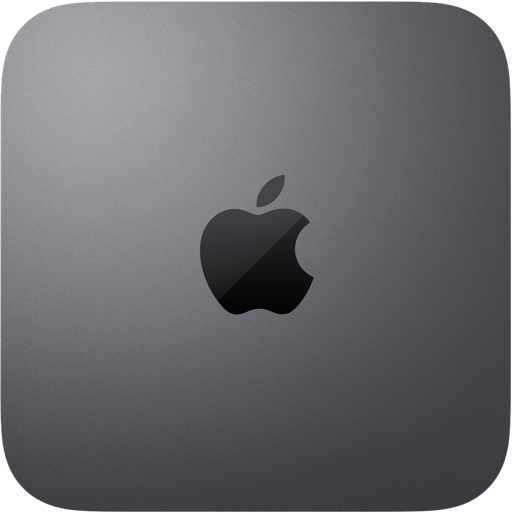
  • or you can get a ‘top view’ icon here :

  • after downloading your preferred icon, do this :
  • select the Macintosh HD (or whatever you’ve renamed your internal SSD to) on your Desktop or in the Finder
  • press [CMD]+[I] to open the “Info” popup menu
  • then click on the icon (top left) and a blue outline will open around it
  • then open the file (with the icon as a picture) you’ve just downloaded in Preview
  • in Preview press [CMD]+[A] to select the entire image
  • then return to the Info-popup window, and press [CMD]+[V] to paste the new icon
  • now your Mac mini 2018 has a better looking icon

That’s it !

enjoy 😉