
Question :
A friend gave me a rather old printer that was working great for him, and said that I could easily use it with my MacBook also, using a USB-cable. So I took a USB cable with an old (flat) USB-connector on the one side and an new (small) USB-connetor on the other side and plugged that into the printer and into my MacBook Air (or Pro) that only has those same new (small) USB-ports. The connection feels good, but when I try to print from my Mac, the printer is not recognised…
What is wrong ?
Answer :
From what you are describing, you are using the wrong port on the printer : you are using a ‘regular’ USB-A port, probably on the top, front or side of the printer… you should however use the ‘square’ USB-B printer port that is on the back of your printer.
See the difference between various USB connectors and ports in this image (an Adobe Stock image) :
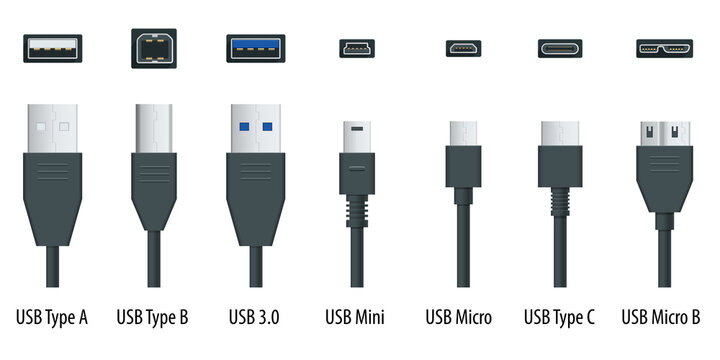
The ports on your Mac are USB-C [ 2nd from the right ].
The port on the printer you were trying to use is USB-A [ 1st from the left ] (or USB 3.0 [ 3rd from the left ] which is the same in size and shape) – that usually is for plugging in a USB-stick to print documents directly from a USB-stick
The port on back of the printer – the one you should use – is USB-B [ 2nd from the left ].
If you don’t have a ‘printer cable’ (USB-A to USB-B) and a USB-C adapter piece (USB-C plug-on cap or cable for USB-A), you can buy them from any electronics store. Or you can buy a ‘modern printer cable’ (USB-B to USB-C).
Here are direct links to buy these from Amazon :
modern printer cable (USB-B to USB-C) from Amazon.com
modern printer cable (USB-B to USB-C) from Amazon.co.uk
modern printer cable (USB-B to USB-C) from Amazon.de
all-in-one modern & regular printer cable (USB-C/USB-A to USB-B) from Amazon.com
all-in-one modern & regular printer cable (USB-C/USB-A to USB-B) from Amazon.co.uk
all-in-one modern & regular printer cable (USB-C/USB-A to USB-B) from Amazon.de
to keep this website online MacManus.nl makes a tiny fee if you buy from these Amazon links
If you plug in the right cable from the back of your printer to your Mac, the printer will berecognised and you will be able to print.
That’s it !
enjoy 😉




 MacManus.nl