
fixed : can’t connect old printer to new Mac using USB

Question :

A friend gave me a rather old printer that was working great for him, and said that I could easily use it with my MacBook also, using a USB-cable. So I took a USB cable with an old (flat) USB-connector on the one side and an new (small) USB-connetor on the other side and plugged that into the printer and into my MacBook Air (or Pro) that only has those same new (small) USB-ports. The connection feels good, but when I try to print from my Mac, the printer is not recognised…

What is wrong ?


Answer :

From what you are describing, you are using the wrong port on the printer : you are using a ‘regular’ USB-A port, probably on the top, front or side of the printer… you should however use the ‘square’ USB-B printer port that is on the back of your printer.

See the difference between various USB connectors and ports in this image (an Adobe Stock image) :
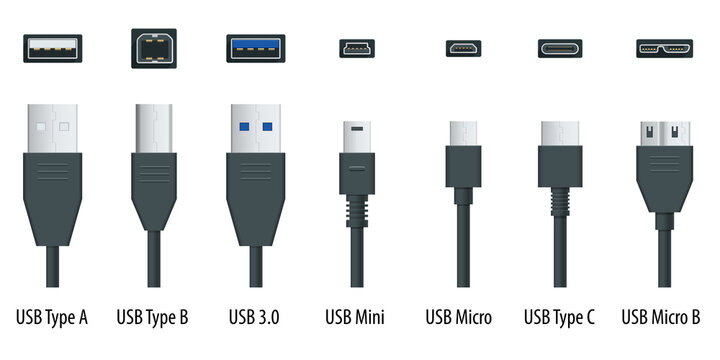
The ports on your Mac are USB-C [ 2nd from the right ].
The port on the printer you were trying to use is USB-A [ 1st from the left ] (or USB 3.0 [ 3rd from the left ] which is the same in size and shape) – that usually is for plugging in a USB-stick to print documents directly from a USB-stick
The port on back of the printer – the one you should use – is USB-B [ 2nd from the left ].

If you don’t have a ‘printer cable’ (USB-A to USB-B) and a USB-C adapter piece (USB-C plug-on cap or cable for USB-A), you can buy them from any electronics store. Or you can buy a ‘modern printer cable’ (USB-B to USB-C).
Here are direct links to buy these from Amazon :

modern printer cable (USB-B to USB-C) from Amazon.com
modern printer cable (USB-B to USB-C) from Amazon.co.uk
modern printer cable (USB-B to USB-C) from Amazon.de

all-in-one modern & regular printer cable (USB-C/USB-A to USB-B) from Amazon.com
all-in-one modern & regular printer cable (USB-C/USB-A to USB-B) from Amazon.co.uk
all-in-one modern & regular printer cable (USB-C/USB-A to USB-B) from Amazon.de

to keep this website online MacManus.nl makes a tiny fee if you buy from these Amazon links

If you plug in the right cable from the back of your printer to your Mac, the printer will berecognised and you will be able to print.

That’s it !

enjoy πŸ˜‰

fixed : LandRover navigation update gone wrong, navigation maps gone

Question :

I tried upgrading the HERE maps on the navigation system in my LandRover Discovery Sport P300e using a USB-stick as per the directions given by HERE and LandRover, but after 3 attempts that failed for no clear reason, when I retried yet another time, the update crashed while it was about halfway and now… there is no map left in the system to use for the navigation… nothing… the navigation is completely blind…

What can I do to solve this ?

Answer :

There are several reasons why this problem might have occurred. Your LandRover will probably show a warning message advising you to go to a LandRover garage and get this fixed, but you can also give it a try yourself first, just make sure you include all of these additional instructions in your next attempt :

  • start off by using a USB-stick with no previous navigation files on it – if you do not have a brand new USB-stick of 32GB at hand, you can also try using the current one : no need to format it, just open it in the Finder (on macOS), then inside the folder named “HereV1”, select all files (press the CMD-A key combo) drag them to the Bin and empty the Bin
  • goto the landrover.here.com website, login using your account name and pasword, goto “Maps & Services”, click the “Get Latest Update” button of the map you want to install and in the next page that opens, start by downloading and installing the latest version of the MapDownloader-app before you proceed to downloading the desired map itself ; just finish making the USB-installer as usual
  • now, before you enter your P300e hybrid LandRover to start the update, make sure to unplug the electrical charger cable before you start your car (so the engine will stay running during the entire update process that may take up to 30 or even 45 minutes to complete – if your electrical charger would be plugged in, your engine won’t start and your car will definitely go into sleep mode before the navigation update is finished ; if you like you can take a drive during the map update, just remember you are not able to see any maps on your screen during the update – you might be able to use navigation though Apple CarPlay in the mean time – and you have to keep the engine running until the update is complete, so you cannot leave the car until done)
  • when starting the navigation update in your car, wait with plugging in the USB-installer until the car’s system asks you to do so and make sure you use a different USB-port than you did before

…then proceed as per the onscreen instructions and sit back and relax

…if you do so, the update process may appear to be a little slow, but it will succeed in about 30 minutes. (and if it doesn’t just try again – and if it still fails after a few attempts, the problem is not ‘just an upgrade’ so you will still have to contact a LandRover garage to get it fixed)

That’s it !

enjoy πŸ˜‰