fixed : use the Terminal to repair corrupt .sparsebundle-file

Question :

I have a corrupt .sparsebundle-file (a TimeMachine-backup file), that I would really like to fix, because there’s some files in there that I need.

I have tried using the Disk Utility app, but that didn’t work.

I also read that it should be possible to use the Terminal app to do this, but I’ve never used the Terminal app before, and I can’t find clear directions on how to do it…

What exactly should I do ?

Answer :

The Terminal app is not a regular OSX-application, it is a command-line tool (a.k.a. console) to program and reprogram in the underlings of OSX (more or less like the DOS-prompt in Windows). So, as you are going out of the ‘OSX comfort zone’ when you start using the Terminal app, you should beware since messing things up there can really mess up OSX, and lead to having to re-install OSX.

Having that said, here’s a step-by-step guide to fixing your .sparsebundle-file using the Terminal app :

– first, connect your backup-drive (the one with the broken .sparsebundle-file on it) to your Mac, using a USB- or FireWire-cable

note : if the backup-drive is inside a Time Capsule, you’ll probably be best of getting the harddrive out of the Time Capsule (as outlined in this iFixit How-To) and then temporarily hooking it up to your Mac using something like this SATA-to-USB connector (or an old USB-harddrive-enclosure). Even though this breaks the warranty on your Time Capsule, it’s probably the best solution since the direct USB-connection is much faster than the usual network-over-ethernet-connection… (and bringing the Time Capsule in to an Apple-dealer for repair, will definitely mean losing all your data, since that is part of the regular repair-policy… and bringing it to a specialized data-recovery company will cost more than buying a new Time Capsule)

– then, open the Terminal app (which can be found in the Utilities folder that is in the Applications folder)

– in the window that opens, you will see the name of your Mac followed by a colon (:) and a tilde (~), so if the name of your Mac is MacBook Pro, you will see :

macbook-pro:~

that is the “prompt”, when you see that, you can start typing the commands

note : some basic knowledge about working in the Terminal :

  1. each line of commands (a.k.a. “command line”) you type should be activated by pressing the ENTER-key
  2. as long as you do not see the prompt, the Terminal app is still busy executing your last command line
  3. the Terminal can not handle names with spaces in them, as spaces play an important roll in a command line ; they separate the subsequent commands given in one command line, e.g. if your backup-file’s name is MacBook Pro.sparsebundle, the Terminal app requires you to type is as MacBook\ Pro.sparsebundle or you can type the entire path to the file in quotation marks, like : “…/…/MacBook Pro.sparsebundle” (another option is to temporarily change the filename to one that has only letters and numbers in it)
  4. you don’t need to type the entire path to a file’s location in a command line manually, you can just drag-and-drop the file itself onto the command line and the entire path to the file will be automatically generated (a handy trick to prevent mis-typing)
  5. when typing your password in the Terminal, the cursor will not progress, so there will be no visual feedback whatsoever about what you’ve typed… so, type your passwords only with total focus on what you’re typing !
  6. ! BEWARE : be sure to double-check your typing when using the command line, as one mis-typed letter can generate an entirely different, unwanted outcome, screwing up your entire OSX installation !
  7. when working in Terminal app on a MacBook (Pro/Air), the advice is not to use an external keyboard, but the on-board keyboard

Now, when you see the prompt appearing, type this (followed by pressing the ENTER-key) :

admin$ sudo su –

Then, when you see the prompt appearing again, type this (followed by pressing ENTER) :

root# chflags -R nouchg [drag .sparsebundle-file here]

Then, at the next prompt, type this (and press ENTER) :

root# hdiutil attach -nomount -noverify -noautofsck [drag .sparsebundle-file here]

And at the next prompt, type this (and ENTER) :

root# tail -f /var/log/fsck_hfs.log

Look closely in this next file when you need to type what, and what the feedback should look like (kind of) :

  • bold green text = this is the command line prompt
  • bold black text = you should manually type exactly this text
  • bold purple text = drag-and-drop your .sparsebundle-file here, and your sparse bundle’s path will be displayed
  • black text = this text is generated by the Terminal, indicating what is busy and/or finished, and will be the same when your replicate this proces
  • blue text = what is displayed here depends on your specific situation
  • if problems are found, they will be listed in-between these lines, and it will also be indicated how it was fixed
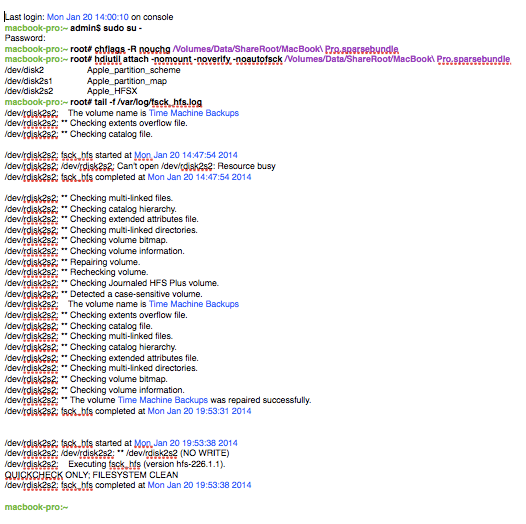
console log sparsebundle repair

note : as you can see from the time-stamps in the picture, the entire process will take quite a long time to complete (it took nearly 6 hours to repair this harddisk – a 500GB harddrive that was temporarily taken out of a Time Capsule and connected via USB2.0)

so, from there on it’s wait, wait, wait, do something entirely different, wait (again), get a good night’s sleep… and wake up in the morning with a repaired hard drive…

that should be it 😉

fixed : “No Volumes Found in backup”-error

Question :

I was trying to get Migration Assistant-app to put all my data on my new Mac, but when I select the sparsebundle backup-file from Time Machine in Migration Assistant, I get an error : “No Volumes Found in backup”.

How can that be ? I’ve made a new TimeMachine-backup just minutes before, and I didn’t get any errors there… what is wrong ?

What can I do to fix this ?

Answer :

Time Machine is great. But there seems to be a bug in the backup-software that causes this “No Volumes Found in backup”-error you’ve encountered. Normally, this error-message should only be displayed when a sparsebundle backup-file is corrupt (for some reason), but it turns out that it is now also displayed when a sparsebundle backup-file is incomplete…

This is probably due to a disconnection from the backup-disk during the TimeMachine-backup process (for instance because of shutting down the Mac, or switching from WiFi- to Ethernet-connection or vice-versa, during backup).

If the original files are still available on your Mac, the solution is rather simple : just go back to your Mac and use Time Machine to make a new backup. If you want extra insurance to prevent this error, either make a new Time Machine backup to a new/fresh harddrive (preferable an external USB- or FireWire-harddisk), or follow the backup-routine outlined in this post.

If the original files are no longer available on your Mac (e.g. your Mac is stolen, sold or you’ve just done a clean install on it, wiping off all of it’s data), you are in trouble…

…in that case, you could try using Disk Utility to repair the sparsebundle-file. If that works, you are in extreme luck… if that doesn’t help, you have very few options other than using the Terminal-app or a specialized expensive retrieving app like DiskWarrior (the cheaper knock-offs turn out not to work in most cases… too bad…).

I will be posting instructions on how to use the Terminal-app for this shortly (in a new post).

Donate Button (MacManusNL)

tip : make sure your TimeMachine-update is useable

Question :

While doing a regular check on my Mac with Disk Utility, it just informed me that I have a potential hardware failure, should save a many data as I can and reinstall.

So I was planning on doing a TimeMachine-backup and disk-reformat, followed by a clean install of OSX and copy-back from TimeMachine.

But… I recently found reports on a bug in TimeMachine, that might prevent TimeMachine from recognizing the latest backup…

Is there a way to make sure that my latest TimeMachine-backup is useable ?


Answer :

This bug seems to occur with unfinished TimeMachine-backups, either due to disconnection, unplugging or switching from WiFi to Ethernet or vice-versa…

As with all things in life, nothing is 100% sure or secure…

But if you want near-100% assurance that your latest TimeMachine-backup will work after a ‘clean install’, do this :

– make sure your Mac is connected to your TimeMachine-backup-disk in only one way, so if it’s an external harddisk disconnect the Ethernet-network cable and set AirPort/Wifi to OFF, to have the connection ‘only via USB’ or ‘only via FireWire’ and if your TimeMachine-backup-disk is a NAS or TimeCapsule, disconnect from AirPort/WiFi (and preferably connect the Ethernet-cable from the NAS or TimeCapsule straight into your Mac, and if possible, stop all other network-connections over Ethernet, by disconnecting all cables, and shutting down AirPort/WiFi) to have the connection ‘only via Ethernet’

– do a new “Back Up Now” in TimeMachine, and make sure it finishes completely before you do anything else (preferably, shut down all other apps before backing up also)

– then startup the Migration Assistant-app (from the Utilities folder in the Applications folder), and type your Mac’s administrator-password when asked

– in the first window, select “From a Mac, Time Machine Backup or startup disk”, and click “Continue”

– in the next window, select the disk that your TimeMachine-backups are on (if you’re on a Time Capsule, you will need to type your TimeCapsule-password when asked), and click “Continue”

– in the next window, a list of all backups (a.k.a. sparsebundles) available on the disk will be displayed ; now you will have to wait a little for each sparsebundle to display what the date is of the backup-version that can be retrieved… if that date matches today’s date, you have a perfect backup available, and you can exit the Migration Assistant-app by repeatedly clicking the “Back”-button

…but if the date is different, or the “No Volumes Found in backup”-error is displayed, your backup is useless for easy recovery ; you will have to exit the Migration Assistant-app, and start over the entire backup-routine explained above, and then check again in the Migration Assistant-app …you have to keep repeating this entire routine until you get today’s date displayed below the backup’s name

If you do not do as described above, you are in serious, enormously time-consuming trouble…  (even though this doesn’t always mean that your personal data is lost… everything might be lost, but… it could also mean you will have to repair the sparsebundle-files and/or it could also mean that you will have to copy everything back ; folder-by-folder or even file-by-file… either in the Time Machine-app or in the Finder ; and all applications will have to be manually reinstalled again…)

Donate Button (MacManusNL)

tip : quickly cut-out part of a picture in OSX

Question :

I have a nice picture I want to use in a presentation, but I don’t want the entire picture, just part of it.

Is there an easy way to cut the desired piece out ?

…even if I don’t have Photoshop ?

Answer :

Even if you don’t have Photoshop, cutting out part of a picture for (re)use in PowerPoint, Keynote, Word, Pages, your website, LinkedIn, FaceBook, etc. is very easy on your Mac :

1- open the picture in Preview app (usually that would only require you to double-click on the picture’s icon)

2- click on the Image-button (Edit button)

3- in the Editing-toolbar that appears, click on the Image-button (Selection button)

4- now the + (Plus sign) appears, so : click on one corner of the part of the picture you want to select and drag to the opposite corner [ you can do this rather ‘roughly’ ]

5- then the selection area appears [ normally a rectangle with dots in the corners and on the middle of the side ] ; drag the dots so, that the selection area exactly fits the part of the picture that you want to take out

6- then press the ‘Copy key-combo’ (CMD + C)

7- now choose “New From Clipboard” from the “File”-menu, or press the ‘New key-combo’ (CMD + N), and you will get a new window with only your ‘cut-out part’ in it

8- if that looks as you envisioned it, choose “Save” from the “File”-menu, or press the ‘Save key-combo’ (CMD + S), and save the cut-out picture as a JPEG or PNG (or TIFF)

Donate Button (MacManusNL)

tip : Photoshop Elements 12 ‘today only’ discount

This might be interesting for anyone who’s looking for a cheaper way to get started with Photoshop :

Adobe Photoshop Elements 12 on Amazon.com

Adobe Photoshop Elements 12 (PC/Mac) on Amazon.co.uk

Adobe Photoshop Elements 12 on Amazon.de

This is a ‘one day only’ promotion  !

Note : “Elements” means it’s the ‘home-use’ or rather ‘basic / stripped down’ version of Photoshop

version 12 is the latest (2013) version of Photoshop Elements

fixed : OSX refuses to install app from “unidentified developer”

Question :

I have an app that I have been using in the past, and I now recently, I was in a situation where I needed that same app, so I downloaded the latest version and tried to install, but I get a message that reads “[app name] can’t be opened because it is from an unidentified developer”…

Isn’t there any option to install the software anyway ?

Answer :

Installing this app is being blocked by the Gatekeeper function that has been in MacOSX since the last versions of MacOSX 10.7 Lion (Gatekeeper was introduced with upgrade 10.7.5 to be exact).

More info on Gatekeeper can be found here.

If you have good experience with the product and you are sure you have downloaded the installer from a reliable source, you can install the app regardless of the warning.

To do so, do one of these :

– go to the icon of the app, right-click (option-click) on it, and select “Open” from the pulldown menu

– go to System Preferences, then to Security & Privacy, and in the window that opens, select the “General”-tab, then leave “Allow apps downloaded from:” at “Mac App Store and identified developers” ; beneath that, you will see a text “[app name] was blocked from opening because it is not from an identified developer”… there you should click on the “Open Anyway”-button… using that, the rest of the install-process will go as expected

Enjoy !

Donate Button (MacManusNL)
