fixed : select photos of only one camera in iPhoto

Question :

I have imported various new photos from my digital camera into iPhoto some days ago. Today I found out that I had forgotten to adjust the daylight savings time on the camera. I would now like to select the photos of this particular camera only, and adjust the time stamp (a.k.a. EFIX data). But there’s no option to do so in iPhoto…

How do I do that ?

Answer :

Even though there’s no option in iPhoto to select photos based on included info about the camera that took them (a.k.a. based on “Camera Data”), it’s not too hard to do so anyway by creating a Smart Album.

– in iPhoto, go to “File” in the top menu bar, then select “New Smart Album” from the pulldown menu

– in the drop down panel that appears, start by typing a name for the new Smart Album (e.g. “Camera X photos”)

– then set the following using the three multiplechoice-buttons “Camera Model” “is” “[your camera X model]”

– if you want to only filter out photos that were made after a certain date, you should set another rule to do so

– then click on the “OK”-button

– an album folder icon accompanied by a gear-wheel (a.k.a. “sprocket”) will now appear on the left menu, click on it to open it

– then select one of the photos in that folder and press [CMD]+[A] to select all photos in that folder

– then go to “Photos” in the top menu bar, and select “Adjust Date And Time” from the pulldown-menu

– in the drop down panel that appears, type the time that you want to change the first photo’s time to in the field behind “Adjusted:” ; the exact same time change that you set here for the first photo will be implemented to all selected photos

– I would suggest putting a checkmark in front of “Modify original files”, but this is not essential

– then click on the “Adjust”-button

– to clean up, right-click (or CTRL-click) on the Smart Album folder in the left menu and select “Delete Album” from the popup list [this will delete the Smart Album, but the individual photos will remain in their original location]

– that’s it…

tip : easily make FREE screen recordings in MacOSX

“Screen Recording” means making a video of your screen (i.e. your MacOSX Desktop) while you are using it.

This is a way to make tutorial video’s which you can use to send or give to others, just like the ones you find on YouTube.

(…or you can use this to record online video’s that you can not download)

“Screen Recording” used to be something that would require rather expensive software, but with the introduction of QuickTime X Player in OSX 10.6 Snow Leopard, it’s a simple and completely FREE feature included in MacOSX !

Here’s how to :

– open the “QuickTime Player” application (or maybe it’s called “QuickTime X Player” in your case)

– go to “File” and select “New Screen Recording” from the pulldown menu – or use the key-combo [SHIFT]+[CMD]+[N]

– in the small (shaded) screen that appears, you will see a record-button (with a red dot) in the middle and a grey triangle button on the right

– click on the grey triangle button and you can select your audio input source (e.g. a microphone you’ll be using for your voice-over comments), output video quality and whether you want record your mouse movements and clicks in the video also

– then click on the red-dotted record-button to start recording, but when you do so you will get the option to either select a (static) part of the screen [by dragging the cursor over the area you want to select for recording] or the entire screen [by clicking anywhere on the screen]

– recording will start right away after you’ve made your choice (so do not forget to start talking if you want a voice-over)

– to stop recording, go back to the record-button (which now shows a small black square) and click it

– the recording will stop and it will take a few moments for QuickTime X Player to process it (the longer your recorded, the more time the processing will take)

– the recording will be visible in a QuickTime X Player window right away

– to Save or Share your screen recording, go “File” and choose one of the following :

option 1. “Export” (= normal Save) for saving as a QuickTime .mov-file [you can set the video quality from the “Format” pulldown menu ; either (general) Movie, 480p, 720p or iPhone/iPad/AppleTV ready

option 2. “Export to” to directly upload to a website, import into iTunes or edit in iMovie

option 3. “Share” to directly share your screen recording with your friends through eMail, iMessage (= Apple SMS), AirDrop (= Apple WiFi-filesharing), Facebook, YouTube, Vimeo or Flickr

That’s it ; this might seem rather complicated from these instructions, but it’s actually really simple once you try 😉

fixed : “Service Battery” warning

Question :

When I started up my Mac today, and looked at the battery indicator in the top menu bar, I noticed that there was something unusual… so when I clicked on it, the pull down menu did not show the usual battery info. It showed a warning saying “Service Battery”.

As I do not believe my battery is dead, this looks like a bug to me… is it ? And what can I do about it ?

Answer :

The “Service Battery” message (a.k.a. warning) just indicated that your battery has not been calibrated for a long time… this might occur when you have not once fully used your battery ; you have not used your fully charged battery until it was completely empty once in the last three months… this is noting serious, you just need to do so again.

More on this can be found on Apple’s website :

http://support.apple.com/kb/HT1490

In short, for any MacBook or MacBook Pro that has a removable battery, the battery calibration routine is :

1- plug in the power cord and charge until the battery is fully loaded (so until the LED-light in the connector stays green) [ during this you can still use your Mac ]

2- leave the power cord connected for at least 2 more hours [ during this you can still use your Mac also ]

3- unplug the power cord and leave your MacBook (MacBook Pro) running until the battery is empty [ during this you can also keep using your Mac, but remember to save all your open work when you get a warning that your battery is nearly empty ]

4- when your MacBook (MacBook Pro) goes to sleep when the battery is completely empty, just let it.

5- then let your MacBook (MacBook Pro) ‘rest’ for at least 5 hours

6- when the 5 hours are over, reconnect the power cord and fully charge your battery again [ during this you can use your Mac, in a normal, modest way, just don’t exaggerate : use as little applications at the same time as possible and shut down any non-vital applications that are running in the background ]

That should be it, but if it doesn’t work for you, you might want to try this :

Resetting the System Management Controller (SMC)

More info on doing so, can be found on Apple’s website :

http://support.apple.com/kb/HT3964

And if that doesn’t help either, you will probably have a non-original Apple battery, or if you do have an original Apple-battery, it is probably broken due to falling or shock.

Either way, you’ll probably need to buy a new battery… [ note : from experience, I can tell that an original Apple-battery is better value-for-money even though the price is high ; imitation batteries usually start out right, but then suddenly die within about one year… ]

test : iPhone 5 covers compared

Searching for a good cover for a brand new iPhone 5, I had to do a lot of searching, since most iPhone 5 covers do not meet these three minimum requirements :

1- anonymity : it should not be too easy for others to see that I am holding an iPhone, so the Apple logo must be covered (the cover should preferably be plain black, distinguished in design and not too bulky)

2- small cut-out for the rear-camera : different from iPhone 3G(S) and iPhone 4(S) covers, most iPhone 5 covers have an extremely large cut-out for the rear-camera – this should be considered a design failure, since there is no technical need for this and it means that there will be two differently colored materials from the back of the iPhone visible in the cut-out… which looks extremely un-stylish…

3- ports & screen protection : the ports (audio headphone jack and lightning cable port) should be covered to not gather dust or sand, and the screen should be protected from accidental scratching (without having to turn to a flip-case design)

Luckily, during my elaborate search I found the solution(s) for the third requirement :

– the best ‘dust stopper’ is by far the “(unbranded) iPhone 5 Combined Headset and Lightning Dust Stopper“, because it’s flexible/elastic and you will not easily loose it since it stays fixed to the iPhone (thought the headphone jack) when you have to unplug it for charging

– probably the best ‘screen protector’ I’ve come across is the “Colorfone Screen Guard (Clear) for iPhone 5“, because it leaves the screen colors and sharpness intact, it has  extremely minimal cut-outs (for the menu-button, the front-speaker and the front-camera) and it took little effort to place without bubbles or dust-particles

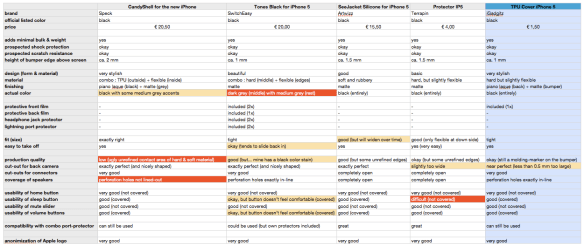
The first two requirements however where too much for most cases, including my initially preferred brands like Belkin, Marware, STM and Griffin (and other ones like Kensington, Macally, Incase, Incipio, Gear4, Muvit, Rocketfish, Ozaki and Xqisit). So I ended up comparing these five iPhone 5 cases :

Speck CandyShell for the new iPhone (black)

SwitchEasy Tones for iPhone 5 (black)

Artwizz SeeJacket for iPhone 5 (black)

Terrapin Protector IP5 (black)

iGadgitz TPU Cover for iPhone 5 (black)

And the winner is…

even though all of the five cases tested (or rather : compared) are good products, and you might personally favor another case…

…my ‘best buy’ choice goes to the iGadgitz TPU Cover for iPhone 5 (black) because it it without a doubt the best value for money at only 1 GBP (ca. 1,50 euro), it is not bulky in any way, it fits tightly, the design is very chic, and it even has a screen protector film included (with rather minimalistic cut-outs)

my full comparison of these five iPhone 5 Covers is available here :

comparing 5 iPhone 5 covers

Note : judging from online reviews, I had high hopes for the Speck CandyShell and SwitchEasy Tones : they might provide slightly better protection than the iGadgitz Cover, but the very complete SwitchEasy Tones turns out to not be black at all (despite the name) and it’s tiny buttons are rather uncomfortable in use …and the Speck CandyShell turns out to look rather cheap due to low production quality and there’s a design fault since the perforation for the speakers doesn’t line up (which might even degrade the audio quality)…

fixed : Time Machine backup error “sparsebundle in use”

Question :

When Time Machine tried to backup today, it returned an error saying “Time Machine Error. The Backup disk image ….sparsebundle is already in use”. As I am the only one using this backup, I hoped that just trying to do the Time Machine backup manually would help… but it didn’t… it returned the same error…

Restarting my Mac didn’t help either…

How can I fix this ?

Answer :

The “sparsebundle already in use”-error occurs if something went wrong during the last backup (which could be because your Mac froze during the Time Machine backup). In that case your Mac did not properly disconnect from the Time Machine backup, so you will have to do so manually.

Fixing this is rather simple :

If you still have ‘the old’ Airport Utility 5.6 on your Mac (more info on this can be found here : https://macmanus.nl/2012/02/02/airport-utility-6-lost-the-option-to-configure-connected-printers/ ), you should do this :

–  open Airport Utility 5.6 (which is in the Utilities folder inside your Applications folder)

– select your Time Machine backup drive on the left (e.g. your Time Capsule)

– click on the “Manual” button

– then select the “Disks” icon

– and click on the “Disconnect All Users…” button

– then exit AirPort Utility 5.6 and run Time Machine normally

– …and do not forget to check in the time Machine Preferences if Time Machine is switched ‘ON’

if you do not have AirPort Utility 5.6 (since your Mac has OSX 10.8 “Mountain Lion” in stalled, which only has the stripped-down AirPort Utility 6 without the “Disconnect All Users”-option), you could either download and install AirPort Utility version 5.6 (directly from Apple : http://support.apple.com/kb/DL1482 ), or you should try this :

– shut down your Time Capsule a.k.a. “pull the power plug” (or other Time Machine backup drive)… and leave it disconnected for about 5 minutes or so

– restart your Mac

– power up your Time Capsule a.k.a. “plug the power cord back in” (or if you have some other sort of Time Machine backup drive, turn it back on)

– go to the Time Machine icon in the Finder’s top menu bar and click “Back Up Now”

– …and do not forget to check in the time Machine Preferences if Time Machine is switched ‘ON’

That’s it !

Donate Button (all)

tip : using Evernote on an iBook G4 or iMac G5

Question :

I have Evernote running on my iPhone, my iPad and my MacBook, but I would also like to use it on my old Mac which has a Power-PC (G4/G5) processor.

On the Evernote-website I can only download the latest version of Evernote, which is Intel-Mac only…

How can I use Evernote on my old iMac G5 and iBook G4 ?


Answer :

If you are running MacOSX 10.5 “Leopard” on your PPC-Mac (G4/G5), you can use the previous version of Evernote, which can be found here :

http://cl.ly/1I3a0Y3f26282k3p2a0E

If you are still running MacOSX 10.4 “Tiger” (or newer) your only option is to use the online version of Evernote, which can be accessed here :

https://www.evernote.com/Home.action

fixed : edit or delete Outer Glow effect from Illustrator EPS

Question :

I have added an “Outer Glow” effect to my vector drawing in Adobe Illustrator, but I have since altered the design of the drawing, and now I want to delete (or edit) the Outer Glow effect, but I can’t find the way to do so… What should I do ?

Answer :

“Outer Glow”, “Inner Glow”, “Drop Shadow” and “Feather” are some of the options of the “Stylize” feature in Adobe Illustrator’s “Filters” menu (on the top menu bar). They add effects that could previously only be created using Photoshop (because they are non-standard vector effects, they appear to be pixel-effects).

—- CREATE —-

To add an “Outer Glow” (or any other “Stylize”) effect to your vector drawing :

– select the objects you want to create the effect on

– go to the “Filters” (in the top menu bar) –> “Stylize” –> “Outer Glow” (or any other)

– in the window that appears, check “Preview”, adjust the settings (e.g. change the effect color) and press “OK” if you like the outcome

– Done.

—- EDIT —-

To edit an “Outer Glow” (or any other “Stylize”) effect that’s in a vector drawing :

– make sure the “Appearance” panel is visible (to do so, go to “Window” in the top menu bar and make sure there’s a check mark in front of “Appearance”)

– select the objects you want ot edit in your drawing

– look in the “Appearance” panel, there you should see the effect you want to edit listed (e.g. “Outer Glow”) with the indication “fx” behind it

– if you do not see the effect listed in the “Appearance” panel, you have probably selcted a Group of drawing elements, that does not have the effect applied the same way to all of them… to fix that, just ungroup the elements and select only the ones you need (again) until the effect appears in the list of the “Appearance” panel

– then double click on the effect’s name listed in the “Appearance” panel, and a window will popup in which you can adjust the filter’s settings

– Done. (but remember to re-group the drawing’s elements)

—- DELETE —-

To delete an “Outer Glow” (or any other “Stylize”) effect that’s in a vector drawing :

– make sure the “Appearance” panel is visible (to do so, go to “Window” in the top menu bar and make sure there’s a check mark in front of “Appearance”)

– in your drawing, select the objects you want delete the effect from

– look in the “Appearance” panel, there you should see the effect you want to edit listed (e.g. “Outer Glow”) with the indication “fx” behind it

– if you do not see the effect listed in the “Appearance” panel, you have probably selcted a Group of drawing elements, that does not have the effect applied the same way to all of them… to fix that, just ungroup the elements and select only the ones you need (again) until the effect appears in the list of the “Appearance” panel

– then click-and-drag the effect’s name listed in the “Appearance” panel onto the small Trash icon that is on the bottom of the “Appearance” panel

– Done. (but remember to re-group the drawing’s elements)