fixed : transfer “on my iPhone” notes to iCloud

Question :

I have notes on my iPhone (in the iOS Notes app), that I was expecting to show up on my Mac also (in the OSX Notes app) since I have both of them connected to iCloud, but only half of my notes seem to sync…

How can I get all of them to sync via iCloud ?

Answer :

When you are using iOS 7 (or iOS 8) and OSX 10.9 Mavericks (or OSX 10.10 Yosemite), you might have multiple accounts that are syncing their notes to Notes, not only through iCloud, but though other IMAP eMail-accounts as well…

Your best option probably is to transfer all your notes to iCloud and then only use iCloud to sync notes…

Here’s how to do that :

1- on your iPhone (or iPad) open the Notes app, and click on “Accounts” ; in the next window you’ll see multiple accounts listed

2- then, on your Mac, open the Notes app, and go to View –> Show Folders List ; if you click that, a menu pane called “All Notes” will open at the left of the Notes-window ; check to see if all those accounts match the ones listed on your iPhone

3- if they match, proceed to step 4 ; if not, go to Notes –> Accounts, and the  “Internet Accounts” window from the System Preferences will open ; there, select the (eMail-) accounts of the missing accounts, an click them ; in the next window, make sure there’s a checkmark at “Notes” for each desired account

4- then, in the Notes.app in OSX, select each non-iCloud account from the menu on the left and click on “Notes” ; if any notes are listed there, select one of them and then type the CMD+A key-combo to select all of them and type the CMD+C key-combo to copy all

5- then, go to the iCloud Notes, and type the CMD+V key-combo to transfer these notes to iCloud

6- repeat this copy process for all accounts listed, until all notes are copied to iCloud

7- only when you’ve double-checked that all notes are now in iCloud (also), delete the ones in the other accounts (and/or disable the accounts on your Mac)

8- then, on your iPhone (where the Accounts pages of the Notes.app is still open), select “On My iPhone” and on the next page, click each note to open the note, and copy it into a new note (to do so, go to iCloud –> Notes ; then create a new note  by clicking the +-button, and copy the info that new note) ; repeat this until all notes are now visible in iCloud –> Notes

9- Now, check on your Mac and iPhone, to make sure that all messages are now in the iCloud account

that should be it…

enjoy !


fixed : SMS (iMessage) not delivered from iOS 7 iPhone to iOS 6 iPhone

Question :

Lately, some of my friends have complained to me that they did not receive my recent SMS-es at all…

…I was completely sure I had send them, and when I look inside the Messages-app, they’re properly listed as a blue SMS (= an iMessage).

Any idea what could be wrong ? …and how to fix this ?

Answer :

There seems to be a problem/bug/incompatibility between iOS 7 and iOS 6 when sending iMessages from iOS 7 to people who have not yet upgraded to iOS 7 and are still on iOS 6.

FYI : in iOS 7 and iOS 6, the Messages-app auto-detects if you’re sending a text message to an iPhone or not :

– if your text message turns Blue, it has been sent as an FREE Apple iMessage

– if your text message turns Green, it has been sent as a ‘good-old’ (payed) SMS

Fixing this problem/bug/incompatibility is rather simple, even though it’s really annoying…

But the real problem for you-as-a-user is that it’s really hard to tell on forehand if your ‘SMS’ (iMessage) will be delivered or not…

The only thing you can do ‘as an iOS 7 user’ is this :

– in Messages-app, select the recipient and type a text message as you normally would

– when it turns Green, just send it out (it will be send as a regular SMS)

– when it turns Blue, and you’re not 100% sure the recipient is using iOS 7, hold your finger on the text until a few extra options appear, then choose “Send as text message”… now your text message will turn Green and be send (as a regular SMS)

– when it turns Blue, and you’re 100% sure the recipient is using iOS 7, just send it out (it will be send as a FREE Apple iMessage)

…and when you’re not sure if this did go okay after you’ve send the text message : see if there is a red circle with a white exclamation mark next to your (Blue) text message…

…if there is, click on it and choose the option “Send as text message”

…and if you get any complaints from people that they didn’t receive your SMS since you’ve upgraded to iOS 7, select the text message again, hold your finger on it a little longer and select “Send as text message” from the options that appear.

Good Luck !

Donate Button (MacManusNL)

test : iPhone 5 covers compared

Searching for a good cover for a brand new iPhone 5, I had to do a lot of searching, since most iPhone 5 covers do not meet these three minimum requirements :

1- anonymity : it should not be too easy for others to see that I am holding an iPhone, so the Apple logo must be covered (the cover should preferably be plain black, distinguished in design and not too bulky)

2- small cut-out for the rear-camera : different from iPhone 3G(S) and iPhone 4(S) covers, most iPhone 5 covers have an extremely large cut-out for the rear-camera – this should be considered a design failure, since there is no technical need for this and it means that there will be two differently colored materials from the back of the iPhone visible in the cut-out… which looks extremely un-stylish…

3- ports & screen protection : the ports (audio headphone jack and lightning cable port) should be covered to not gather dust or sand, and the screen should be protected from accidental scratching (without having to turn to a flip-case design)

Luckily, during my elaborate search I found the solution(s) for the third requirement :

– the best ‘dust stopper’ is by far the “(unbranded) iPhone 5 Combined Headset and Lightning Dust Stopper“, because it’s flexible/elastic and you will not easily loose it since it stays fixed to the iPhone (thought the headphone jack) when you have to unplug it for charging

– probably the best ‘screen protector’ I’ve come across is the “Colorfone Screen Guard (Clear) for iPhone 5“, because it leaves the screen colors and sharpness intact, it has  extremely minimal cut-outs (for the menu-button, the front-speaker and the front-camera) and it took little effort to place without bubbles or dust-particles

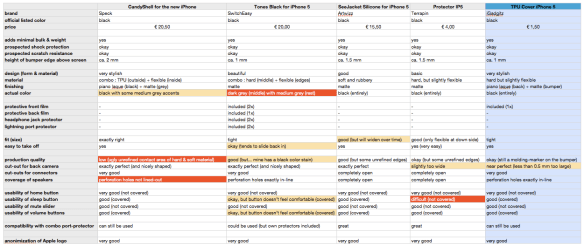
The first two requirements however where too much for most cases, including my initially preferred brands like Belkin, Marware, STM and Griffin (and other ones like Kensington, Macally, Incase, Incipio, Gear4, Muvit, Rocketfish, Ozaki and Xqisit). So I ended up comparing these five iPhone 5 cases :

Speck CandyShell for the new iPhone (black)

SwitchEasy Tones for iPhone 5 (black)

Artwizz SeeJacket for iPhone 5 (black)

Terrapin Protector IP5 (black)

iGadgitz TPU Cover for iPhone 5 (black)

And the winner is…

even though all of the five cases tested (or rather : compared) are good products, and you might personally favor another case…

…my ‘best buy’ choice goes to the iGadgitz TPU Cover for iPhone 5 (black) because it it without a doubt the best value for money at only 1 GBP (ca. 1,50 euro), it is not bulky in any way, it fits tightly, the design is very chic, and it even has a screen protector film included (with rather minimalistic cut-outs)

my full comparison of these five iPhone 5 Covers is available here :

comparing 5 iPhone 5 covers

Note : judging from online reviews, I had high hopes for the Speck CandyShell and SwitchEasy Tones : they might provide slightly better protection than the iGadgitz Cover, but the very complete SwitchEasy Tones turns out to not be black at all (despite the name) and it’s tiny buttons are rather uncomfortable in use …and the Speck CandyShell turns out to look rather cheap due to low production quality and there’s a design fault since the perforation for the speakers doesn’t line up (which might even degrade the audio quality)…