fixed : switch on Notifications for Viber

Question :

I am trying to set up Viber internet calls on my iPhone. Now the Viber-app asks me to switch on Notifications, else the app won’t run.

How do I do that ? I don’t see any settings option…

Answer :

To turn on Notifications for any app (be it Viber or any other), do this :

– go to the Settings-app (sprocket/gear-icon)

– then select Notifications (the ‘red dot’-icon in the same chapter as Do Not Disturb)

– in the Notifications page that opens, scroll down to the “Not In Notifications Center”  chapter and select Viber

– in the Viber page that opens, put the Notifications Center slider to ON

– if you like, you can also tweak the Viber notifications to your liking :

– Alert Style : where do you want the alert to appear on your screen ?

– Badge App Icon : do you want to have the small red circle on top of the Viber-icon if you have missed calls ?

– Sounds : do you want the Viber-alerts to be accompanied by an alert sound ?

– View In Locked Screen : do you want to get Viber-alerts also when your iPhone is in standby mode ?

…that’s it !

enjoy !

Donate Button (MacManusNL)

fixed : stop FaceTime over mobile network

Question :

Today I got a call on my iPhone when I was in my car, but when I answered, it turned out to be a FaceTime-call. I do not want to answer video-calls in my car because I think it is too distracting and dangerous during driving and because my GSM/3G-provider will charge outrageous rates for mobile data.

Is there any way to prevent my iPhone from connecting through FaceTime when I am out of WiFi reach ?

Answer :

Yes.

…and it’s quite simple to configure :

– on your iPhone go to the Settings-app (sprocket/gear icon)

– select FaceTime (in the chapter that starts with iCloud, in between Messages and Maps)

– in the FaceTime settings page that opens, scroll down to the very bottom

– there, set Use Cellular Data to OFF

…that’s it

enjoy !

Donate Button (MacManusNL)

fixed : get rid of “pad lock with circular arrow” icon in iOS

Question :

Today, I noticed there was a “lock”-icon on the top menu bar of my iPhone. (It looks a little like the TimeMachine-icon in the OSX-menubar) More accurately described, it is a “padlock with a clock-wise rotating circular arrow” icon.

What does it mean ? And how do I get rid of it ?

Answer :

The “padlock with a circular arrow” icon means that you the Screen Rotation is locked on your iPhone or iPad, so your display will not automatically change between “portrait” and “landscape” view when you rotate your iOS device.

To get rid of this icon, you simply need to turn on Screen Rotation back on, like this :

When you have iOS 7, do this :

– ‘slide up’ with your finger from (just outside) the bottom of the screen upward, to reveal the ‘underwater view’

– in the ‘underwater view’, just click on the “padlock with a circular arrow”-icon jou see top right

…that’s it !

When you have iOS 5 or iOS 6, do this :

– double click on the menu button (the only real, round button on the front of your iPhone/iPad, just below the screen ; a.k.a. the “main button”)

– then in ‘underwater view’, you can see all apps that are running ‘in the background’ on your iPhone/iPad (a.k.a. “are invisibly consuming power because you did not really shut them down”)

– then swipe (a.k.a. “slide”) the ‘underwater bar’ to the right, so it will reveal the Music Player buttons …and another “padlock with a circular arrow” icon ; click that and your Screen Rotation will be back on and the icon will be removed from the top menu bar also

…that’s it !

NOTE : Only on iPads (so not on iPhones) there is a physical switch on the top right side that can be used as a screen rotation lock (or unlock) switch. But… this physical switch can also be ‘programmed’ as an audio mute-switch. The function you want to give the physical switch can be set like this :

– click on the Settings-icon on your iPad

– in the window that opens, click General

– in the window that opens, go to “Use Side Switch to:” and select either “Lock Rotation” or “Mute” (the choice you make will be indicated with a check mark)

…that’s it !

enjoy !

Donate Button (MacManusNL)

fixed : mysterious March 2013 crash in iPad Calendar

Question :

Whenever I am using the iOS Calendar-app on my iPad, and I try to progress from February 2013 to March 2013 in Month-view, the Calendar-app crashes.

It’s always the same, and it’s in Month-view only…

What can I do ?

Answer :

This is a bug in the Calendar-app (for iPad) in iOS 6.0.1 (and probably in iOS 6.0 also).

Luckily, the solution is extremely simple : just update to iOS 6.1

To do so, do this :

– put the power plug into your iPad, to make sure it is constantly being powered during the update
– go to the Settings-app (gears icon)
– choose General (also a gears icon) from the menu list
– choose Software Update (the top second one listed) in the window
– …and follow the on-screen instructions
– if the update is installed, restart your iPad (if you have a WiFi+3G iPad, you will have to type in your SIM-card’s PIN-code, so make sure you have it readily available)

…then, during set-up, you will have to re-connect to iCloud (= re-enter your AppleID (= iTunes-login name) and password), so make sure you have that at hand also

😉

Enjoy !

Donate Button (MacManusNL)

test : iPhone 5 covers compared

Searching for a good cover for a brand new iPhone 5, I had to do a lot of searching, since most iPhone 5 covers do not meet these three minimum requirements :

1- anonymity : it should not be too easy for others to see that I am holding an iPhone, so the Apple logo must be covered (the cover should preferably be plain black, distinguished in design and not too bulky)

2- small cut-out for the rear-camera : different from iPhone 3G(S) and iPhone 4(S) covers, most iPhone 5 covers have an extremely large cut-out for the rear-camera – this should be considered a design failure, since there is no technical need for this and it means that there will be two differently colored materials from the back of the iPhone visible in the cut-out… which looks extremely un-stylish…

3- ports & screen protection : the ports (audio headphone jack and lightning cable port) should be covered to not gather dust or sand, and the screen should be protected from accidental scratching (without having to turn to a flip-case design)

Luckily, during my elaborate search I found the solution(s) for the third requirement :

– the best ‘dust stopper’ is by far the “(unbranded) iPhone 5 Combined Headset and Lightning Dust Stopper“, because it’s flexible/elastic and you will not easily loose it since it stays fixed to the iPhone (thought the headphone jack) when you have to unplug it for charging

– probably the best ‘screen protector’ I’ve come across is the “Colorfone Screen Guard (Clear) for iPhone 5“, because it leaves the screen colors and sharpness intact, it has  extremely minimal cut-outs (for the menu-button, the front-speaker and the front-camera) and it took little effort to place without bubbles or dust-particles

The first two requirements however where too much for most cases, including my initially preferred brands like Belkin, Marware, STM and Griffin (and other ones like Kensington, Macally, Incase, Incipio, Gear4, Muvit, Rocketfish, Ozaki and Xqisit). So I ended up comparing these five iPhone 5 cases :

Speck CandyShell for the new iPhone (black)

SwitchEasy Tones for iPhone 5 (black)

Artwizz SeeJacket for iPhone 5 (black)

Terrapin Protector IP5 (black)

iGadgitz TPU Cover for iPhone 5 (black)

And the winner is…

even though all of the five cases tested (or rather : compared) are good products, and you might personally favor another case…

…my ‘best buy’ choice goes to the iGadgitz TPU Cover for iPhone 5 (black) because it it without a doubt the best value for money at only 1 GBP (ca. 1,50 euro), it is not bulky in any way, it fits tightly, the design is very chic, and it even has a screen protector film included (with rather minimalistic cut-outs)

my full comparison of these five iPhone 5 Covers is available here :
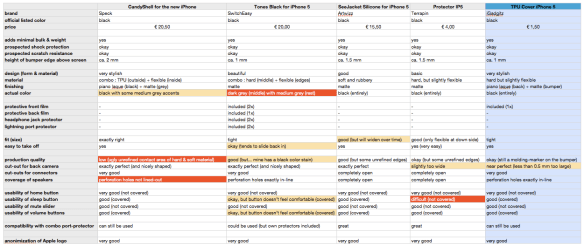
comparing 5 iPhone 5 covers

Note : judging from online reviews, I had high hopes for the Speck CandyShell and SwitchEasy Tones : they might provide slightly better protection than the iGadgitz Cover, but the very complete SwitchEasy Tones turns out to not be black at all (despite the name) and it’s tiny buttons are rather uncomfortable in use …and the Speck CandyShell turns out to look rather cheap due to low production quality and there’s a design fault since the perforation for the speakers doesn’t line up (which might even degrade the audio quality)…


fixed : iCloud Photo Stream from business iPhone to family Mac

Question :

My iPhone is a business device, so I want to sync my ‘business life’ including Contacts, Calendars, Mail, Documents & Data, etc to my MacBook Pro… but I want my upload/sync the photo’s I’ve made with this ‘business’ iPhone to our shared ‘family’ Mac which holds our family’s entire iPhoto-database. iCloud doesn’t seem to enable me to do so… what can I do ?

Answer :

Even though you can setup a secondary iCloud account on your iPhone, you cannot do what you would like to do, because :

1- Photostream is only supported for your primary iCloud account (*)

(*) UPDATE d.d. September 20th 2012: only when running iPhoto 9.4 or newer on OSX 10.8.2 or newer, you have the option to subscribe to a ‘Shared’ Photo Stream besides your primary iCloud account’s Photo Stream

If you want to this ‘Shared Photo Stream’ feature on an older, officially unsupported Intel-Mac, you could consider installing a patched version of OSX 10.8 – for more info, look here :

fixed : install OSX 10.8 Mountain Lion on unsupported Macs


2- Documents & Data syncing is only supported for your primary iCloud account

…so using iCloud you will never be able to make the logical split between Documents & Data sync (which is strictly ‘business’) and Photostream (which is mainly ‘family’)…

The only solution at this moment is to find an alternative to Photostream… and I’ve found (only) one : Eye-Fi does the trick !

And… Eye-Fi is free (free account, free iOS-app & free Mac-app ; by SanDisk)

download it here for OSX :

http://support.eye.fi/downloads/center/

and download the iOS-app here :

http://itunes.apple.com/en/app/eye-fi/id306011124?mt=8

the only thing you need to beware of is that the Eye-Fi App needs to be running/open on your iPhone/iPad and on your Mac both Eye-Fi Center and iPhoto need to be running/open…

…so it still feels a little more ‘manual’ than iCloud Photostream, since you need not forget to open the Eye-Fi App…

…but that’s a small price to pay, since you get 3 things that iCloud doesn’t give you :

– auto-transfer of your video recordings into iPhoto

– a free online gallery (like the one we lost when ‘upgrading’ from MobileMe to iCloud)

– separation of your ‘photostream’ from your primary iCloud-account

Note :

even though using DropBox might seem to be a valid alternative to iCloud’s Photostream also, since it does auto-upload of iPad/iPhone pictures to ‘the cloud’… it is not really useful in the end, as it does not provide auto-import into iPhoto…