fixed : easily collect lots of studs in LEGO Batman 3 “Beyond Gotham” game

Question :

My children are really exited about playing the LEGO Batman 3 “Beyond Gotham” game.

Now they keep asking me how to collect as many studs (money-points) as possible quickly and easily.

Can you help me ?

Answer :

Probably the best place in the entire game to collect stud-money easily is in the “Lantern Menace”-level. There you should electrocute the tentacles on the left side. Then there will be fire. To collect studs, extinguish the fire using a character that has ice-breath (like any version of Superman, Supergirl or Superboy) or an ice-gun (like Captain Cold, Mr. Freeze, Geoff Johns and Batman in Arctic Suit). Note that this can be done extra quickly when playing the game with two players instead of just one, since simply switching players enables you to continuously collect studs, either through player 1 or player 2.

Using the Red Bricks for “Studs x2”, “Studs x4”, “Studs x6”, “Studs x8” and/or “Studs x10” will of course multiply your collection of stud-money even more…

That’s it.

Enjoy !

😉

Note : don’t forget to also check out these posts :

fixed : unlock Green Loontern minifig in LEGO Batman 3 “Beyond Gotham” game

fixed : unlock Bat-mite minifig in LEGO Batman 3 “Beyond Gotham” game

Donate Button (MacManusNL)

fixed : unlock Green Loontern minifig in LEGO Batman 3 “Beyond Gotham” game

Question :

My children are really exited about playing the LEGO Batman 3 “Beyond Gotham” game.

Now they keep asking me how to unlock the character called “Green Loontern” (who looks like Daffy Duck in a Green Lantern suit). I’ve searched the internet, but I can’t find the answer to where to unlock the character for Free Play mode.

Can you help me ?

Answer :

The solution appears to be rather simple :

Just play the game in Free Play and achieve all Green Loontern mini-challenges in each Hub world.

That’s it.

Enjoy !

😉

Note : don’t forget to also check out these posts :

fixed : unlock Bat-mite minifig in LEGO Batman 3 “Beyond Gotham” game

fixed : easily collect lots of studs in LEGO Batman 3 “Beyond Gotham” game

Donate Button (MacManusNL)

fixed : unlock Bat-mite minifig in LEGO Batman 3 “Beyond Gotham” game

Question :

My children are really exited about playing the LEGO Batman 3 “Beyond Gotham” game.

Now they keep asking me how to unlock the character called “Bat-mite” (who looks like a kind of funny mini-Batman). I’ve searched the internet, but I can’t find the answer to where to unlock the character for Free Play mode.

Can you help me ?

Answer :

The solution appears to be rather simple :

Just play the game in Free Play and achieve all Bat-mite mini-challenges in all levels.

That’s it.

Enjoy !

😉


UPDATE : the real LEGO minifigure of Bat-Mite is now available in the LEGO Minifigure DC Super Heroes Series (set 71026 assorti) ; this Bat-Mite minifigure is exactly the one that is featured in the LEGO Batman 3 “Beyond Gotham” game !

If you want to get your hands on one, you can try to get lucky and try a mystery minifigure bag in your local LEGO Brand Store or your local toy store (or online at LEGO or Amazon or others).

And if you want to be sure you get the Bat-mite minifigure, you can try BrickLink. Just be sure to order one with all accessories included 😉


Note : …and don’t forget to also check out these posts also :

fixed : unlock Green Loontern minifig in LEGO Batman 3 “Beyond Gotham” game

fixed : easily collect lots of studs in LEGO Batman 3 “Beyond Gotham” game

Donate Button (MacManusNL)

fixed : photo delete-button greyed out on iPad

Question :

On my iPad, I want to free up some memory space by deleting some old photos, but when I go into the Photos-app, and select the photos I want to delete, the Delete-button is greyed out. At first I thought it might have something to do with restrictions I had set on my iPad, but I couldn’t find any restriction option regarding the deleting of of photos.

When I investigated a little further, it turns out that the Delete-button is available for my newest photos, but not for the older photos… that’s where things get confusing…

How can I make the Delete-option available for all photos ?


Answer :

The exact cause of your problem is not known, but the solution turns out to have something to do with photos that are supposed to be kept in-sync with your Mac (or PC).

The solution is the following :

– connect your iPad (or iPhone) to your Mac (or Windows-PC) using the USB-cable

[note : the computer you connect to should be the one that you have set as the primary computer to connect to when you originally set up your iPad/iPhone from iTunes on MacOSX or Windows]

– on your Mac or PC, open iTunes and go to the iPad/iPhone’s settings and click on the “Photos” tab

– if you’re on a Mac, make sure that there is NO checkmark at “sync to folder” or “sync to iPhoto”

– if you’re on a Windows-PC, make sure there is NO checkmark at “sync to folder”

– wait for the iTunes syncing proces to finish, then disconnect your iPad/iPhone

– when you open the Photos-app on your iPad/iPhone now, you will see that all photos now have the Delete-button available

That’s it !

Good Luck !

Enjoy !

😉

Donate Button (MacManusNL)

fixed : transfer game progress in iOS (without Game Center)

Question :

I want to transfer the game progress from our iPhone to our iPad, but since it’s our children’s iPad I don’t want to activate Game Center (and some games don’t even support Game Center).

I can’t find a way to do so in iTunes, since iTunes doesn’t seem to back-up game progress…

…is there any way to do this without jailbreaking my iOS-devices ?

Answer :

Yes !

Even though Apple’s Game Center app (and service) is a probably the easiest way to sync your game progress (and in-app purchases) among your iPhones and iPad, there may be various reasons why Game Center is no option for you (e.g. since not all iOS-games have Game Center-support).

The second-easiest way to transfer your game progress from one iPhone/iPad to another is via your Mac (or PC), using either iExplorer or DiskAid. Using either of both works nearly the same, and both can be used in FREE-mode, so here’s an explanation for using DiskAid only :

1- download and install DiskAid from this link (or iExplorer from this link)

2- make sure that every game that you want to transfer game progress file for is installed on both iDevices

3- startup DiskAid on your Mac (or PC) and connect both your iPhone and your iPad (or other iDevices) to your Mac (or PC) using the USB-cable

4- in DiskAid, select the iDevice you want the game progress you want to copy from (from the list on the left), click “Storage”, then “Apps”, then the app you want to copy the game progress from [note : even though all apps are listed alphabetically, the naming might be slightly different from the regular name, so you might not immediately find what you’re looking for where you would expect it…)

5- when the app’s folder opens, select all files displayed, then click the “Copy to Mac” button in the menu bar

6- in the pulldown screen that opens, click the “New Folder”-button to create a folder (for instance on your Desktop) where you want the game progress files to be ‘back-upped’, and call the folder something like “iOS game progress files”, then inside that folder, create another new folder (by clicking “New Folder” again) and give it the app’s name

7- repeat this process until you have folders with game progress back-ups for all games you need

8- then select the iDevice you want to copy the game progress files to (from the list on the left), click on “Apps”, then on the app you want to transfer the game progress files to, and then click the “Copy to Device”-button from the menu bar

9- in the pull-down window that opens, browse to the location where you have the game progress files on your Mac and select all of them, then click “Select”

10- then, check if the game progress files a now visible on your iPhone/iPad from DiskAid ; if not, right-click (or CTRL-click) on the app’s folder in DiskAid and select “Refresh” from the pulldown-menu (you might even have to do this a few times before they will appear)

…that’s it !

enjoy !

note : personally, I like the concept of the ‘both iDevices side-by-side’-layout, and the fact that the transfer is not going through a folder on your Mac, that can be found in the specialised AppTrans (and AnyTrans) app, but I think their pricing is extreme, even with their ‘regular’ discount of about 60%… and I found that they don’t include sales-taxes in their advertised price, so they will charge you about 20% above their price-quote (which I do not regard very transparent, nor consumer-friendly)


Donate Button (MacManusNL)

BEWARE ! : WhatsApp voicemail eMails are fake !

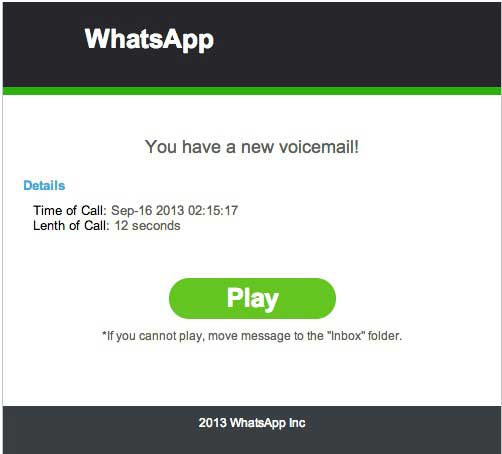
Lately, more and more people are being spammed with (fake) eMail messages, suggesting that there is a WhatsApp voicemail for them.

Beware : clicking on the (green) “Play” or “Listen” button will NOT enable you to listen to any newly recorded voicemail…

…this is a phishing-scam that instals malware (= malicious software) !!

DO NOT INSTALL !!

Note : the fact that this malware-installer makes use of a stolen Authentication Certificate (which is still valid) makes it extremely hazardous, as that will tick your computer/mobile phone into allowing the malware to be installed

The devices that suffer from this are mainly Android-mobile phones, but jailbroken iPhones, PCs and Macs also. Any original (not-jailbroken) iPhone will only install software from the iTunes App Store, so they are secured against this kind of malware.

HOW TO EASILY DETECT THESE PHISHING EMAILS :

The subject will read something like “Incoming voicemail at [date]”, and the sender will appear to be (*) “Whats App Notifier”, and there will be a big (green) button inside the eMail  named “Listen” or “Play”…

(*) on a Mac this can easily be detected, because of 2 simple indications :

1- in the senders name it is written “Whats App”, in stead of the official “WhatsApp” (one word)

2- when clicking on the senders name in Apple Mail.app, it turns blue and in yellow an eMail address will appear, which will not have “WhatsApp” in it, but will look like a regular private or business eMail-address

If you get one of these fake eMails, just mark them as SPAM and delete them a.s.a.p.

They look something like these :

whatsapp-malware-1whatsapp-malware-2

Note : if you happen to click on the “Play or “Listen” button, what will happen will (slightly) depend on the version of the eMail you have encountered and the type of device you are using :

– malware will be downloaded directly onto your device

– you will be redirected to a website which will scam you into installing malware

The Malware reportedly is WinWebSec and installs Fareit and Ursnif, which are info-stealers that send your private info to internet criminals, enables them to make your computer call paid telephone numbers and send these same type of phishing eMails on your behalf to anyone in your Contacts…

And once installed, you will also be spammed with messages by a fake antivirus-software called Antivirus Security Pro to pay for getting (in-existend) infections removed form your computer…

More on this scam be found here :

http://www.spamfighter.com/News-18612-Bogus-WhatsApp-Voicemail-Messages-Employed-to-Spread-Malware.htm

http://www.threattracksecurity.com/it-blog/kuluoz-voicemail-spam-drops-signed-certificate-winwebsec/

Donate Button (MacManusNL)