
tip : 6 obvious ways to spot a phishing eMail

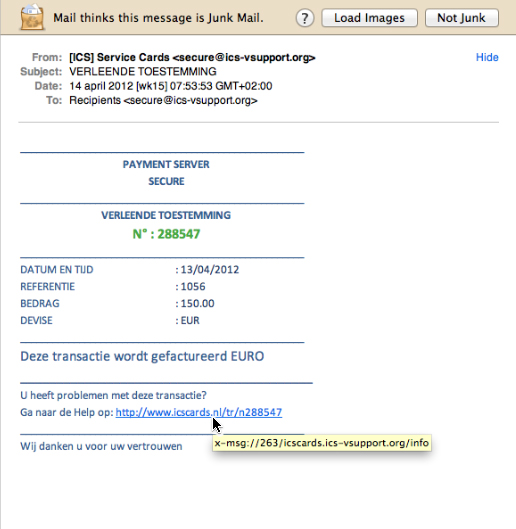
Not all phishing* attempts are easy to spot, but today I came across one that has some very obvious examples of what to beware of :

* FYI : phishing = an attempt to lure you into giving some unreliable source your private info of your credit card and/or bank account (internet criminals are ‘fishing’ for your secure info this way…)

1- OSX Mail.app has indicated it thinks this is “Junk Mail”

(though Mail.app isn’t 100% reliable on its suggestions of Junk Mail, it’s a good indication you should have a thorough second look)

2- the sender of the eMail is not sending from a reliable and/or known eMail address

a “.ORG”-eMail address will 100% not be something used by a bank

3- you are not the sole recipient of this eMail and/or your personal eMail address is not listed

if this were such strictly confidential info as is claimed, why would any bank send it to anyone else but you personally ? (furthermore : banks do not contact you on things like this though eMail, because of security reasons…)

4- you are not personally addressed in the text of the eMail, and neither is it indicated what the payment was for and to whom it would have been made

if this where an eMail form your bank or payment service to inform you on anything personal, why wouldn’t they inform you what it’s about straight away ?

5- the weblink-URL that’s included does not link to the website that is listed in its name, but to some completely different website

if you do a mouse-over on the URL in the eMail, a completely different URL is appears in a yellow highlighted line – now that’s about the best indication you could get that you’re being mislead !

6- if you lookup the actual domain that this eMail was sent from and is (re)directing to in WhoIs?, it gives registrant info that does not seem like any bank of payment service you know (especially the fact that it was created just a few days ago makes this extremely suspicious)

you can find info on the registrant of any website on WhoIs? :

http://www.whois.com/whois/

try that with the domain used in this example and you’ll see info that is really suspicious :

A- a registrant eMail address that is on Hotmail…

B- a registrant street address that can not be found in Google Maps…

C- a registration creation date that is just a few days ago…
tip : TimeMachine will also backup attached USB-sticks that are Mac-formatted

Question :

My old G4 iBook running MacOSX 10.5.8 Leopard has a hard drive of just 40GB inside ; upgrading that will cost far more than plugging in a 32GB (nano) USB-stick, but…

If I do so… will TimeMachine also backup the files from my 32GB USB-stick ?

Answer :

Yes !

TimeMachine will backup the data from any USB-stick without have to make any adjustments to TimeMachine, but you need to make sure that :

1- the USB-stick is properly plugged into your Mac (seems only too obvious, but since it is so easy to detach it without thinking about it… just double check !)

2- the USB-stick is formatted as a genuine Mac-drive, so in HFS+ format (PC/FAT-formatted USB-sticks need to be re-formatted to HFS+, else TimeMachine will not recognize them… but beware : reformatting a USB-stick will erase all it’s content… so start out by moving all data to your hard drive, then reformat the USB-stick and only after that, put the data back onto the USB-stick)

fixed : get iMovie 8.0.6 (from iLife ’09) on the unsupported G4 Macs

Question :

The official installer DVD of iLife ’09 refuses to install iMovie 8 on my good old iBook G4 (1.33 GHz, 1GB RAM, OSX 10.5.8 Leopard) – Is there an other way to install and get it running ?

Answer :

Yes, you can !

iMovie 8.0.6 (a.k.a. iMovie ’09) is the last version of iMovie that will run on the pre-Intel PowerPC Macs (which have G4 and G5 processors), and you can even install it on an unsupported G4 Mac that runs OSX 10.5.8 ; here’s how :

1- Download the app called “Pacifist” from MacUpdate.com :

http://www.macupdate.com/app/mac/6812/pacifist

2- Use it to install only the iMovie.pkg from the official iLife’09 installer DVD

3- Do NOT run the iMovie app after installing ; update it first using OSX’s built-in “Software Update” function (under the Apple-logo in the top left corner of your screen) ; after upgrading you will have iMovie 8.0.6 installed

4- Do NOT run the iMovie app yet ! ; download this pre-tweaked iMovie file :

iMovie.zip

5- Rename the file to “iMovie.zip” and unzip it (just double click)

6- Now go to Applications –> iMovie –> [right-click the icon] –> Show Package Contents –> Contents –> MacOS

inside that folder is the un-tweaked version of iMovie.app (or just “iMovie”, since you might not be able to see the .app-fileextension) ; replace it with the tweaked version you’ve just downloaded

7- Now go to System Preferences –> Accounts –> select the user you are installing iMovie for and make sure that “Allow user to administer this computer” is checked during iMovie’s first run, else iMovie will not be able to set up the configuration needed…

8- Start up iMovie for a first run and see how it works 😉

9- Remember to re-adjust the account-settings back to “Managed” and/or “Parental Control” if you need to, since Administrator rights are only needed on the first run

10- Note that in the “Parental Control” settings of your System Preferences, iMovie will no longer be listed under the iLife-applications, but under the “Other” applications…

NOTE : there is (as always) a minimal, remote possibility that Apple might update iMovie 8.0.6 to a newer iMovie 8.0.x or 8.x version… If you upgrade your tweaked iMovie 8.0.6, it will no longer run… and you will have to do a new tweak yourself…

Donate Button (all)

If you need more info on this, look here :

http://www.xlr8yourmac.com/feedback/iLife09_user_feedback_tips.html#imovie_G4_patch

http://hints.macworld.com/article.php?story=20090130074400511

BEWARE ! : MAC Defender = malware ! don’t install ! remove it !

Since some of you might not know… just a quick note to inform you :

Your Mac is not completely immune to viruses and malware (and never has been). The  weakest link in the security chain of Mac-protection is often the user himself…

A program called “MAC Defender” claims to be your best protection, but do not install it ! If you really need a reliable virus-protection app for you Mac, go only with the renowned ones like Sophos, Kasperski, Norton, ClamXav or VirusBarrier (downloads available via MacUpdate.com, or from their respective brand’s websites).

MAC Defender is a fake AntiVirus-app ! It’s a trojan horse intended for phishing your valuable data, passwords and credit card info.

Apple has put info on how to avoid or remove MAC Defender online here :

http://support.apple.com/kb/HT4650?

…but still : best remedy is not to install it at all !

tip : new firmware that might improve WiFi/AirPort-stability

Apple has released firmware updates that might improve WiFi/AirPort-stability on your 2011 Mac after the OSX 10.7.3 update :

Mac mini (Mid 2011) EFI firmware update 1.6

http://support.apple.com/kb/DL1500

MacBook Pro (Early 2011) EFI firmware update 2.7

http://support.apple.com/kb/DL1499

iMac (Mid 2011) EFI firmware update 1.9

http://support.apple.com/kb/DL1498

MacBook Air (Mid 2011) EFI firmware update 2.4

http://support.apple.com/kb/DL1497

tip : official fix for iMacs with WiFi-problems since 10.7.3 update

Apple has just released a special fix for iMacs that have WiFi-connection-problems each time they ‘fall asleep’, since the OSX 10.7.3 update (but… it’s a iMac-only fix…) :

http://support.apple.com/kb/DL1501

There is no accompanying info with it, so it is unknown if this update fixes the “no hardware installed”-error also…

…and is still remains unclear what the actual cause of this problem was…

tip : use iPhone-SMS from your Mac

iMessage (the free iPhone-to-iPhone messaging service that is integrated into the SMS app on your iPhone running iOS5) is now also accessible from your Mac. Apple has released a Mac-version called “Messages” that is ‘available for beta-testing’ (i.e. ‘free to use’, but it might still have some bugs and shortcomings) :

http://www.apple.com/macosx/mountain-lion/messages-beta/

Using it is quite straight-forward, as you just need your AppleID to login and the interface resembles both the iPhone’s SMS-app and iChat’s text-chatting.

Messages will be part of Apple’s next MacOS (called OSX 10.8 “Mountain Lion”) which will be released this summer. The beta-version will run on MacOSX 10.7 “Lion” only, and will stop working after the introduction of OSX 10.8 “Mountain Lion”. (A procedure we’ve seen before with other beta-applications like FaceTime for Mac.

So with the release of MacOSX 10.7 “Lion”, iChat was abandoned, but FaceTime only replaced iChat video-chat. With the release of OSX 10.8 “Mountian Lion”, Messages will revive what was formerly know as iChat text-chat…