BEWARE ! : “Damaged message was restored” phishing scam eMail

! BEWARE !

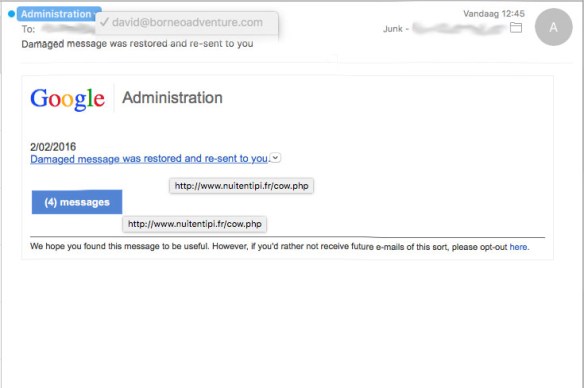
today I got an eMail from Google Administration, stating “Damaged message was restored and re-sent to you”,

on my Mac this was immediately recognizable as a Junk-message (or rather : a Phishing Scam-message), as you can see in the picture below.

DamagedMessage-fakemail

so BEWARE ! and don’t let yourself be fooled or mislead by this eMail scam !

BEWARE ! : Home Video Library phishing scam eMail

! BEWARE !

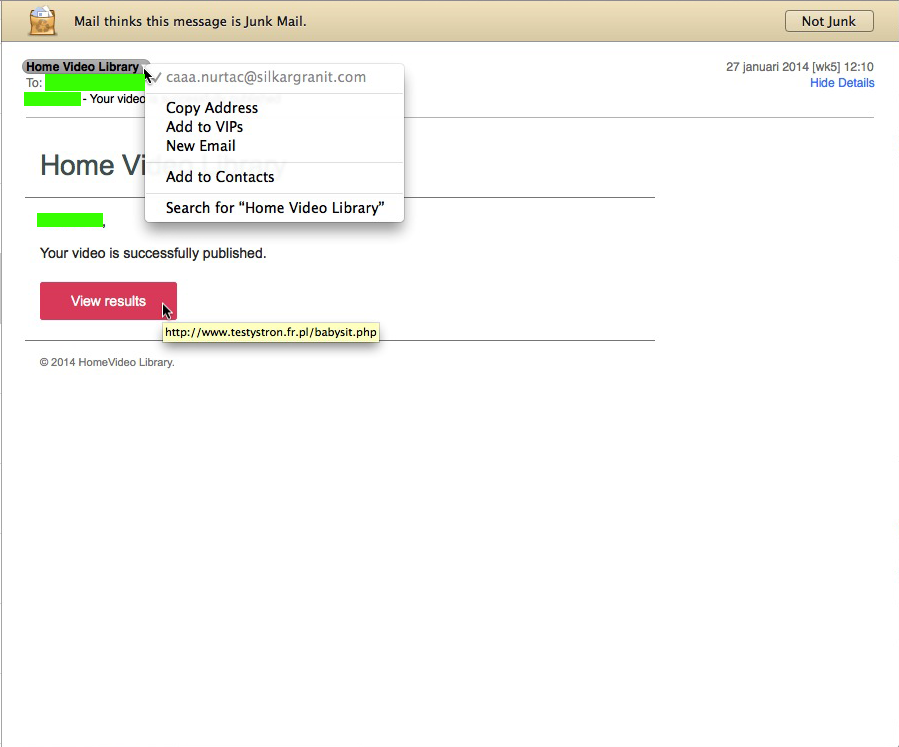
today I got an eMail from Home Video Library, stating “Your video is successfully published”,

on my Mac this was immediately recognizable as a Junk-message (or rather : a Phishing Scam-message), as you can see in the picture below, but on my iPhone that wasn’t so easy to figure out… it was mainly the fact that I haven’t used Picasa in ages that made all alert bells ring in this case… and the fact that I’ve never heard of a company or service called Home Video Library raised more suspiciousness…homevideolibrary_scam…so BEWARE !

Note : this scam eMail comes in various versions, there are similar ones pretending to be from Picasa Library. More info on that can be found here.

tip : make sure your TimeMachine-update is useable

Question :

While doing a regular check on my Mac with Disk Utility, it just informed me that I have a potential hardware failure, should save a many data as I can and reinstall.

So I was planning on doing a TimeMachine-backup and disk-reformat, followed by a clean install of OSX and copy-back from TimeMachine.

But… I recently found reports on a bug in TimeMachine, that might prevent TimeMachine from recognizing the latest backup…

Is there a way to make sure that my latest TimeMachine-backup is useable ?


Answer :

This bug seems to occur with unfinished TimeMachine-backups, either due to disconnection, unplugging or switching from WiFi to Ethernet or vice-versa…

As with all things in life, nothing is 100% sure or secure…

But if you want near-100% assurance that your latest TimeMachine-backup will work after a ‘clean install’, do this :

– make sure your Mac is connected to your TimeMachine-backup-disk in only one way, so if it’s an external harddisk disconnect the Ethernet-network cable and set AirPort/Wifi to OFF, to have the connection ‘only via USB’ or ‘only via FireWire’ and if your TimeMachine-backup-disk is a NAS or TimeCapsule, disconnect from AirPort/WiFi (and preferably connect the Ethernet-cable from the NAS or TimeCapsule straight into your Mac, and if possible, stop all other network-connections over Ethernet, by disconnecting all cables, and shutting down AirPort/WiFi) to have the connection ‘only via Ethernet’

– do a new “Back Up Now” in TimeMachine, and make sure it finishes completely before you do anything else (preferably, shut down all other apps before backing up also)

– then startup the Migration Assistant-app (from the Utilities folder in the Applications folder), and type your Mac’s administrator-password when asked

– in the first window, select “From a Mac, Time Machine Backup or startup disk”, and click “Continue”

– in the next window, select the disk that your TimeMachine-backups are on (if you’re on a Time Capsule, you will need to type your TimeCapsule-password when asked), and click “Continue”

– in the next window, a list of all backups (a.k.a. sparsebundles) available on the disk will be displayed ; now you will have to wait a little for each sparsebundle to display what the date is of the backup-version that can be retrieved… if that date matches today’s date, you have a perfect backup available, and you can exit the Migration Assistant-app by repeatedly clicking the “Back”-button

…but if the date is different, or the “No Volumes Found in backup”-error is displayed, your backup is useless for easy recovery ; you will have to exit the Migration Assistant-app, and start over the entire backup-routine explained above, and then check again in the Migration Assistant-app …you have to keep repeating this entire routine until you get today’s date displayed below the backup’s name

If you do not do as described above, you are in serious, enormously time-consuming trouble…  (even though this doesn’t always mean that your personal data is lost… everything might be lost, but… it could also mean you will have to repair the sparsebundle-files and/or it could also mean that you will have to copy everything back ; folder-by-folder or even file-by-file… either in the Time Machine-app or in the Finder ; and all applications will have to be manually reinstalled again…)


Donate Button (MacManusNL)

BEWARE ! : Picasa Library phishing scam eMail

! BEWARE !


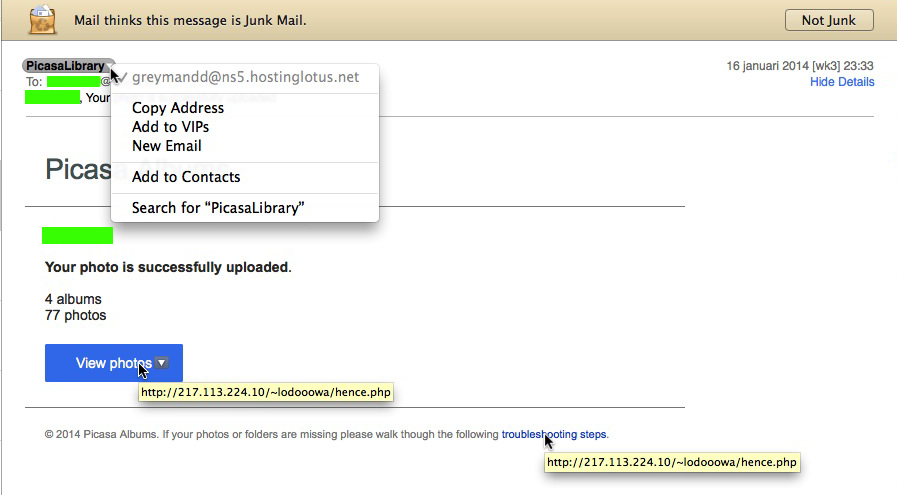
today I got an eMail from PicasaLibrary, stating “Your photo is successfully uploaded”,

on my Mac this was immediately recognizable as a Junk-message (or rather : a Phishing Scam-message), as you can see in the picture below, but on my iPhone that wasn’t so easy to figure out… it was mainly the fact that I haven’t used Picasa in ages that made all alert bells ring in this case… and the fact that I’ve never heard of PicasaLibrary (and would expect it to be written Picasa Library) raised more suspiciousness…picasa_scam…so BEWARE !

Note : this scam eMail comes in various versions, a similar one pretending to be from Picasa Library also states “Damaged photos found”. More info on that one can be found here.


BEWARE ! : WhatsApp voicemail eMails are fake !

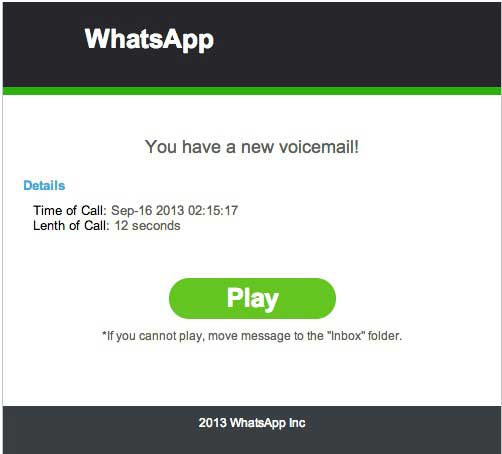
Lately, more and more people are being spammed with (fake) eMail messages, suggesting that there is a WhatsApp voicemail for them.

Beware : clicking on the (green) “Play” or “Listen” button will NOT enable you to listen to any newly recorded voicemail…

…this is a phishing-scam that instals malware (= malicious software) !!

DO NOT INSTALL !!

Note : the fact that this malware-installer makes use of a stolen Authentication Certificate (which is still valid) makes it extremely hazardous, as that will tick your computer/mobile phone into allowing the malware to be installed

The devices that suffer from this are mainly Android-mobile phones, but jailbroken iPhones, PCs and Macs also. Any original (not-jailbroken) iPhone will only install software from the iTunes App Store, so they are secured against this kind of malware.

HOW TO EASILY DETECT THESE PHISHING EMAILS :

The subject will read something like “Incoming voicemail at [date]”, and the sender will appear to be (*) “Whats App Notifier”, and there will be a big (green) button inside the eMail  named “Listen” or “Play”…

(*) on a Mac this can easily be detected, because of 2 simple indications :

1- in the senders name it is written “Whats App”, in stead of the official “WhatsApp” (one word)

2- when clicking on the senders name in Apple Mail.app, it turns blue and in yellow an eMail address will appear, which will not have “WhatsApp” in it, but will look like a regular private or business eMail-address

If you get one of these fake eMails, just mark them as SPAM and delete them a.s.a.p.

They look something like these :

whatsapp-malware-1whatsapp-malware-2

Note : if you happen to click on the “Play or “Listen” button, what will happen will (slightly) depend on the version of the eMail you have encountered and the type of device you are using :

– malware will be downloaded directly onto your device

– you will be redirected to a website which will scam you into installing malware

The Malware reportedly is WinWebSec and installs Fareit and Ursnif, which are info-stealers that send your private info to internet criminals, enables them to make your computer call paid telephone numbers and send these same type of phishing eMails on your behalf to anyone in your Contacts…

And once installed, you will also be spammed with messages by a fake antivirus-software called Antivirus Security Pro to pay for getting (in-existend) infections removed form your computer…

More on this scam be found here :

http://www.spamfighter.com/News-18612-Bogus-WhatsApp-Voicemail-Messages-Employed-to-Spread-Malware.htm

http://www.threattracksecurity.com/it-blog/kuluoz-voicemail-spam-drops-signed-certificate-winwebsec/

Donate Button (MacManusNL)

BEWARE ! : FBI warns not to upgrade software through free-WiFi !

The FBI has reported that users of ‘out-of-home-WiFi’ (free-WiFi hotspots, hotel WiFi, etc.) have become infected with malware, while upgrading ‘a widely used software product’.

http://www.fbi.gov/scams-safety/e-scams

The original report states :

“Recently, there have been instances of travelers’ laptops being infected with malicious software while using hotel Internet connections. In these instances, the traveler was attempting to set up the hotel room Internet connection and was presented with a pop-up window notifying the user to update a widely used software product. If the user clicked to accept and install the update, malicious software was installed on the laptop. The pop-up window appeared to be offering a routine update to a legitimate software product for which updates are frequently available.”

Even though the software product is not mentioned by name, it is good to inform you that one of the most common software products using this type of upgrades is Adobe Flash… so watch out when upgrading Adobe Flash (and any other software upgrade that is offered) when you are not on your own private WiFi-network.

So… here are some useful guidelines regarding software updates while traveling :

1- if you can do without upgrading, don’t upgrade while traveling ; wait until you’re back home on your own trusted WiFi-network

2- if you really need to upgrade, take these precautions : when you are prompted to upgrade any software while on an ‘out-of-home-WiFi’-network, click to close the pop-up window that is urging you to upgrade. Then either use OSX’s built-in “Software Update…” feature, or open the (Mac) App Store to download your updates from there, or manually type the URL of the known software-maker and download the software update directly form their site (after having double checked that your installed version is not the latest one).

Note : in the case of of the Adobe Flash browser plugin, the software-maker’s website is Adobe.com

tip : 6 obvious ways to spot a phishing eMail

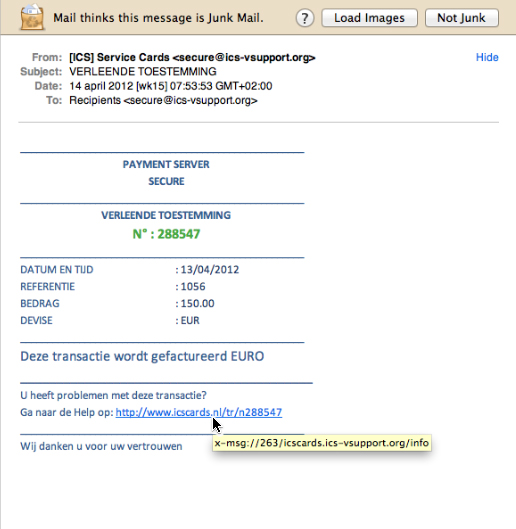
Not all phishing* attempts are easy to spot, but today I came across one that has some very obvious examples of what to beware of :

* FYI : phishing = an attempt to lure you into giving some unreliable source your private info of your credit card and/or bank account (internet criminals are ‘fishing’ for your secure info this way…)

1- OSX Mail.app has indicated it thinks this is “Junk Mail”

(though Mail.app isn’t 100% reliable on its suggestions of Junk Mail, it’s a good indication you should have a thorough second look)

2- the sender of the eMail is not sending from a reliable and/or known eMail address

a “.ORG”-eMail address will 100% not be something used by a bank

3- you are not the sole recipient of this eMail and/or your personal eMail address is not listed

if this were such strictly confidential info as is claimed, why would any bank send it to anyone else but you personally ? (furthermore : banks do not contact you on things like this though eMail, because of security reasons…)

4- you are not personally addressed in the text of the eMail, and neither is it indicated what the payment was for and to whom it would have been made

if this where an eMail form your bank or payment service to inform you on anything personal, why wouldn’t they inform you what it’s about straight away ?

5- the weblink-URL that’s included does not link to the website that is listed in its name, but to some completely different website

if you do a mouse-over on the URL in the eMail, a completely different URL is appears in a yellow highlighted line – now that’s about the best indication you could get that you’re being mislead !

6- if you lookup the actual domain that this eMail was sent from and is (re)directing to in WhoIs?, it gives registrant info that does not seem like any bank of payment service you know (especially the fact that it was created just a few days ago makes this extremely suspicious)

you can find info on the registrant of any website on WhoIs? :

http://www.whois.com/whois/

try that with the domain used in this example and you’ll see info that is really suspicious :

A- a registrant eMail address that is on Hotmail…

B- a registrant street address that can not be found in Google Maps…

C- a registration creation date that is just a few days ago…