
fixed : quickly share your Mac’s internet connection to your iPad

Question :

I just got myself a WiFi-only iPad, but I have no WiFi reception in my living room (that’s why my Mac in my living room is connected to my network through an Ethernet/UTP-cable). Is there an easy way to get internet connection on my iPad in my living room ?

Answer :

Yes, there is.

Your Mac can share it’s internet connection from one of it’s internal network-connections to another. So from Ethernet to WiFi in your case.

To get it working is easy :

– turn on your Mac (if your Mac isn’t running, this won’t work)

– go to System Preferences (under the Apple-dropdown menu in the upper left corner of the desktop/Finder-menu)

– in the window that opens, click on “Sharing”

– in the screen that opens, click on “Internet Sharing” in the list on the left

– then, on the right, select your incoming network/internet connection at “Share your connection from:” (so, in this case select “Ethernet” there)

– and then select your outgoing internet connection at “To computers using:” (so, in this case put a check mark at “Wi-Fi”)

– if you want your shared internet to be password protected, click on the “Wi-Fi Options…”-button and choose your preferred network name, the preferred password protection protocol and your preferred password. If you don’t need protection, just leave everything as-is.

– then put a check-mark at “Internet Sharing” in the list on the left and quit System Preferences

– now you will see that your AirPort/WiFi-pie icon in the upper right of the desktop / finder-menu has turned into a new icon with an arrow pointing upward.

– then, on your iPad (or iPhone or any other WiF-connectable device) go to Settings, click on WiFi and select your new local WiFi-network

– done ! enjoy !

Note : you’ve just turned your Mac into a local WiFi-router (also), so remember that your Mac has to be switched on to sustain the WiFi-network connection

fixed : get the WMA-recordings from an Olympus voice recorder into iTunes

Question :

I have an Olympus VN-88500PC voice memo recorder and I can get the WMA-recordings onto my Mac, but not into iTunes – what can I do ?

Answer :

iTunes for Mac doesn’t import WMA audio files (even though it seems like for some reason iTunes for PC does…).

So you will have to convert the WMA into a file format that iTunes does understand like MP3 or AAC, before you can import the recordings into iTunes.

There are a lot of audio converters available on the Mac, but a lot of them won’t allow you to convert WMA-files. Others might suggest Switch or Tunesify,  but I would recommend Smart Converter, as it’s FREE, it has a simple user interface and it creates small MP3s.

FYI :

my source was a 30MB WMA-file,

Switch (FREE version) turned it into a 225MB MP3-file, even though I was using the “small file” option

Tunesify (the €3 version) turned it into a 180MB MP3-file,

and Smart Converter (FREE version) turned in into an MP3-file of only 45MB (using the “Music” conversion option)

Smart Converter is available in the Mac App Store :

http://itunes.apple.com/nl/app/smart-converter/id447513724?mt=12

…and after the WMA-to-MP3-conversion is done, you can just drag & drop the MP3-file onto the iTunes window to import.

fixed : get the embedded video from my Opendisc-enhanced audio-CD into iTunes

Question : I just got a new audio-CD that I imported into iTunes, but this CD also has extra video-content on it when you put it in your Mac (or PC). The system used for this is called Opendisc®. Though it seems impossible, is there a way to rip this video of the CD and into iTunes on my Mac ?

Answer : Yes, and you don’t even have to rip or hack for it.

1- download HideSwitch :

http://www.macupdate.com/app/mac/36771/hideswitch

2- install HideSwitch and run it – in the small window that appears, click the “Show All Files” button, now your Finder will refresh, and you will be able to see all so called ‘hidden files’ on your Mac

[ CAUTION : do NOT touch or mess with any greyed files (= normally hidden files) when you’re in “Hidden Files Viewable” mode ! …as it will very probably cause you software problems that can only be restored doing a complete system reinstall ! ]

3- put the Opendisc-enhanced audio-CD into your Mac – on your Desktop it will be visible twice : once as a regular audio-CD which has the name of the actual CD, and once as a (greyish) CD named “Opendisc”

4- when you double-click on the “Opendisc”-icon, a folder wind will open, in there go to the (greyed out) folder called “CDEXTRA”, inside that one go to the (greyed out) folder called “OPENDISC”, on to the folder called “MEDIA” – in there you will find a file called “video.mov” (yes, that’s a regular QuickTime-movie) – drag that file called “video.mov” to your Desktop

5- go back to the HideSwitch window and press the “Default” button, wait for the Finder to refresh and close HideSwitch

6- download and install Miro Video Converter (for free) either from the Mac App Store or from the developer’s website :

http://www.mirovideoconverter.com/

7- run Miro Video Converter and drag the file called “video.mov” onto the red window – select “Apple Universal” from the drop down menu and put a check mark in front of “Send to iTunes” – then click on the “Convert!” button

8- after the conversion is done, open iTunes and in the video section the converted video can be found as “video.apple” – now adjust that name to whatever you want it to be

9- to clean up you can now drag both the “video.mov” and “video.apple.mp4” files from the Desktop into the Trash and empty the trash

Done !

Enjoy !

BEWARE ! : FBI warns not to upgrade software through free-WiFi !

The FBI has reported that users of ‘out-of-home-WiFi’ (free-WiFi hotspots, hotel WiFi, etc.) have become infected with malware, while upgrading ‘a widely used software product’.

http://www.fbi.gov/scams-safety/e-scams

The original report states :

“Recently, there have been instances of travelers’ laptops being infected with malicious software while using hotel Internet connections. In these instances, the traveler was attempting to set up the hotel room Internet connection and was presented with a pop-up window notifying the user to update a widely used software product. If the user clicked to accept and install the update, malicious software was installed on the laptop. The pop-up window appeared to be offering a routine update to a legitimate software product for which updates are frequently available.”

Even though the software product is not mentioned by name, it is good to inform you that one of the most common software products using this type of upgrades is Adobe Flash… so watch out when upgrading Adobe Flash (and any other software upgrade that is offered) when you are not on your own private WiFi-network.

So… here are some useful guidelines regarding software updates while traveling :

1- if you can do without upgrading, don’t upgrade while traveling ; wait until you’re back home on your own trusted WiFi-network

2- if you really need to upgrade, take these precautions : when you are prompted to upgrade any software while on an ‘out-of-home-WiFi’-network, click to close the pop-up window that is urging you to upgrade. Then either use OSX’s built-in “Software Update…” feature, or open the (Mac) App Store to download your updates from there, or manually type the URL of the known software-maker and download the software update directly form their site (after having double checked that your installed version is not the latest one).

Note : in the case of of the Adobe Flash browser plugin, the software-maker’s website is Adobe.com

tip : play some Angry Birds on your Mac for free [1]

Question :

On my iPhone and iPad I can play some Angry Birds games for free by using the “Lite” (demo) version from the iTunes App Store instead of the full (paid) version… but on my Mac I can only get Angry Birds in the full (paid) version and only through the Mac App Store… why isn’t there a free (demo) version for my Mac ?

Answer :

You can play Angry Birds for free on your Mac (some levels), not only on OSX 10.6+ Intel Macs…

…even G4 & G5 PPC Macs running OSX 10.5 Leopard are eligible…

just use your web browser, and play online from Rovio’s official Angry Birds website :

Angry Birds Chrome beta (using Safari 5 you can play online, Google Chrome will give the option to play offline) :

http://chrome.angrybirds.com/

Angry Birds FuijTV (Japanese costumes version) :

http://fujitv.angrybirds.com/

Angry Brids Wonderful Pistachios (“The Hunt For The Golden Pistachio” version)

http://getcrackin.angrybirds.com/

Angry Birds Volcano (“Tyrkisk Peber” version)

http://fazer.angrybirds.com/Index.jsp

Enjoy ! 😉

—— [ UPDATE ] ——————————————————————–

I found some other ones, but they’re not on Rovio’s official webpage (so please be aware of any potentially harmful links these may present to you ; even though we don’t expect any) :

Angry Birds Rio (asian online demo version)

http://www.angrybirdsriogame.com/wp-content/uploads/2011/08/angrybirdsrio.swf

Angry Birds (asian online demo version)

http://www.mijngame.nl/files/angry-birds-flash-game.swf

—— [ UPDATE #2 ] ——————————————————————–

There is a new Angry Birds promotional version on Rovio’s official webpage :

Angry Birds Coca-Cola (asian language version)

http://coca-cola.angrybirds.com/

(you need to register and be of legal age, but as it’s in some asian language that I don’t understand, I can’t help you on this one ; please report back is you’ve figured it out…)

—— [ UPDATE #3 ] ——————————————————————–

Yet another new Angry Birds promotional version on Rovio’s official webpage :

Angry Birds Heikki (‘Finnish unite’ team-up of F1 racer Heikki Kovalainen and Angry Birds)

http://heikki.angrybirds.com/

(registration required)

new levels will be added as the F1 season unrolls :

Upcoming levels:
Hockenheim — 11.7.2012
Budapest — 25.7.2012
Spa — 22.8.2012
Monza — 5.9.2012
Singapore — 12.9.2012
Suzuka — 26.9.2012
Yeongam — 3.10.2012
New Delhi — 17.10.2012
Yas Marina — 31.10.2012
Austin — 7.11.2012
Sao Paolo — 21.11.2012

—— [ UPDATE #4 ] ——————————————————————–

Some new links to official demos of Angry Birds Rio and Angry Birds Star Wars are in my follow-up post :

https://macmanus.nl/2013/03/23/tip-play-some-angry-birds-on-your-mac-for-free-2/

tip : 6 obvious ways to spot a phishing eMail

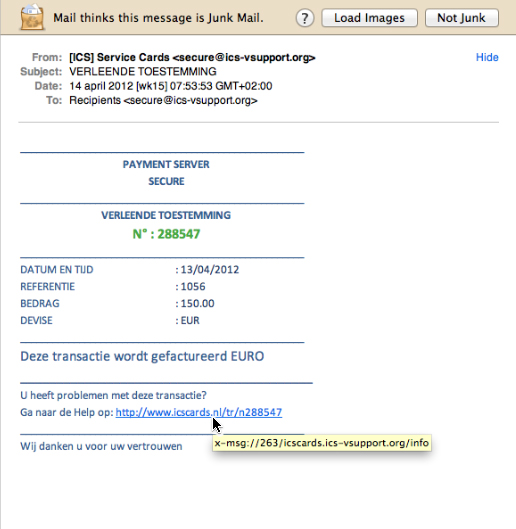
Not all phishing* attempts are easy to spot, but today I came across one that has some very obvious examples of what to beware of :

* FYI : phishing = an attempt to lure you into giving some unreliable source your private info of your credit card and/or bank account (internet criminals are ‘fishing’ for your secure info this way…)

1- OSX Mail.app has indicated it thinks this is “Junk Mail”

(though Mail.app isn’t 100% reliable on its suggestions of Junk Mail, it’s a good indication you should have a thorough second look)

2- the sender of the eMail is not sending from a reliable and/or known eMail address

a “.ORG”-eMail address will 100% not be something used by a bank

3- you are not the sole recipient of this eMail and/or your personal eMail address is not listed

if this were such strictly confidential info as is claimed, why would any bank send it to anyone else but you personally ? (furthermore : banks do not contact you on things like this though eMail, because of security reasons…)

4- you are not personally addressed in the text of the eMail, and neither is it indicated what the payment was for and to whom it would have been made

if this where an eMail form your bank or payment service to inform you on anything personal, why wouldn’t they inform you what it’s about straight away ?

5- the weblink-URL that’s included does not link to the website that is listed in its name, but to some completely different website

if you do a mouse-over on the URL in the eMail, a completely different URL is appears in a yellow highlighted line – now that’s about the best indication you could get that you’re being mislead !

6- if you lookup the actual domain that this eMail was sent from and is (re)directing to in WhoIs?, it gives registrant info that does not seem like any bank of payment service you know (especially the fact that it was created just a few days ago makes this extremely suspicious)

you can find info on the registrant of any website on WhoIs? :

http://www.whois.com/whois/

try that with the domain used in this example and you’ll see info that is really suspicious :

A- a registrant eMail address that is on Hotmail…

B- a registrant street address that can not be found in Google Maps…

C- a registration creation date that is just a few days ago…

tip : TimeMachine will also backup attached USB-sticks that are Mac-formatted

Question :

My old G4 iBook running MacOSX 10.5.8 Leopard has a hard drive of just 40GB inside ; upgrading that will cost far more than plugging in a 32GB (nano) USB-stick, but…

If I do so… will TimeMachine also backup the files from my 32GB USB-stick ?

Answer :

Yes !

TimeMachine will backup the data from any USB-stick without have to make any adjustments to TimeMachine, but you need to make sure that :

1- the USB-stick is properly plugged into your Mac (seems only too obvious, but since it is so easy to detach it without thinking about it… just double check !)

2- the USB-stick is formatted as a genuine Mac-drive, so in HFS+ format (PC/FAT-formatted USB-sticks need to be re-formatted to HFS+, else TimeMachine will not recognize them… but beware : reformatting a USB-stick will erase all it’s content… so start out by moving all data to your hard drive, then reformat the USB-stick and only after that, put the data back onto the USB-stick)