BEWARE ! : Home Video Library phishing scam eMail

! BEWARE !

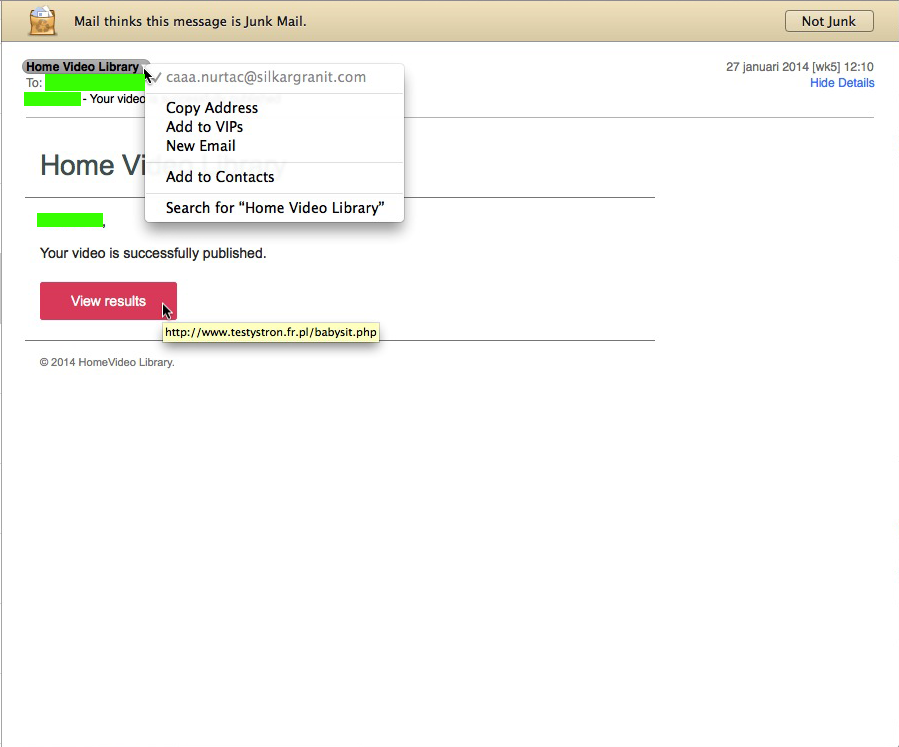
today I got an eMail from Home Video Library, stating “Your video is successfully published”,

on my Mac this was immediately recognizable as a Junk-message (or rather : a Phishing Scam-message), as you can see in the picture below, but on my iPhone that wasn’t so easy to figure out… it was mainly the fact that I haven’t used Picasa in ages that made all alert bells ring in this case… and the fact that I’ve never heard of a company or service called Home Video Library raised more suspiciousness…homevideolibrary_scam…so BEWARE !

Note : this scam eMail comes in various versions, there are similar ones pretending to be from Picasa Library. More info on that can be found here.

BEWARE ! : Picasa Library phishing scam eMail

! BEWARE !


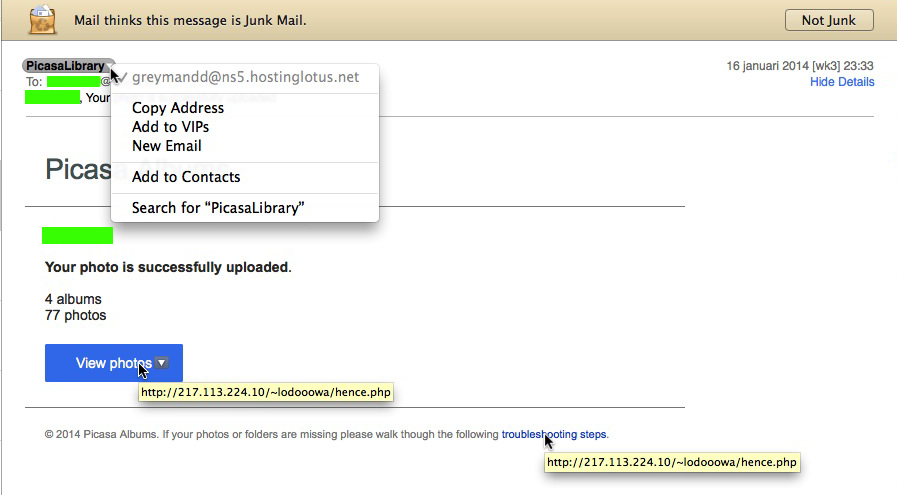
today I got an eMail from PicasaLibrary, stating “Your photo is successfully uploaded”,

on my Mac this was immediately recognizable as a Junk-message (or rather : a Phishing Scam-message), as you can see in the picture below, but on my iPhone that wasn’t so easy to figure out… it was mainly the fact that I haven’t used Picasa in ages that made all alert bells ring in this case… and the fact that I’ve never heard of PicasaLibrary (and would expect it to be written Picasa Library) raised more suspiciousness…picasa_scam…so BEWARE !

Note : this scam eMail comes in various versions, a similar one pretending to be from Picasa Library also states “Damaged photos found”. More info on that one can be found here.


BEWARE ! : WhatsApp voicemail eMails are fake !

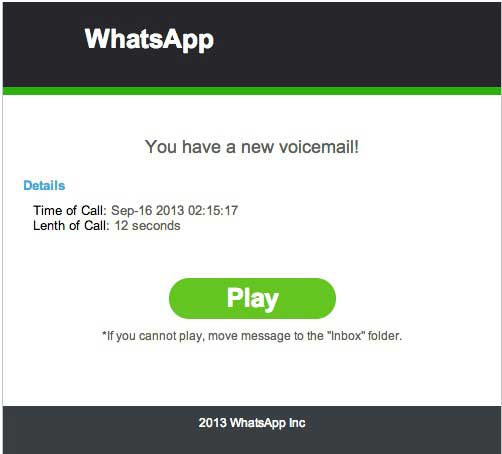
Lately, more and more people are being spammed with (fake) eMail messages, suggesting that there is a WhatsApp voicemail for them.

Beware : clicking on the (green) “Play” or “Listen” button will NOT enable you to listen to any newly recorded voicemail…

…this is a phishing-scam that instals malware (= malicious software) !!

DO NOT INSTALL !!

Note : the fact that this malware-installer makes use of a stolen Authentication Certificate (which is still valid) makes it extremely hazardous, as that will tick your computer/mobile phone into allowing the malware to be installed

The devices that suffer from this are mainly Android-mobile phones, but jailbroken iPhones, PCs and Macs also. Any original (not-jailbroken) iPhone will only install software from the iTunes App Store, so they are secured against this kind of malware.

HOW TO EASILY DETECT THESE PHISHING EMAILS :

The subject will read something like “Incoming voicemail at [date]”, and the sender will appear to be (*) “Whats App Notifier”, and there will be a big (green) button inside the eMail  named “Listen” or “Play”…

(*) on a Mac this can easily be detected, because of 2 simple indications :

1- in the senders name it is written “Whats App”, in stead of the official “WhatsApp” (one word)

2- when clicking on the senders name in Apple Mail.app, it turns blue and in yellow an eMail address will appear, which will not have “WhatsApp” in it, but will look like a regular private or business eMail-address

If you get one of these fake eMails, just mark them as SPAM and delete them a.s.a.p.

They look something like these :

whatsapp-malware-1whatsapp-malware-2

Note : if you happen to click on the “Play or “Listen” button, what will happen will (slightly) depend on the version of the eMail you have encountered and the type of device you are using :

– malware will be downloaded directly onto your device

– you will be redirected to a website which will scam you into installing malware

The Malware reportedly is WinWebSec and installs Fareit and Ursnif, which are info-stealers that send your private info to internet criminals, enables them to make your computer call paid telephone numbers and send these same type of phishing eMails on your behalf to anyone in your Contacts…

And once installed, you will also be spammed with messages by a fake antivirus-software called Antivirus Security Pro to pay for getting (in-existend) infections removed form your computer…

More on this scam be found here :

http://www.spamfighter.com/News-18612-Bogus-WhatsApp-Voicemail-Messages-Employed-to-Spread-Malware.htm

http://www.threattracksecurity.com/it-blog/kuluoz-voicemail-spam-drops-signed-certificate-winwebsec/

Donate Button (MacManusNL)

fixed : set IMAP eMail for Hotmail.com, Live.com and Outlook.com on iPhone/iPad

Question :

I would like to setup my Hotmail-eMail on my iPhone, but rather as an IMAP-account than as the usual POP-account.

Is there any way to do that in iOS ?

Answer :

Yes, IMAP eMail has finally come to Hotmail.com, Live.com and Outlook.com eMail.

To set up a Hotmail/Live/Outlook-eMail account on your iPhone/iPad, do this :

note : instructions for setting-up Hotmail/Live/Outlook-eMail on MacOSX can be found here.

if you’re running iOS 7 [ scroll down for iOS 6 and iOS 4.2.1 ] :

1- open the Settings app, go to “Mail, Contacts, Calendars” and in the “ACCOUNTS” chapter, click on “Add Account”

2- in the window that opens, click on “Outlook.com”

3- in the next window,  type your Hotmail/Live/Outlook-eMail address, your Password and any Description you like, then click “Next”

4- in the window that follows, select the options you want (at least keep “Mail” switched “ON”) and click “Save”

That’s it… congratulations ! 😉

if you’re running iOS 6 [ scroll down for iOS 4.2.1 ] :

1- open the Settings app, go to “Mail, Contacts, Calendars” and in the “Accounts” chapter, click on “Add Account”

2- in the window that opens, click on “Microsoft Hotmail”

3- in the next window,  type your Hotmail/Live/Outlook-eMail address, your Password and any Description you like, then click “Next”

4- in the window that follows, select the options you want (at least keep “Mail” switched “ON”) and click “Save”

That’s it… congratulations ! 😉

if you’re running iOS 4.2.1 (if you’re on an iPhone 3G ; iOS5.5 instructions for iPad 1 are expected to be very similar) :

1- open the Settings app, go to “Mail, Contacts, Calendars” and in the “Accounts” chapter, click on “Add Account”

2- in the window that opens, click on “Microsoft Exchange”

3- in the next window,  type the following :

at “Email” type your Hotmail/Live/Outlook-eMail address

at “Domain” type hotmail.com (if you have a Hotmail.com-eMail address)

at “Domain” type live.com (if you have a Live.com-eMail address)

at “Domain” type outlook.com (if you have an Outlook.com-eMail address)

at “Username” type your Hotmail/Live/Outlook-eMail address

at “Password” type your Hotmail/Live/Outlook-Password

and at “Description” type any description you like

then click “Next”

4- then the same window updates and an extra chapter appears named “Server”, it will be  automatically filled out with either m.hotmail.com or m.outlook.com ( and probably sometimes even m.live.com ) ; don’t bother, just click “Next”

5- in the window that follows, select the options you want (at least keep “Mail” switched “ON”) and click “Save”

That’s it… congratulations ! 😉

Note : if you want to change the settings of your Hotmail/Live/Outlook-accont in iOS, open the Settings app and go to “Mail, contacts, Calendars”, there you can click on the eMail-account you want to edit, and you will be able to change things like :

• “Mail Folders to Push” ; which mailboxes (besides your Inbox, so your Sent or even your Trash maybe) to Push (= auto-update) to your iPhone/iPad

• “Mail Days to Sync” ; how many days ‘backwards in time’ you want your iPhone/iPad to sync to Hotmail/Live/Outlook

• do you also want to sync your Contacts and/or Calendars to Hotmail/Live/Outlook ?

• do you want to change specific settings of the account itself ? (like the Server, SSL on/off, the Description, etc.)

Donate Button (MacManusNL)

fixed : set IMAP eMail for Hotmail.com, Live.com and Outlook.com in MacOSX Mail.app

Question :

I’ve always though it was extremely annoying that Microsoft only allowed POP eMail for Hotmail.com for MacOSX, but I kept my Hotmail-account alive for al these years since I actually liked it, even after I switched to Mac…

Recently I heard that Microsoft is finally allowing IMAP access to Hotmail.com eMail, but I can’t figure out how to set it up on my Mac…

Can you please help ?

Answer :

Yes, you’re correct : IMAP eMail has finally come to Hotmail.com, Live.com and Outlook.com eMail.

Setting it up in MacOSX is not as straight forward as one might have hoped however…

The tricky part is that MacOSX will automatically set-up a POP-account if you are setting up a new account in Mail.app using a Hotmail.com, Live.com or Outlook.com eMail-address.

note : instructions for setting-up Hotmail/Live/Outlook-eMail on iPhone/iPad can be found here.

That being said…

If you follow these steps, you will be able to succeed anyway :

( if you are on OSX 10.9 Mavericks, read this first )

1- in OSX Mail.app, go to Preferences, then to Accounts and (if you have one) select your current POP-setup for Hotmail/Live/Outlook from the list, then go to the Account Information tab, and there un-check the “Enable this account” option

2- then use the Plus-button (bottom left) to add a new account

3- in the pulldown-window “Add Account” that appears, fill in your Full Name, type a fake eMail address ( e.g. nobody@blabla.com ) and leave the Password blank, then click on Create

4- in the next window, set the Account Type to “Exchange IMAP” (only if you don’t have that option choose “IMAP”) and use the following info, depending on what eMail-address you have :

for Hotmail.com-eMail, use :

Description : Hotmail IMAP ( or if you perfer your eMail-address, make sure to add “IMAP” or something like that to it, else it will conflict with your previously set-up Hotmail POP )

Incoming Mail Server : imap-mail.outlook.com [ will automatically select Port 993 ]

User Name : username@hotmail.com [ replace “username” by your own username ]

Password : ••••• [ your Hotmail-password ]

Outlook Web Access Server : m.hotmail.com

for Live.com-eMail, use :

Description : Live.com IMAP ( or if you perfer your eMail-address, make sure to add “IMAP” or something like that to it, else it will conflict with your previously set-up Live.com POP )

Incoming Mail Server : imap-mail.outlook.com [ will automatically select Port 993 ]

User Name : username@live.com [ replace “username” by your own username ]

Password : ••••• [ your Live.com-password ]

Outlook Web Access Server : m.live.com

for Outlook.com-eMail, use :

Description : Outlook IMAP ( or if you perfer your eMail-address, make sure to add “IMAP” or something like that to it, else it will conflict with your previously set-up Live.com POP )

Incoming Mail Server : imap-mail.outlook.com [ will automatically select Port 993 ]

User Name : username@outlook.com [ replace “username” by your own username ]

Password : ••••• [ your Outlook.com-password ]

Outlook Web Access Server : m.outlook.com

5- then click “Continue”, and if you get an error-message, just click “Continue” again

6- in the next window put a check-mark in front of “Use SSL”, set Authentication to “Password” and click “Continue” again

7- in the next window, use these settings :

for Hotmail.com-eMail, use :

Description : Hotmail SMTP ( or anything you like )

Outgoing Mail Server : smtp.live.com [ will automatically select Port 25 or Port 465 ]

you can check “Use only this server”, but it’s not obligatory

do check “Use Authentication”

User Name : username@hotmail.com [ replace “username” by your own username ]

Password : ••••• [ your Hotmail.com-password ]

for Live.com-eMail, use :

Description : Live.com SMTP ( or anything you like )

Outgoing Mail Server : smtp.live.com [ will automatically select Port 25 or Port 465 ]

you can check “Use only this server”, but it’s not obligatory

do check “Use Authentication”

User Name : username@live.com [ replace “username” by your own username ]

Password : ••••• [ your Live.com-password ]

for Outlook.com-eMail, use :

Description : Outlook SMTP ( or anything you like )

Outgoing Mail Server : smtp-mail.outlook.com [ will automatically select Port 587 ]

you can check “Use only this server, but it’s not obligatory

do check “Use Authentication”

User Name : username@outlook.com [ replace “username” by your own username ]

Password : ••••• [ your Outlook.com-password ]

8- then click “Continue” and if you get an error message, just click “Continue” again

9- in the next window, put a check-mark at “Use SSL”, select Authentication “Password” ( or “External (TSL client Certificate)” if you happen to have that ), and click “Continue”

10- in the next window, put a check-mark at “Take account online” and click on “Create”

11- then, back in Mail.app’s Prefecences, under Accounts, select your newly created eMail-account and click on the “Account Information”-tab and re-type your correct eMail-address in “Email Address:” (replacing the nobody@blabla.com you had originally entered) and check if all settings are as they need to be according to the above

12- then exit the Mail.app Prefecences (click the red button upper left) and click “Save” when the “Save changes” pulldown window appears

13- now, back in Mail.app itself (if you do not see the normal Mail window, go to File –> New Viewer Window), you will see the new Hotmail/Live/Outlook account has appeared, and it is looking for your old & new eMails on the Hotmail/Live/Outlook-mail servers

…most people will have lots of old eMails to import, so this might take some time (don’t be surprised if this takes 15, 20 or maybe even 30 minutes…)

14- if the import of the old & new eMails from the Hotmail/Live/Outlook-mail servers is complete, they will appear in the Inbox window and you’re done…

Congratulations !

…if you do not see your old & new eMails appearing, but you do see an “Unread eMails”-number next to the name of the Hotmail/Live/Outlook-inbox in the listing on the left, you have run into a bug in Mail.app that was only recently solved in OSX 10.8.5

to manually solve this problem, quit Mail.app, open Disk Utility (from the Applications –> Utilities folder), run “Repair Disk Permissions” on your Hard Drive’s main partition and when that’s finished, re-open Mail.app and all should be solved

Enjoy !

Donate Button (MacManusNL)