
fixed : can’t connect old printer to new Mac using USB

Question :

A friend gave me a rather old printer that was working great for him, and said that I could easily use it with my MacBook also, using a USB-cable. So I took a USB cable with an old (flat) USB-connector on the one side and an new (small) USB-connetor on the other side and plugged that into the printer and into my MacBook Air (or Pro) that only has those same new (small) USB-ports. The connection feels good, but when I try to print from my Mac, the printer is not recognised…

What is wrong ?


Answer :

From what you are describing, you are using the wrong port on the printer : you are using a ‘regular’ USB-A port, probably on the top, front or side of the printer… you should however use the ‘square’ USB-B printer port that is on the back of your printer.

See the difference between various USB connectors and ports in this image (an Adobe Stock image) :
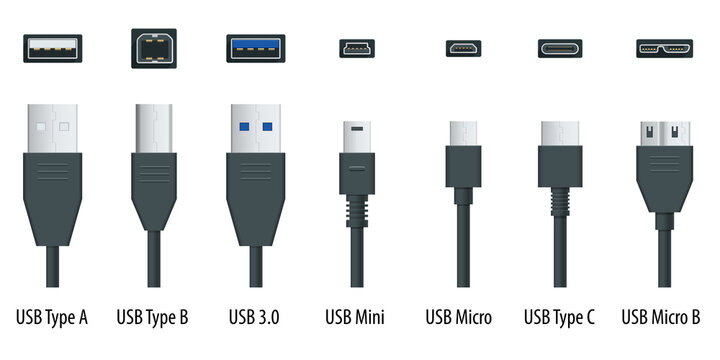
The ports on your Mac are USB-C [ 2nd from the right ].
The port on the printer you were trying to use is USB-A [ 1st from the left ] (or USB 3.0 [ 3rd from the left ] which is the same in size and shape) – that usually is for plugging in a USB-stick to print documents directly from a USB-stick
The port on back of the printer – the one you should use – is USB-B [ 2nd from the left ].

If you don’t have a ‘printer cable’ (USB-A to USB-B) and a USB-C adapter piece (USB-C plug-on cap or cable for USB-A), you can buy them from any electronics store. Or you can buy a ‘modern printer cable’ (USB-B to USB-C).
Here are direct links to buy these from Amazon :

modern printer cable (USB-B to USB-C) from Amazon.com
modern printer cable (USB-B to USB-C) from Amazon.co.uk
modern printer cable (USB-B to USB-C) from Amazon.de

all-in-one modern & regular printer cable (USB-C/USB-A to USB-B) from Amazon.com
all-in-one modern & regular printer cable (USB-C/USB-A to USB-B) from Amazon.co.uk
all-in-one modern & regular printer cable (USB-C/USB-A to USB-B) from Amazon.de

to keep this website online MacManus.nl makes a tiny fee if you buy from these Amazon links

If you plug in the right cable from the back of your printer to your Mac, the printer will berecognised and you will be able to print.

That’s it !

enjoy πŸ˜‰

fixed : HP LaserJet M254dw not printing and giving error message “low memory”

Question :
I have a HP LaserJet M254dw that works great, but when I was trying to print a PDF yesterday, it took an enormous time to print and finally only printed the first page was printed, and the second wasn’t…
There was no error message on my Mac or on the small printer display, so I tried again, this time only printing the second page. Since it was a page filled with lots of graphics and colours, I wasn’t surprised that it took a long time to print, so I left the printer to do it’s job for a while… when I returned after an hour or so, there was nothing printed and there where no error messages…
So I tried again, this time I reduced the PDF to only the one page I wanted to print, made sure I would hear the printer startup (as it always does after receiving a new printing job) and I waited next to the printer to see wat happened…
This time it also took a long time and nothing was printed, but before the display on the printer went black, I noticed a “low memory” warning being displayed….

What can I do to resolve this ?

Answer :
HP has an explanation page on this “low memory” type of problem on it’s website, but if you don’t have any extra fonts installed, the first step I would recommend is installing new firmware if there is any.
Here’s how to do that :
– unplug the printer form power (to reset it – not strictly needed, but just to be sure)
– plug the power back into the printer
– download the latest firmware form the HP website by going to this webpage
– then, find & open the “Software & Drivers” chapter
– then, find & open the “Printer” chapter
– then, typ “m254dw” in the search field
– click on “HP Color LaserJet M254dw” when presented
– then, find & open the link to “Firmware”
– when the latest firmware version is displayed, click the “Download” button if you are sure you haven’t upgraded the firmware on your printer since the date it was released ( e.g. the current version number 20230822 means it is the firmware version created on 22nd of August 2023, but you can also check the official release date that is also listed )
– then, on your Mac, open the firmware installer you’ve just downloaded and follow the on screen instructions guiding you through the installation
– when the firmware upgrade is done, try to print the PDF page again
– if it is printed okay now : great ! …if not, try printing some other, page that has a simple layout, first
– if that doesn’t work, check your printer as something simple might be wrong like an open tray or a loose cable (aside from the very small chance that your printer is actually broken)
– if you are able to print something else, just try printing the problematic page again and make sure you check “Scale” (and not “Scale to Fit”) and set it to “100” in the “Preview” chapter of the Printing options before printing
– then wait…
– if that works (note that you might have to wait 10 minutes or so), you’re okay !
– if your page original was too large, and it has now been printed across multiple pages, try printing again, now with “Scale to Fit” checked
– if “Scale to Fit” turns out to cause problems, open the PDF in Preview.app and (re)save a new version as JPEG or PNG (choose “Export” from the “File”-menu to get these options) that you can print

That should be it !
enjoy πŸ˜‰

tip : which scanners are compatible with OSX 10.9 Mavericks ?

Question :

Which scanners will work with OSX 10.9 Mavericks ?

Answer :

Just like with previous versions of MacOSX, the built-in compatibility with older scanners is rather low…

…in the specs of OSX 10.9 Mavericks there isn’t any indication of extended scanner support, so it is expected that “wireless scanning” (over WiFi/AirPort) isn’t supported either, just as was the case (or should I say “problem”) in previous versions of MacOSX…

Apple hasn’t published a list of pre-installed scanner-drivers either, so there’s nothing official on this…

…there is however, a (very short) list of supported scanners pre-installed in OSX 10.9 Mavericks itself :

CanoScan 5600FΒ  Β  Β  Β  Β  Β  Β find it in theΒ US, UK or Germany
CanoScan 9000FΒ  Β  Β  Β  Β  Β  Β find it in theΒ US, UK or Germany
CanoScan LiDE 100Β  Β  Β  Β  Β find it in theΒ USΒ or Germany
CanoScan LiDE 110Β  Β  Β  Β  Β find it in theΒ US, UK or Germany
CanoScan LiDE 200Β  Β  Β  Β  Β find it in theΒ US, UK or Germany
CanoScan LiDE 210Β  Β  Β  Β  Β find it in theΒ US, UK or Germany
CanoScan LiDE 700FΒ  Β  Β  Β find it in theΒ US, UK or Germany

This list can be found in :

/Library/Printers/Canon/IJScanner/Resources/CIJIcons

…strangely, there are no such icons installed for scanners from other brands like EPSON and HP… so support for those scanners is either not included (yet) or left up to the individual manufacturers…

NOTE #1 : in MacOSX 10.7 Lion, OSX 10.8 Mountain Lion and OSX 10.9 MavericksΒ scanner-compatibilty can be extended by installing the SANE-scannerdrivers, asΒ outlinedΒ here.

NOTE #2 : if you are a professional and/or heavy user, you could also try using the SilverFast 8 scanner-suite, which adds support for these scanners to OSX 10.9 Mavericks (since even the cheapest version, SilverFast SE 8, will cost you €50, this only is a relevant solution for professional and/or heavy users…)

Donate Button (MacManusNL)

fixed : printer auto-install in Windows Vista won’t work

Question :

My HP DeskJet 930c prints colors if I print out the test page from the printer, but if I print from my Windows Vista PC, it only prints in grey-tones…

From the info on the HP website it has become clear to me that I have to reinstall the printer (and specifically the printer drivers) on Windows Vista.

But… according to HP the only way to reinstall the printer in Windows Vista using USB is to delete it from the Configuration Panel and then restart the PC and just plug in the printer and wait for Windows Vista to do the ‘magical’ auto-install…

The official HP instruction video can be found here :

http://bcove.me/4xavsoow

…and nothing happens when I do that.

And HP does not offer any other option… what can I do ?


Answer :

— DISCLAIMER —

This is purely a Windows problem, and this weblog is for Apple solutions only. I do have a solution that will probably work for you, and I’ve not found that solution posted online anywhere, so I will provide it to you here ‘as is’ (meaning NO guarantee, NO additional help and NO service) ! Try at your own risk ! If it doesn’t work for you : I’m sorry… please ask a Windows-specialist.

————————-

The solution is simple (and it’s unexplainable why HP doesn’t mention this anywhere) :

Just reinstall the printer the way you would have done it in Windows XP :

– delete any previous installs of the printer from the Configuration Panel

– install all (essential) available Windows Vista updates using Vista’s built-in Security Panel

– restart your PC

– connect the printer to your PC using a USB printer cable

– go to START-menu

– then to Configuration Panel

– then to Printers

– then choose Add Printer

– choose Virtual USB Port 1 (or 2) as the connection to be used

– choose your Printer

– choose the dedicated driver [*]

– and wait for the installing to finish

– test your printer using any (color) document you have available, if you don’t have any useable color document available, use this printer test-page :

https://macmanus.nl/2010/07/28/looking-for-a-good-test-page-to-test-your-pinter

– that should be it : enjoy !

[*] if no driver is available, download it from the following website, then install and start over with this procedure from the beginning :

http://www.driverguide.com

— DISCLAIMER —

This is purely a Windows problem, and this weblog is for Apple solutions only. I do have a solution that will probably work for you, and I’ve not found that solution posted online anywhere, so I will provide it to you here ‘as is’ (meaning NO guarantee, NO additional help and NO service) ! Try at your own risk ! If it doesn’t work for you : I’m sorry… please ask a Windows-specialist.

————————-
