fixed : custom Quartz-filters are not available system-wide

Question :

In the past, I used to create my own custom Quartz-filters in ColorSync Utility, and they were instantly available system-wide in MacOSX. Now, in OSX 10.8 Mountain Lion and OSX 10.9 Mavericks ( and OSX 10.10 Yosemite and OSX 10.11 El_Capitan ), I don’t have access to my Quartz-filters anymore…

What is wrong ? And how can I fix this ?

Answer :

In the latest versions of OSX [*], there seems to be a bug preventing OSX to find Quartz-filters stored outside of the ‘official’ “Filters”-folder that is inside the “Library”-folder in the “System”-folder… so, since all custom-made Quartz-filters are stored inside the “Filters”-folder that is inside the (invisible) “Library”-folder in the User’s “Home”-folder, your custom-made Quartz-filters are not found by OSX…

The solution is to just move them into the right (official) “Filters”-folder. [**]

(Yep, it’s that easy…)

For an in-depth step-by-step guide for doing so, follow the procedure outlined here.

NOTES :

[*] this bug was solved/removed with the introduction of macOS 10.12 Sierra

[**] put differently :

In all versions of OSX from OSX 10.8 Mountain_Lion up to OSX 10.11 El_Capitan,
new Quartz-filters created in Colorsync Utility are/were automatically saved in :
~/Users/[username]/Library/Filters/
But all other applications (including e.g. Preview) weren’t able to access or use them as they could only load Quartz-filters from :
~/System/Library/Filters/
and – only if you created the following folder manually – from :
~/Library/Filters/
So you had to manually move your custom Quartz-filters to :
~/Library/Filters/
to be able to use them in Preview.app and alike

Donate Button (MacManusNL)

fixed : Reduce File Size makes PDF unreadable

Question :

I have created a PDF of 4 pages in the Preview app, but I can’t eMail it to anyone because it turns out to be a 39MB file…

I know the probable cause, because some of the pages are entire A4-size pictures scanned as JPEG at 300dpi…

So I tried to use various ways of saving (or exporting) as PDF from within Preview, but they all end up with the same oversized 39MB file… except for one : the “Reduced File Size” filter from the “Export” option gives me a 240kB file that turns out to be completely unreadable…

Isn’t there any simple way to get a readable PDF of about 5MB or so ?


Answer :

Yes there is, but unfortunately it’s rather tricky to set up at first (since there is still no option in Preview, nor in “Save as PDF”, to adjust the PDF-output on the fly… and on top of that : there is a bug in the latest versions of OSX that prevents self-made Quartz-filters from ColorSync Utility to be accessible throughout OSX…)

Here’s how to :

1- open the ColorSync Utility that is in the Utilities folder within the Applications folder

2- if no window opens, click on File –> New Window

3- then click on the “Filters” tab

4- then click on the “+”-button in the bottom-left corner to create a new Quartz-filter

5- type “Reduce File Size 75dpi”, then click on the small round button (with the small white triangle in it) at the end of the line

6- from the pulldown menu select “Add Image Effects Component > Color Image Sampling” and now some adjusting options appear, leave most of them as-is, only at “Resolution:” type “75 pixels/inch” (so leave the other options empty and leave “Quality:” at “High”)

7- repeat this last step, but this time select “Add Image Effects Component > Grey Image Sampling” from the pulldown menu (so set “Resolution:” to “75 pixels/inch” here also)

8- tripple-check to make sure that the name of the Quartz-filter is “Reduce File Size 75dpi” and the “Resolution:” is set to “75 dpi/inch” at both instances… if that’s not the case : correct it before continuing (just retype at the correct spot)

OPTIONAL : click on the “+”-button again to create another new Quartz-filter, call it “Reduce File Size 120dpi” and repeat the above procedure, just set “Resolution:” to “120 dpi/inch” this time (…and you can even repeat this for other resolutions like 100 dpi/inch)

9- now close ColorSync Utility

10- now, in the Finder, press the ALT-key on your keyboard and select “Go” from the upper menu bar, in the pulldown and extra (ghost) folder called “Library” will appear, click on it and in the Finder window that opens, select the “Filters” folder (there you will see the Quartz-filters you’ve just created in ColorSync Utility)

11- then, in the Finder open another (new) Finder window and open the (regular) “Filters” folder that is in the “Library” folder in the “System” folder also (there you will see all the standard Quartz-filters available throughout OSX)

12- put both of these Finder windows side-by-side, then select the Quartz-filter files you’ve custom created, and drag them into the other “Library” folder (the one in the “System” folder)

13- then you get an authentication warning message that you need administrator rights to add anything into the folder, so type your administrator password and the custom Quartz-filter files will be moved into the System’s “Filters” folder

UPDATE : from OSX 10.11 El_Capitan on, you will see a grey NoEntry-sign when trying to access the System’s “Filters” folder ; this is due to El-Capitan’s SIP (System Integrity Protection) feature ; to solve this follow these extra steps :

  • instead of moving your self-made Quartz-filters into the ~/System/Library/Filters folder, you should move them to the ~/Library/Filters folder
  • since that last folder doesn’t exist by default, you will have to create it first
  • to do so, go to ~/Library in a Finder-window and click on the Sprocket-icon (a.k.a. GearWheel-icon) and select “New Folder” from the pulldown list
  • when prompted, enter you administrator’s name & password to allow this new folder to be created
  • when done, move your self-made Quartz-filters info this newly created folder at ~/Library/Filters

14- close all open windows

15- select the PDF file that’s too big and open it in the Preview app

16- in the Preview app, go to “File” and from the pulldown menu, select “Export” (do not select “Export to PDF” or “Save” or “Print” !!!)

17- in the window that appears, choose a (new) file name and a location to save the size-reduced PDF-file, then set “Format:” to “PDF” and at “Quartz Filter:” select “Reduce File Size 75dpi” and click the “Save”-button

18- then go to the Finder and select the newly created size-reduced PDF-file and right-click and select “Get Info” (or use the CMD+I key-combo), in the window that opens, check the file size (note : any file up to about 5MB can easily be sent as an eMail attachment)

19- then open the size-reduced PDF in the Preview app and check if the text is still readable… if  all text has turned fuzzy, do a new Export from the original PDF but choose another Quartz-filter (like 100dpi or 120dpi… if you didn’t create those, redo the entire process to create them and make them available throughout OSX)

20- that’s it ! you now have created a very handy and quick PDF size reduction option within the Preview app !

Enjoy !

😉

Donate Button (MacManusNL)

fixed : transfer “on my iPhone” notes to iCloud

Question :

I have notes on my iPhone (in the iOS Notes app), that I was expecting to show up on my Mac also (in the OSX Notes app) since I have both of them connected to iCloud, but only half of my notes seem to sync…

How can I get all of them to sync via iCloud ?

Answer :

When you are using iOS 7 (or iOS 8) and OSX 10.9 Mavericks (or OSX 10.10 Yosemite), you might have multiple accounts that are syncing their notes to Notes, not only through iCloud, but though other IMAP eMail-accounts as well…

Your best option probably is to transfer all your notes to iCloud and then only use iCloud to sync notes…

Here’s how to do that :

1- on your iPhone (or iPad) open the Notes app, and click on “Accounts” ; in the next window you’ll see multiple accounts listed

2- then, on your Mac, open the Notes app, and go to View –> Show Folders List ; if you click that, a menu pane called “All Notes” will open at the left of the Notes-window ; check to see if all those accounts match the ones listed on your iPhone

3- if they match, proceed to step 4 ; if not, go to Notes –> Accounts, and the  “Internet Accounts” window from the System Preferences will open ; there, select the (eMail-) accounts of the missing accounts, an click them ; in the next window, make sure there’s a checkmark at “Notes” for each desired account

4- then, in the Notes.app in OSX, select each non-iCloud account from the menu on the left and click on “Notes” ; if any notes are listed there, select one of them and then type the CMD+A key-combo to select all of them and type the CMD+C key-combo to copy all

5- then, go to the iCloud Notes, and type the CMD+V key-combo to transfer these notes to iCloud

6- repeat this copy process for all accounts listed, until all notes are copied to iCloud

7- only when you’ve double-checked that all notes are now in iCloud (also), delete the ones in the other accounts (and/or disable the accounts on your Mac)

8- then, on your iPhone (where the Accounts pages of the Notes.app is still open), select “On My iPhone” and on the next page, click each note to open the note, and copy it into a new note (to do so, go to iCloud –> Notes ; then create a new note  by clicking the +-button, and copy the info that new note) ; repeat this until all notes are now visible in iCloud –> Notes

9- Now, check on your Mac and iPhone, to make sure that all messages are now in the iCloud account

that should be it…

enjoy !


fixed : calendar entries are transferred, but time is not in sync

Question :

I am trying to get my appointments from my iPhone to sync with my Mac, but something weird is happening… the appointments I create on my iPhone do appear in the Calendar app on my Mac, so they are syncing, but for some reason they are not appearing at the right time of day…

…what can be wrong ?

Answer :

Make sure you have set the same Time Zone on your Mac and on your iPhone.

On your Mac, in OSX, set it correctly in 2 places :

1st- go to System Preferences –> Date & Time –> Time Zone ; and put a checkmark at “Set time zone automatically using your current location” (or choose your current time zone on the map manually)

2nd- in the Calendar app (previously called iCal) go to Calendar –> Preferences –> Advanced –> put a checkmark at “Turn on time zone support”

On your iPhone (or iPad), in iOS, set it correctly in 2 places also :

1st- go to Settings –> General –> Date & Time –> Time Zone

2nd- go to Settings –> Mail, Contacts , Calendars –>  CALENDARS –> Time Zone Support

…if all is set to the same time zone, your syncing problem should be solved

Enjoy !

😉

Donate Button (MacManusNL)

fixed : use the Terminal to repair corrupt .sparsebundle-file

Question :

I have a corrupt .sparsebundle-file (a TimeMachine-backup file), that I would really like to fix, because there’s some files in there that I need.

I have tried using the Disk Utility app, but that didn’t work.

I also read that it should be possible to use the Terminal app to do this, but I’ve never used the Terminal app before, and I can’t find clear directions on how to do it…

What exactly should I do ?

Answer :

The Terminal app is not a regular OSX-application, it is a command-line tool (a.k.a. console) to program and reprogram in the underlings of OSX (more or less like the DOS-prompt in Windows). So, as you are going out of the ‘OSX comfort zone’ when you start using the Terminal app, you should beware since messing things up there can really mess up OSX, and lead to having to re-install OSX.

Having that said, here’s a step-by-step guide to fixing your .sparsebundle-file using the Terminal app :

– first, connect your backup-drive (the one with the broken .sparsebundle-file on it) to your Mac, using a USB- or FireWire-cable

note : if the backup-drive is inside a Time Capsule, you’ll probably be best of getting the harddrive out of the Time Capsule (as outlined in this iFixit How-To) and then temporarily hooking it up to your Mac using something like this SATA-to-USB connector (or an old USB-harddrive-enclosure). Even though this breaks the warranty on your Time Capsule, it’s probably the best solution since the direct USB-connection is much faster than the usual network-over-ethernet-connection… (and bringing the Time Capsule in to an Apple-dealer for repair, will definitely mean losing all your data, since that is part of the regular repair-policy… and bringing it to a specialized data-recovery company will cost more than buying a new Time Capsule)

– then, open the Terminal app (which can be found in the Utilities folder that is in the Applications folder)

– in the window that opens, you will see the name of your Mac followed by a colon (:) and a tilde (~), so if the name of your Mac is MacBook Pro, you will see :

macbook-pro:~

that is the “prompt”, when you see that, you can start typing the commands

note : some basic knowledge about working in the Terminal :

  1. each line of commands (a.k.a. “command line”) you type should be activated by pressing the ENTER-key
  2. as long as you do not see the prompt, the Terminal app is still busy executing your last command line
  3. the Terminal can not handle names with spaces in them, as spaces play an important roll in a command line ; they separate the subsequent commands given in one command line, e.g. if your backup-file’s name is MacBook Pro.sparsebundle, the Terminal app requires you to type is as MacBook\ Pro.sparsebundle or you can type the entire path to the file in quotation marks, like : “…/…/MacBook Pro.sparsebundle” (another option is to temporarily change the filename to one that has only letters and numbers in it)
  4. you don’t need to type the entire path to a file’s location in a command line manually, you can just drag-and-drop the file itself onto the command line and the entire path to the file will be automatically generated (a handy trick to prevent mis-typing)
  5. when typing your password in the Terminal, the cursor will not progress, so there will be no visual feedback whatsoever about what you’ve typed… so, type your passwords only with total focus on what you’re typing !
  6. ! BEWARE : be sure to double-check your typing when using the command line, as one mis-typed letter can generate an entirely different, unwanted outcome, screwing up your entire OSX installation !
  7. when working in Terminal app on a MacBook (Pro/Air), the advice is not to use an external keyboard, but the on-board keyboard

Now, when you see the prompt appearing, type this (followed by pressing the ENTER-key) :

admin$ sudo su –

Then, when you see the prompt appearing again, type this (followed by pressing ENTER) :

root# chflags -R nouchg [drag .sparsebundle-file here]

Then, at the next prompt, type this (and press ENTER) :

root# hdiutil attach -nomount -noverify -noautofsck [drag .sparsebundle-file here]

And at the next prompt, type this (and ENTER) :

root# tail -f /var/log/fsck_hfs.log

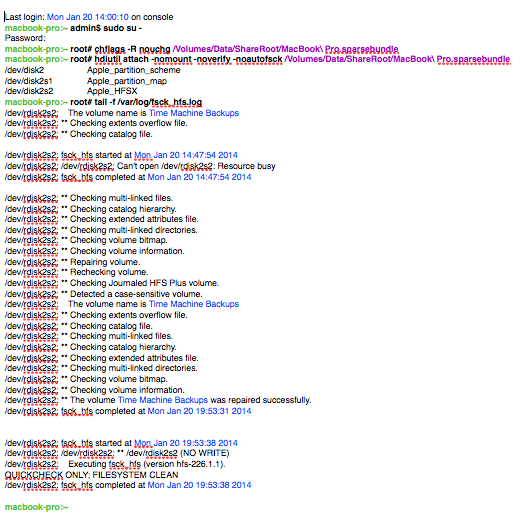
Look closely in this next file when you need to type what, and what the feedback should look like (kind of) :

  • bold green text = this is the command line prompt
  • bold black text = you should manually type exactly this text
  • bold purple text = drag-and-drop your .sparsebundle-file here, and your sparse bundle’s path will be displayed
  • black text = this text is generated by the Terminal, indicating what is busy and/or finished, and will be the same when your replicate this proces
  • blue text = what is displayed here depends on your specific situation
  • if problems are found, they will be listed in-between these lines, and it will also be indicated how it was fixed

console log sparsebundle repair

note : as you can see from the time-stamps in the picture, the entire process will take quite a long time to complete (it took nearly 6 hours to repair this harddisk – a 500GB harddrive that was temporarily taken out of a Time Capsule and connected via USB2.0)

so, from there on it’s wait, wait, wait, do something entirely different, wait (again), get a good night’s sleep… and wake up in the morning with a repaired hard drive…

that should be it 😉