
fixed : can’t connect old printer to new Mac using USB

Question :

A friend gave me a rather old printer that was working great for him, and said that I could easily use it with my MacBook also, using a USB-cable. So I took a USB cable with an old (flat) USB-connector on the one side and an new (small) USB-connetor on the other side and plugged that into the printer and into my MacBook Air (or Pro) that only has those same new (small) USB-ports. The connection feels good, but when I try to print from my Mac, the printer is not recognised…

What is wrong ?


Answer :

From what you are describing, you are using the wrong port on the printer : you are using a ‘regular’ USB-A port, probably on the top, front or side of the printer… you should however use the ‘square’ USB-B printer port that is on the back of your printer.

See the difference between various USB connectors and ports in this image (an Adobe Stock image) :
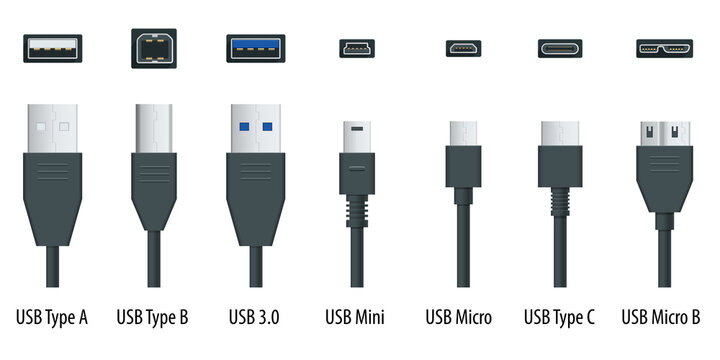
The ports on your Mac are USB-C [ 2nd from the right ].
The port on the printer you were trying to use is USB-A [ 1st from the left ] (or USB 3.0 [ 3rd from the left ] which is the same in size and shape) – that usually is for plugging in a USB-stick to print documents directly from a USB-stick
The port on back of the printer – the one you should use – is USB-B [ 2nd from the left ].

If you don’t have a ‘printer cable’ (USB-A to USB-B) and a USB-C adapter piece (USB-C plug-on cap or cable for USB-A), you can buy them from any electronics store. Or you can buy a ‘modern printer cable’ (USB-B to USB-C).
Here are direct links to buy these from Amazon :

modern printer cable (USB-B to USB-C) from Amazon.com
modern printer cable (USB-B to USB-C) from Amazon.co.uk
modern printer cable (USB-B to USB-C) from Amazon.de

all-in-one modern & regular printer cable (USB-C/USB-A to USB-B) from Amazon.com
all-in-one modern & regular printer cable (USB-C/USB-A to USB-B) from Amazon.co.uk
all-in-one modern & regular printer cable (USB-C/USB-A to USB-B) from Amazon.de

to keep this website online MacManus.nl makes a tiny fee if you buy from these Amazon links

If you plug in the right cable from the back of your printer to your Mac, the printer will berecognised and you will be able to print.

That’s it !

enjoy πŸ˜‰

fixed : rotate page orientation in MS Excel ( portrait / landscape )

Question :

I have to print (part of) an Excel sheet that has few lines and al lot of columns (so it’s not that height, but rather broad), so I want to print on a landscape-ed paper.

In regular macOS apps (like Preview, Keynote, etc.) I would do this by pressing [CMD]+[P] on my keyboard, so the printing window opens and I can switch the “Preview/Keynote/etc.”-dial to “Page Attributes”, so I can set the Paper Size (e.g. A4 or US Letter) and the Orientation (Portrait or Landscape).

If I do this in MS Excel, I get a similar printing window, but if I click the “Excel”-dial, the list of options doesn’t have “Page Attributes” listed… and I non of the other available options seems to have a setting to change the page orientation either…

Note : Yes, I know that Apple’s counterpart Numbers.app has a different type of printing window with the Page Orientation option listed near the top-right, but that’s to different from what I’m seeing in Excel that I see no way to lear in Numbers.app what I want to do in Excel…

What am I doing wrong ?

Answer :

Yes, Excel is different from the regular macOS-apps regarding setting the page orientation (and it’s even more different from it’s competitor Numbers.app), but the option is hidden in plain sight !

To change the page orientation in Excel, press the [ALT]+[P] key-combo, and then the print window opens, just leave the Excel-dial as-is and look a little below it… there you will see the options “Print”, “Margins” and “Orientation”… That’s it !

Note : there is another option to set the page orientation in Excel : goto the top menu-bar, click on “File” (top-left) and from the pull-down menu select “Page Setup” (just above “Print”) and when the “Page Setup” window opens, make sure the “Page”-tab is selected and at “Orientation” you will see radio buttons for “Portraid” and “Landscape”… That’s it !

enjoy πŸ˜‰

fixed : put printing & scanning shortcuts in the Dock

Question :

Whenever I need to scan (or sometimes even to print) anything, I need to go into System Preferences, then Printers & Scanners, then click Open Scanner…

Isn’t there a one-click solution to do this ?

Answer :

Yes there is.

Back in the days of MacOSX there used to be an option for this called “Desktop Printer” : that would put a shortcut-link of your printer on the Desktop. And you could do the same for your scanner.

——————– UPDATE ———————–

With the introduction of macOS 14 Sonoma the solution outlined in this post is no longer possible – if you are running macOS 14 Sonoma, go here for the current solutions :

fixed : create a Desktop Printer (one-click printer access) in macOS 14 Sonoma

fixed : create a Desktop Scanner (one-click scanner access) in macOS 14 Sonoma

——– if you are using macOS 13 Ventura or previous you can also use the solution below —–

Nowadays, for some reason, this option is gone, and no easy alternative is given by macOS… so you will have to create some thing yourself… the easiest way is to put both your Printer’s and your Scanner’s icon in the Dock. To do so, do this :

  • go to Apple menu (Apple-icon top-left in the top menu bar)
  • when the pulldown menu appears, select “System Preferences”
  • in the window that opens, click “Printers & Scanners”
    • if there is no such option, click on the raster-icon (top-center) first and it will appear
  • in the window that opens, click on your scanner (in the list on the left)
    • if your scanner is not yet in the list, add it first by clicking the Plus-icon at the bottom and following the on-screen instructions
  • now your scanner opens in the main part of the screen (on the right)
  • click the “Open scanner” button
  • now, the Scanner-window will open, and the scanner’s icon will appear in the Dock
  • CTRL-click (right mouse button) on the Scanner’s icon in the Dock
  • from the popup-menu, select “Options”, then “Keep in Dock”
  • now, the scanner’s icon will be moved to the left and it will stay in the Dock even after you close the scanner software
  • so, next time you want to scan anything, just click on the scanner’s icon in the Dock to open the scanner software

    That’s it !

Note : creating a direct link icon in the Dock for your printer can be done in the same way

enjoy πŸ˜‰

fixed : cannot print PDF form from macOS Preview.app

Question :

I have received an eMail from a vendor that includes a dispatchnote PDF that I need to print.

The PDF opens fine in Preview.app, but when I try to print it, everything seems to work fine, only the print doesn’t come out of the printer…

I can’t find the problem : the PDF appears in the printer’s Job List, the status bar fills up completely, the printer makes some noise to indicate that it is receiving data, the print job is deleted from the Job List, and nothing comes out of the printer… there are no error messages, no indication what so ever that something went wrong… the pint just won’t come out of the printer…

I checked to see if there is something special about the PDF-file that might be causing this, but I can’t find anything special about it… the PDF is not locked or anything…

What can I do ?


Answer :

Even though it is not clear where this problem comes from, the solution is simple : use Adobe Reader (a.k.a. Adobe Acrobat Reader DC) or Adobe Acrobat Pro if you have it.

To do so, do this :

  • go to https://get.adobe.com/uk/reader/otherversions/
  • at Step 1, 2 and 3 set the right OS, language and version, then click the Download Now button to download Adobe Reader
  • when the download is done, install Adobe Reader on your Mac
  • then, open Adobe Reader
  • and open the hard-to-print PDF from Adobe Reader
  • as soon as it starts appearing on-screen, you can press [CMD] + [P] to get to the printing screen
  • from there, just try to print again…
    • note that this is not your regular macOS printing screen, so you might want to check if all settings are to your liking before you give the actual print-commando (you might have to set things like double sided printing again)

The fact that the file is not printing from Preview.app, but it is from Adobe Reader, might indicate that the PDF was created by Adobe Acrobat Pro on Windows and that there is a problem in the version of Acrobar Reader that was used that causes this problem to arise…

That’s it !

enjoy πŸ˜‰

fixed : quickly create a printable grayscale picture from a color photo using Preview.app

Question :

I often have color pictures (like photos) that I would like to print in grayscale, but I don’t have a grayscale printer.

What is the simplest way to do so ?


Answer :

Having a color printer is great, and the easiest way to print grayscale pictures is to just select the grayscale-option before printing :

  • open the picture (ussuallyΒ a .jpg) in Preview.app
  • in the top-bar, go to File and selectΒ Print from the pulldown list ; or press the [CMD]+[P] key-combo on your keyboard
  • in the pulldown window that opens, click on Preview and select Graphics from the pulldown menu
  • then, at Color Mode, select “Grayscale” (instead of “Color”)
  • then click the Print-button and see what comes out of your printer
  • Note that if you would make a PDF now, that it’s not going to be a grayscale picture…

Sometimes this will do just fine, but often that isn’t enough, and you will need to do a few extra steps to get an acceptable result out of your printer :

  • open the picture (usually a .jpg) in Preview.app
  • click on the “Show Markup toolbar”-button (the circle with the pen-point in it, just left of the Search-bar top-right)
  • first, crop the image if needed :
    • then, click on the DashedSquare-icon (top-left) and select the “Rectangular Selection” option
    • on the picture, select the area you want to use (click the top-left of the envisioned area, thanΒ botom-right) and the selection area will be displayed
    • if you need to, adjust the selection area by dragging it’s edges
    • then, in the top-bar, go to Tools and select Crop from the pulldown list ; or type the [CMD]+[K] key-combo on your keyboard
    • now the picture will be croped to the smaller ‘selection only’ size
  • then, in the top-bar,Β go to Tools and select Adjust Color from the pulldown list ; or type the [CMD]+[ALT]+[C] key combo on your keyboard
  • in the AdjusColor-window that opens there is a ‘histogram’ (a picture with red/green/blue (a.k.a. RGB) graphs) with an AutoLevels-button, a list of 9 sliders and a ResetAll-button below it
  • attached to the base of the histogram, there are 3 slider-pointers (a.k.a. histogram-sliders)
  • set the middle histogram-slider lower (a little to the left)
  • then set the right histogram-slider lower (a little to the left)
  • then set the Exposure-slider higher (a little to the right)
  • set the Contrast-slider higher (a little to the right)
  • set the Sepia-slider in the middle
  • set the Sharpness-slider higher (a little to the right)
  • see if the (color) picture’s look is now clearer …if not go back and adjust the sliders until it is a brighter picture with more detail
  • then,Β in the top-bar, go to File and selectΒ Print from the pulldown list ; or press the [CMD]+[P] key-combo on your keyboard
  • in the pulldown window that opens, click on Preview and select Graphics from the pulldown menu
  • then, at Color Mode, select “Grayscale” (instead of “Color”)
  • then click the Print-button

that’s it !

Note :Β if you would make a PDF now, that it’s going to be a color-picture, not a grayscale picture… if you need a grayscale picture digitally, you will need to use Photoshop Β or something similar…

Important extra note :Β once the picture is a PDF, you can no longer adjust the colors

enjoy πŸ˜‰


fixed : print iOS note to a wireless non-AirPrint printer

Question :

I have some iCloud Notes on my iPhone and I would like to print them on my wireless printer (a Samsung CLP-365W wireless color laserprinter), but it’s not an AirPrint-supported printer…

…how do I do that ?

Answer :

First make sure your wireless printer is set-up for use with iOS (iPhone/iPad).

For instructions to do so with a Samsung CLP-365W, click here.

Then make sure you have the wireless printing app installed that works with your pinter, you will probably be able to find one in the iTunes App Store, either released by the printer manufacturer or a general one that is compatible with your printer.

For use with the Samsung CLP-365W, you will need the Samsung Mobile Print app.

Then follow these steps :

1- open “Notes” on your iPhone/ iPad

2- select the note you want to print

3- when the specific note is opened, double-tap on the screen and choose “Select All” from the popup, then select “Copy”

4- use the Menu-button to go back to the main screen and there, select the Mobile Print app, when it opens, select “Clipboard”

5- then select your wireless printer and click “Print”

…that’s it !

Enjoy !

Donate Button (MacManusNL)

fixed : HP DeskJet 930c can’t print PDF

Question :

I got an eMail-attachment in PDF, and when I tried to print it from my OSX 10.8 “Mountain Lion” MacBookPro, a completely blank page came out of my HP DeskJet 930c…

And when I tried printing the entire mail (including the preview of the PDF), the eMail-bodytext got printed, but there was a blank spot where the PDF-preview should have been…

What can I do ?

Answer :

For some unknown reason, the HP DeskJet 930c seems to have problems printing PDFs from OSX 10.8 “Mountain Lion”. The only remedy seems to be to install Adobe Reader and print every PDF from there…

…to make printing from Adobe Reader a little easier for you (and something you will not forget when you do not print PDFs for some time), it would be good to set Adobe Reader as the preferred software to open any PDF on your Mac. To do so, do this :

– select any PDF-document’s icon on your Mac

– then press [CMD]+[I] on your keyboard

– in the ‘Get Info’ window that opens, go to the chapter called “Open with:”

– if the grey triangular arrow in front is pointing to the right, click on it to make it point downward and reveal the pulldown-menu that you can should choose “Adobe Reader” from

– after you’ve done that, make sure you also click the “Change All…” button

…now any PDF-document you get on your Mac or in your Mac will open up in Adobe Reader, and you can print it from there

That’s it !

Donate Button (all)

Enjoy !
