
fixed : can’t connect old printer to new Mac using USB

Question :

A friend gave me a rather old printer that was working great for him, and said that I could easily use it with my MacBook also, using a USB-cable. So I took a USB cable with an old (flat) USB-connector on the one side and an new (small) USB-connetor on the other side and plugged that into the printer and into my MacBook Air (or Pro) that only has those same new (small) USB-ports. The connection feels good, but when I try to print from my Mac, the printer is not recognised…

What is wrong ?


Answer :

From what you are describing, you are using the wrong port on the printer : you are using a ‘regular’ USB-A port, probably on the top, front or side of the printer… you should however use the ‘square’ USB-B printer port that is on the back of your printer.

See the difference between various USB connectors and ports in this image (an Adobe Stock image) :
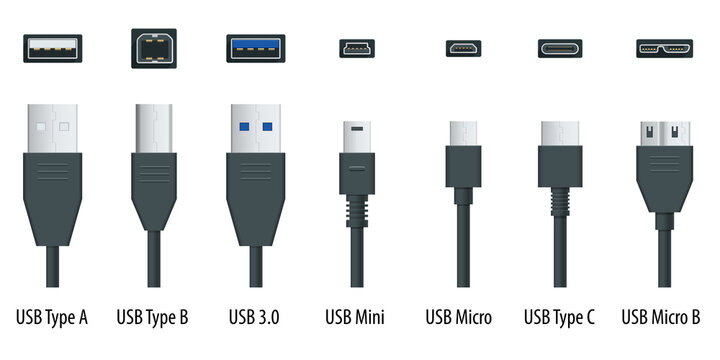
The ports on your Mac are USB-C [ 2nd from the right ].
The port on the printer you were trying to use is USB-A [ 1st from the left ] (or USB 3.0 [ 3rd from the left ] which is the same in size and shape) – that usually is for plugging in a USB-stick to print documents directly from a USB-stick
The port on back of the printer – the one you should use – is USB-B [ 2nd from the left ].

If you don’t have a ‘printer cable’ (USB-A to USB-B) and a USB-C adapter piece (USB-C plug-on cap or cable for USB-A), you can buy them from any electronics store. Or you can buy a ‘modern printer cable’ (USB-B to USB-C).
Here are direct links to buy these from Amazon :

modern printer cable (USB-B to USB-C) from Amazon.com
modern printer cable (USB-B to USB-C) from Amazon.co.uk
modern printer cable (USB-B to USB-C) from Amazon.de

all-in-one modern & regular printer cable (USB-C/USB-A to USB-B) from Amazon.com
all-in-one modern & regular printer cable (USB-C/USB-A to USB-B) from Amazon.co.uk
all-in-one modern & regular printer cable (USB-C/USB-A to USB-B) from Amazon.de

to keep this website online MacManus.nl makes a tiny fee if you buy from these Amazon links

If you plug in the right cable from the back of your printer to your Mac, the printer will berecognised and you will be able to print.

That’s it !

enjoy 😉

fixed : Canon scanner error -21345 on M1 Mac

Question :

I have have just upgraded to a new MacBook Air M1 2020 (with an Apple M1 processor) running macOS 11.0 Big_Sur. Now, I am trying to get my Canon PIXMA MG3250 All-in-one printer-scanner to work with it… but even though I can get the printer function to work, when I want it to scan I get an error…

Installing the Canon MG3250 through System Preferecens > Printers & Scanners > Add Printer was really simple as it was immediately seen through Bonjour. After installing, the MG3250’s icon is listed on the left, and when I click it, the window opens where I can choose either the “Print” or the “Scan” tab. After choosing the later, I get the “Open scanner”-button, and when I click that, the built-in macOS scanner-app opens the “Scanner” window… which gives this error : “Failed to open a connection to the device (-121345)” each time I try. I just can’t get it to work.

What is wrong ?

Answer :

When you get this error in this setup, you will probably have gotten an error saying “IJScanner3” also. Do this to fix it :

  • goto the Canon UK website : https://www.canon.co.uk
  • there, browse to the PIXMA MG3250’s Driver Support-page or go there directly using this link : https://www.canon.co.uk/support/consumer_products/products/fax__multifunctionals/inkjet/pixma_mg_series/pixma_mg3250.html?type=drivers&language=en&os=macos%2010.15%20(catalina)
    • Yes, that’s right, even though you are running macOS 11.0 Big_Sur and Canon tells you there is no driver for such an advanced OS, the macOS 10.15 Catalina driver still works
  • when you see the ICA Driver Ver. 4.0.0a (Mac) version listed, click the blue download button to download
  • in your downloads folder, you will now find a file called miss-mac-ijscanner3-4_0_0-ea19_2.dmg
  • click that file and it will mount an installer called Canon IJScanner3_040000.pkg
  • click that file and the 2020-version of the scanner driver will be installed
  • when done, make sure the System Preferences are closed
  • then open System Preferences > Printers & Scanners > MG3250 again and click the “Open Scanner”-button
  • now, the built-in scanner-app will open the Scanner-window again, but hits time without the error… so you are good to go !

That’s it !

enjoy 😉

tip : which scanners are compatible with OSX 10.9 Mavericks ?

Question :

Which scanners will work with OSX 10.9 Mavericks ?

Answer :

Just like with previous versions of MacOSX, the built-in compatibility with older scanners is rather low…

…in the specs of OSX 10.9 Mavericks there isn’t any indication of extended scanner support, so it is expected that “wireless scanning” (over WiFi/AirPort) isn’t supported either, just as was the case (or should I say “problem”) in previous versions of MacOSX…

Apple hasn’t published a list of pre-installed scanner-drivers either, so there’s nothing official on this…

…there is however, a (very short) list of supported scanners pre-installed in OSX 10.9 Mavericks itself :

CanoScan 5600F             find it in the US, UK or Germany
CanoScan 9000F             find it in the US, UK or Germany
CanoScan LiDE 100         find it in the US or Germany
CanoScan LiDE 110         find it in the US, UK or Germany
CanoScan LiDE 200         find it in the US, UK or Germany
CanoScan LiDE 210         find it in the US, UK or Germany
CanoScan LiDE 700F       find it in the US, UK or Germany

This list can be found in :

/Library/Printers/Canon/IJScanner/Resources/CIJIcons

…strangely, there are no such icons installed for scanners from other brands like EPSON and HP… so support for those scanners is either not included (yet) or left up to the individual manufacturers…

NOTE #1 : in MacOSX 10.7 Lion, OSX 10.8 Mountain Lion and OSX 10.9 Mavericks scanner-compatibilty can be extended by installing the SANE-scannerdrivers, as outlined here.

NOTE #2 : if you are a professional and/or heavy user, you could also try using the SilverFast 8 scanner-suite, which adds support for these scanners to OSX 10.9 Mavericks (since even the cheapest version, SilverFast SE 8, will cost you €50, this only is a relevant solution for professional and/or heavy users…)

Donate Button (MacManusNL)
