fixed : account info greyed out in iOS 12

Question :

I have just upgraded my child’s iPhone from iOS 11 to iOS 12, but I can’t access his/her iCloud settings, since his/her account name is greyed out in Settings.app and nothing happens when I click on it…

How can I solve this ?


Answer :

The problem is that you have had Restrictions-setting active on iOS 11, and it is still active on iOS 12…

However : the Restrictions-setting is no longer in the “General”-chapter of Settings.app, starting in iOS 12, the Restrictions-setting is in the “Screen Time”-chapter (the purple hourglass icon just above the grey sprocket/gear-wheel icon of the “General”-chapter) and the setting is now called “Content & Privacy Restrictions”

So, do this :

  • open the Settings.app
  • in the window that opens, click on “Screen Time” (the chapter just above “General”)
  • in the next window, click on “Content & Privacy Restrictions”
  • when asked, type the Restrictions-password-code (4 digits) you previously used on iOS 11
  • then scroll down to “ALLOW CHANGES:” and “Account Changes” and adjust the setting to allow changes
  • now, the account-info in Settings will no longer be greyed out and you can also login on additional iCloud services like Messages (a.k.a. iMessage)

that’s it !

enjoy 😉

fixed : can’t find Restrictions setting in iOS 12

Question :

I’ve just upgraded my child’s iPhone from iOS11 to iOS12, which went without any problems. Or so it seemed…

In iOS11 I had set some Restrictions on my child’s iPhone because (s)he is underaged. I used to be able to find the Restrictions setting in Settings.app under General… but now, in iOS12, it’s no longer there…

Where has the Restrictions setting gone ?


Answer :

In iOS12, the Restrictions setting can be found in Settings.app under Screen Time. It’s now called “Content & Privacy Restrictions” instead of just “Restrictions”, but your options for setting restrictions are still generally the same.

You even have more options now. You can also set the amount of time your child will be able to use any specific app or service now.

enjoy 😉


fixed : best iPhone-app for DHL, UPS and PostNL track-and-trace in The Netherlands

Question :

I live in The Netherlands and on my iPhone, I want to trace packages that will be delivered to me shortly.

The PostNL.app works perfectly, but it’s for PostNL shipments only…

The UPS.app works perfectly too (despite the privacy agreement is a little awkward), but it’s for UPS shipments only…

There are various apps in the Apps Store for DHL shipments, but none of them work for The Netherlands…

I’ve tried the iPhone-apps by Deliveries, ParcelTrack and 17track, but even though they are advertised as ‘perfect solutions’ in most countries, they fail for at least one of the main delivery services in The Netherlands…

Isn’t there any iOS-app that can track all mayor post & parcel delivery services like PostNL, UPS, DHL, GLS and TNT in The Netherlands ?


Answer :

Yes there is… but there’s only one : AfterShip.app [click to download]

…and it’s not perfect yet, it still needs a little more do-it-yourself than advertised :

  • the Auto Detect function doesn’t always select the proper delivery service, nor does it always include the proper delivery service in it’s short list of options, so (especially for DHL deliveries) you must always double-check the exact delivery service from your shipment confirmation eMail
  • there’s only one Title (or Description) field you can add to your Shipment-entry, so if you want to include both Sender and Content description (as you can in most other Track&Trace apps) you will have to combine those into only one line of info
  • the Edit option only allows you to edit the Title (a.k.a. Description) of your Shipment-entry, so… if you’ve erratically chosen (or guessed) the wrong delivery service, you will not be able to edit or correct it… you will have to delete the entire Shipment-entry and create/add a new, corrected one entirely…

But apart from that… it’s FREE and once you have picked the delivery services correctly, it works as expected ! (and that’s far better than any other Track&Trace app)

There are a few things to know :

  • TNT-shipments from Amazon UK and Amazon DE to The Netherlands : if your online Amazon account info lists TNT (or “TNT (Netherlands)”) as the delivery service, the actual shipment will be done by PostNL, so you’ll need to choose “PostNL Domestic” as the delivery service ; if in the “Verzendbevestiging” you have received through eMail, the fine print says “Je items worden verzonden door Post NL Pakketten.” the actual shipment will expedited be by PostNL Domestic, even if your online Amazon-shipment-info says something else !
  • DHL-shipments from Amazon DE to The Netherlands : if your online Amazon DE account info lists DHL (or “DHLNL”) or DHL_CONNECT as the delivery service, this will NOT be DHL Express or DHL Benelux (the ones suggested by AfterShip.app), this will usually be shipped using DHL Parcel NL ; in the “Verzendbevestiging” you have received though eMail, the fine print says “Je items worden verzonden door DHL NL Pakketten.” the actual shipment will be expedited by DHL Parcel NL, even if your online Amazon-shipment-info says something else !
  • DHL-shipments from Dutch resellers to addresses within The Netherlands will be usually expedited by “DHL Benelux” (and NOT by “DHL Express” or any other DHL branch)

enjoy !

info : comparison of lightning-splitters

Question :

I would like to use two lightning-connections on my new iPhone that only has one lightning-connector. Are the available lightning-splitters any good ?


Answer :

Yes and No.

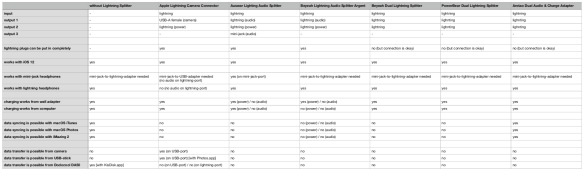
Yes, if you only want to use a pair of wired headphones and charge your iPhone at the same time, all lightning-splitters I’ve tested are up to the job. And if you have a USB-headphone (or a mini-jack-to-USB-adapter) you could even use the Apple Lightning Camera Connector.

But if you want to connect anything else, the lightning-splitters that I’ve found won’t do the job… even the ones that claim to support data syncing didn’t support in iOS 12 in my testing…

So, for now it’s only power&audio-splitters…

Here‘s an in-depth comparison [open attached file] of the lightning-splitters I’ve tested :

Apple Lightning Camera Connector

Auswar Lightning Audio Splitter

Beyeah Lightning Audio Splitter Argent

Beyeah Dual Lightning Splitter

PowerBear Dual Lightning Splitter

Arotao Dual Audio & Charge Adapter


My recommendations would be :

  • if you want a mini-jack-adapter for your headphone : get the Auswar Lightning Audio Splitter
  • if you want data-transfer : get the Apple Lightning Camera Connector

fixed : how to take a screenshot on an iPhone X / XS / XR ?

Question :

Whenever I wanted to take a screenshot of my iPhone’s screen, I used to press the Home-button and the ON/OFF-button simultaneously, and I would have my screenshot. Since I now have a new iPhone without the physical Home-button, I can no longer do that… but I haven’t figured out how to take screenshots now…

What should I do ?


Answer :

On the new iPhones that no longer have a Home-button, like the iPhone X / XS / XS Max / XR, the buttons to press to get a screenshot have slightly changed :

press the ON/OFF-button (right) and the VolumeUp-button (left) simultaneously for more than a second, and you’ll hear the ‘camera-shutter-sound’ and see the screen flash ; this means the screenshot has been taken and you’ll see it appear in reduced size bottom-left on your screen… and it will be placed in your Photos.app

That’s it 😉

enjoy !