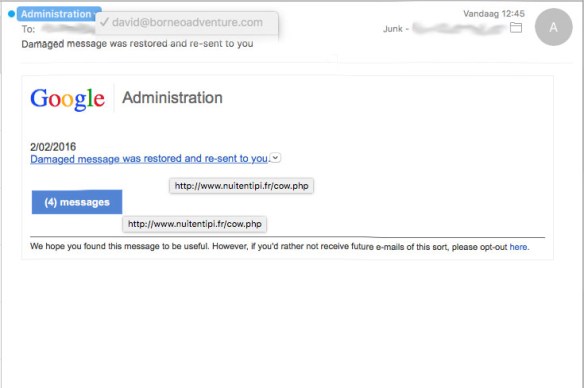
BEWARE ! : “Damaged message was restored” phishing scam eMail

! BEWARE !

today I got an eMail from Google Administration, stating “Damaged message was restored and re-sent to you”,

on my Mac this was immediately recognizable as a Junk-message (or rather : a Phishing Scam-message), as you can see in the picture below.

DamagedMessage-fakemail

so BEWARE ! and don’t let yourself be fooled or mislead by this eMail scam !

fixed : close that one window that blocks off the rest of Safari

Question :

While browsing the internet using Safari, I suddenly got a popup window which I can’t close. I expect it to be a scam, as there is only one button ; an OK-button.

As I don’t agree with the text I am supposed to agree on, and I don’t trust the sender either, I just want to close this popup-window. But the red ‘Close Window’-button is not responding, and I can’t switch to any other open browser windows either. Safari seems to hang.

I could of course restart Safari, but I have several windows open I haven’t saved yet and it would be a real hassle to loose them…

Isn’t there any way to shut this popup down without loosing any other open windows ?


Answer :

The popup you have encountered is most definitely a scam-popup, as there is no option to ‘not agree’.

It’s rather simple to get out of this awkward situation :

  1. shut down your WiFi-connection : goto the ‘piece-of-pie’ icon in the top menu bar of the Finder –> then select “Turn Wi-Fi Off” from the pulldown menu that appears
  2. pull the ethernet-cable from your Mac
  3. now you’re disconnected from the Internet, you can safely click on the OK-button in the popup-window
  4. the popup-window will now close, and you will now be able to normally use Safari again
  5. now close all other windows you don’t need to have open
  6. even though you could now reconnect to WiFi- or Ethernet-internet, it’s recommended to do the following first
  7. still without internet-connection, open a new browser window : File –> New Window (or just press the CMD + N key-combo)
  8. then open the Reading List sidebar in that fresh window : View –> Show Reading List Sidebar (or just press the SHIFT + CMD + 2 key-combo)
  9. now drag all open browser windows you want to keep to the reading list
  10. when done, clear Safari’s history and website data : Safari –> Clear History…
  11. in the popup window that opens asking you to “Clear history will delete related cookies and other website data.” click on the “Clear History”-button
  12. then close Safari
  13. then reconnect to the Internet (either via WiFi or Ethernet-cable)
  14. and reopen Safari

…you can now find all previously open windows in the Reading List


enjoy !

Donate Button (MacManusNL)

fixed : install OSX 10.11 El_Capitan on unsupported Macs

Question :

I read somewhere that it is possible to install the latest version of OSX 10.10 Yosemite on my Mac, even though the official installer refuses to install.

Can you give me any directions ?


Answer :

Installing newer versions of OSX on slightly older Macs that do not meet the official system requirements can be done using MacPostFactor (MCPF).

MacPostFactor also supports installing OSX versions up to OSX 10.10 Yosemite on older Macs. And a new version that supports installing OSX 10.11 El_Capitan is in the works.

For more info (and downloads), go to the info page on MacRumors.com :

http://forums.macrumors.com/threads/os-x-yosemite-on-unsupported-macs-guide.1761432/

or see the (less readable) official page of the MacPostFactor team :

http://osxhackers.net/MCPF/

…in short :

!!! THIS IS FOR (RATHER) EXPERIENCED MAC-USERS ONLY, AND SHOULD NOT BE DONE ON YOUR ‘ONE AND ONLY’ MAC !!!

!! REMEMBER : DO FOLLOW THE COMPLETE INSTRUCTIONS THAT CAN BE FOUND HERE : MacPost Factor info page on MacRumors.com

…that should be it !

enjoy !

😉

Donate Button (MacManusNL)

fixed : install OSX 10.10 Yosemite on unsupported Macs

Question :

I read somewhere that it is possible to install the latest version of OSX 10.10 Yosemite on my Mac, even though the official installer refuses to install.

Can you give me any directions ?


Answer :

Installing newer versions of OSX on slightly older Macs that do not meet the official system requirements can be done using MacPostFactor (MCPF).

MacPostFactor (MCPF) also supports installing OSX versions up to OSX 10.10 Yosemite on older Macs. And a new version that supports installing OSX 10.11 El_Capitan is in the works.

For more info (and downloads), go to the info page on MacRumors.com :

http://forums.macrumors.com/threads/os-x-yosemite-on-unsupported-macs-guide.1761432/

or see the (less readable) official page of the MacPostFactor team :

http://osxhackers.net/MCPF/

…in short :

!!! THIS IS FOR (RATHER) EXPERIENCED MAC-USERS ONLY, AND SHOULD NOT BE DONE ON YOUR ‘ONE AND ONLY’ MAC !!!

!! REMEMBER : DO FOLLOW THE COMPLETE INSTRUCTIONS THAT CAN BE FOUND HERE : MacPost Factor info page on MacRumors.com

…that should be it !

enjoy !

😉

Donate Button (MacManusNL)

fixed : What to do with a winmail.dat attachment ?

Question :

I recently received an eMail that should include various attachments, but it only included one : a winmail.dat file.

When I try to open it, OSX tells me there is no app on my Mac that can handle this file.

What can I do ?

Answer :

There are various ways of solving this. (or rather : ‘handling this’, as fixing the actual cause isn’t something an end user can do)

But first, a little insight into the cause :

Long ago, when eMails were still text-only without layout and attachments were added as plain files, a lot of eMail-client makers wanted to improve their user experience and provide their users a layout-option for eMails. Microsoft then developed TNEF as a protocol for communication between their Outlook eMail-clients. But TNEF never made it into an eMail-communication industry standard. HTML (the web-layout protocol) was adopted as the industry-wide standard. MS Outlook never fully adopted regular HTML as it’s eMail-layout protocol. So, even though Outlook calls them HTML-eMail, they are actually being sent as TNEF-eMail, which is HTML-ish, but still MS Outlook-only…

Sometimes (in the chain of eMail-servers involved in eMail-communication) the sender’s Outlook-app (or MS Exchange client) sends out a TNEF-eMail, not a regular HTML-eMail. All receivers of the eMail that use Outlook (or MS Exchange) will not detect any irregularity, but any recipient who’s not using Outlook as their eMail-client will receive it as a text-eMail with only one attachment : a winmail.dat file.

So… this is not a Mac-problem, it isn’t even a problem for all non-Outlook users, it is just that the only way to prevent this from happening to you, is to use MS Outlook…

…but for most non-Outlook users, using Outlook is not an option…

Anyway… the solution …or rather the various options for solving this, as either the sender can prevent this from happening, or the recipient can find ways to open the windmill.dat file anyway :

Microsoft provides 2 options for the sender who wants to prevent this :

1. set Outlook to only send ‘Plain Text’-eMail to any future recipient :

in Outlook, choose “File” (or “Tools”), then “Options”, then “Mail” (or “Mail Format”), and then in “Compose in this message format”, choose “Plain Text”, then click “OK”

2. set Outlook to only send ‘Plain Text’-eMail to this specific recipient :

in Outlook’s Address Book, double-click on the recipient’s eMail-address, then in the “SMTP – Address” field choose delete (un-click) the check-mark at “Always Send To This Recipient iIn Microsoft Exchange Rich-Text Format”, then click “OK”

More info can be found on Microsoft’s website :

http://support.microsoft.com/kb/290809

Even though prevention is the better option, there are alternatives : if you are a recipient using OSX, you can find various apps to unpack winmail.dat files in the Mac App Store. Too bad, there are no free apps for this in the App Store, but there is a FREE one available here :

TNEF’s Enough

If you prefer an automatically updated app from the Mac App Store, and don’t mind paying for it, consider this one, which will unpack faster and has a more comprehensive and visually nicer interface :

Winmail Extractor

If you also need a winmail.dat unpacker-app for your iPhone and/or iPad, you can consider this one :

Klammer for iOS & OSX

There are FREE services available online also, that will convert your windmill.dat for you instantly. Just keep in mind that by using them, you are enabling these services to view the contents of your eMail and it’s attachments, so you are willingly giving up your privacy in suing them. An example :

winmail-dat.com

But, again : even the windmill-dat.com service itself advices you to prefer a dedicated (offline) winmail.dat conversion app (on your Mac) over the use of their service.

Donate Button (MacManusNL)

fixed : run DOS commands on your Mac

Question :

I need to run a firmware update for a hard drive, but there’s no firmware update available for MacOSX, there’s only a firmware .exe-program for MS DOS.

How can I run that on my Mac, since I don’t have a Windows-PC available ?


Answer :

MacOSX isn’t able to run DOS commands in the MacOSX Terminal.app…

and running FreeDOS from a USB-stick isn’t an option on your Mac, since your Mac can’t boot from non-EFI volumes…

but there’s a very simple option to run DOS commands in OSX :

– download & install Boxer by drag&dropping the app into your Applications folder

– run the Boxer.app and you will get 3 options, one being “Open a DOS prompt”, that’s the one your looking for

– click on it, and you will have your DOS-prompt

– and just as you can in OSX Terminal.app, you can drag&drop .exe-files (and other files) into the prompt, and the correct path to the file will be automatically inserted into the prompt

– there’s just one small drawback : the Mac’s keyboard layout is not supported… so even though the letters will be what you see on your keyboard, most other characters will not… to get a – [minus], you should type / [slash], and to get ” [brace], you should type @ [at] on your Mac keyboard… (you can figure out the other ones yourself by just trying)

That’s it !

Enjoy !

😉

Donate Button (MacManusNL)