fixed : Adobe Application Manager hangs during updates

Question :

Running one of my Adobe applications (Photoshop), I was checking for updates from within the application. I found the “Updates…” option under “Help”, and when I clicked it, the Adobe Application Manager application started up and informed me that there were some updates available, so I indicated to update right away.

The update process started right away, with downloading the updates. But then, after a while, I noticed that there was no progression in the progress bar and the estimated update time was about 4 hours… nothing seemed to be happening… the application seemed to hang…

What can I do ?

Answer :

For some reason the Adobe Application Manger app seems to hang quite often. This might for instance occur if the screensaver starts because there’s ‘no human activity’ during the upgrade process…

The solution is rather simple, and basically comes down to just quitting and restarting the Adobe Application Manager app. Here’s how to :

– if the Adobe Application Manager hangs, press the CMD + ALT + ESC key-combo on your keyboard to bring up the “Force Quit”-window

– then try to quit each open app using the built-in regular Quit-option (CMD + Q key-combo), and force quit any app that will not quit normally using the “Force Quit”-window

– preferably you should now startup Disk Utility and run the “Repair Disk Permissions” action on your internal Hard Drive

-then go to Applications –> Utilities –> Adobe Application Manager –> core –> Adobe  Application Manager

– double-click to run the app and try to upgrade again

– when the upgrade hangs again, just ‘Force Quit’ the Adobe Application Manager again and restart it to try again

– finally you will get a message that the upgrade has succeeded

That’s it !

Enjoy !

😉

Donate Button (MacManusNL)


BEWARE ! : Home Video Library phishing scam eMail

! BEWARE !

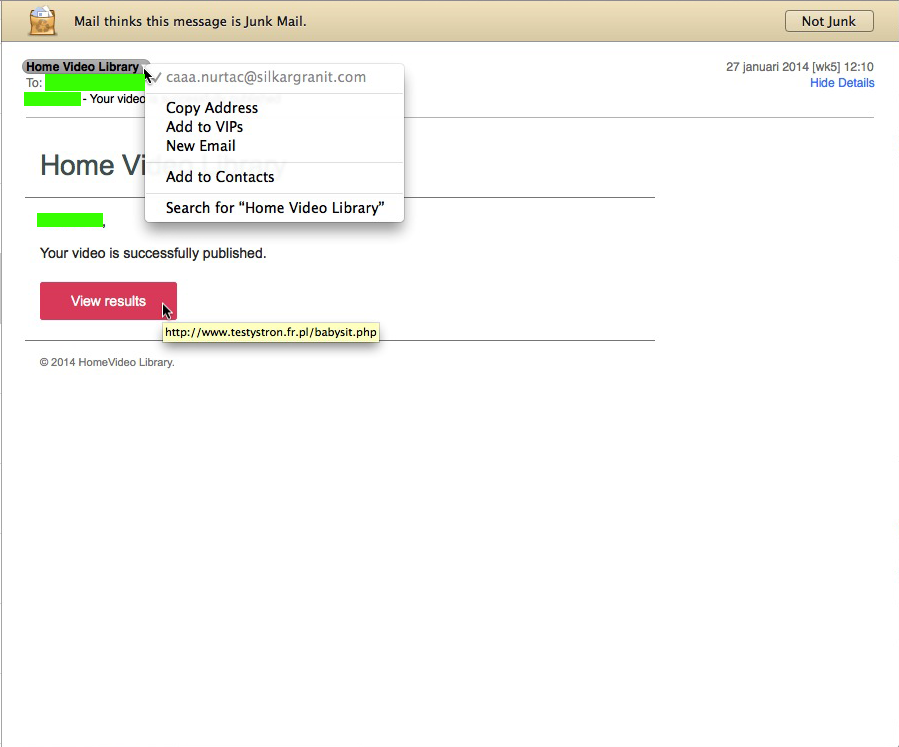
today I got an eMail from Home Video Library, stating “Your video is successfully published”,

on my Mac this was immediately recognizable as a Junk-message (or rather : a Phishing Scam-message), as you can see in the picture below, but on my iPhone that wasn’t so easy to figure out… it was mainly the fact that I haven’t used Picasa in ages that made all alert bells ring in this case… and the fact that I’ve never heard of a company or service called Home Video Library raised more suspiciousness…homevideolibrary_scam…so BEWARE !

Note : this scam eMail comes in various versions, there are similar ones pretending to be from Picasa Library. More info on that can be found here.

tip : make sure your TimeMachine-update is useable

Question :

While doing a regular check on my Mac with Disk Utility, it just informed me that I have a potential hardware failure, should save a many data as I can and reinstall.

So I was planning on doing a TimeMachine-backup and disk-reformat, followed by a clean install of OSX and copy-back from TimeMachine.

But… I recently found reports on a bug in TimeMachine, that might prevent TimeMachine from recognizing the latest backup…

Is there a way to make sure that my latest TimeMachine-backup is useable ?


Answer :

This bug seems to occur with unfinished TimeMachine-backups, either due to disconnection, unplugging or switching from WiFi to Ethernet or vice-versa…

As with all things in life, nothing is 100% sure or secure…

But if you want near-100% assurance that your latest TimeMachine-backup will work after a ‘clean install’, do this :

– make sure your Mac is connected to your TimeMachine-backup-disk in only one way, so if it’s an external harddisk disconnect the Ethernet-network cable and set AirPort/Wifi to OFF, to have the connection ‘only via USB’ or ‘only via FireWire’ and if your TimeMachine-backup-disk is a NAS or TimeCapsule, disconnect from AirPort/WiFi (and preferably connect the Ethernet-cable from the NAS or TimeCapsule straight into your Mac, and if possible, stop all other network-connections over Ethernet, by disconnecting all cables, and shutting down AirPort/WiFi) to have the connection ‘only via Ethernet’

– do a new “Back Up Now” in TimeMachine, and make sure it finishes completely before you do anything else (preferably, shut down all other apps before backing up also)

– then startup the Migration Assistant-app (from the Utilities folder in the Applications folder), and type your Mac’s administrator-password when asked

– in the first window, select “From a Mac, Time Machine Backup or startup disk”, and click “Continue”

– in the next window, select the disk that your TimeMachine-backups are on (if you’re on a Time Capsule, you will need to type your TimeCapsule-password when asked), and click “Continue”

– in the next window, a list of all backups (a.k.a. sparsebundles) available on the disk will be displayed ; now you will have to wait a little for each sparsebundle to display what the date is of the backup-version that can be retrieved… if that date matches today’s date, you have a perfect backup available, and you can exit the Migration Assistant-app by repeatedly clicking the “Back”-button

…but if the date is different, or the “No Volumes Found in backup”-error is displayed, your backup is useless for easy recovery ; you will have to exit the Migration Assistant-app, and start over the entire backup-routine explained above, and then check again in the Migration Assistant-app …you have to keep repeating this entire routine until you get today’s date displayed below the backup’s name

If you do not do as described above, you are in serious, enormously time-consuming trouble…  (even though this doesn’t always mean that your personal data is lost… everything might be lost, but… it could also mean you will have to repair the sparsebundle-files and/or it could also mean that you will have to copy everything back ; folder-by-folder or even file-by-file… either in the Time Machine-app or in the Finder ; and all applications will have to be manually reinstalled again…)

Donate Button (MacManusNL)

BEWARE ! : Picasa Library phishing scam eMail

! BEWARE !


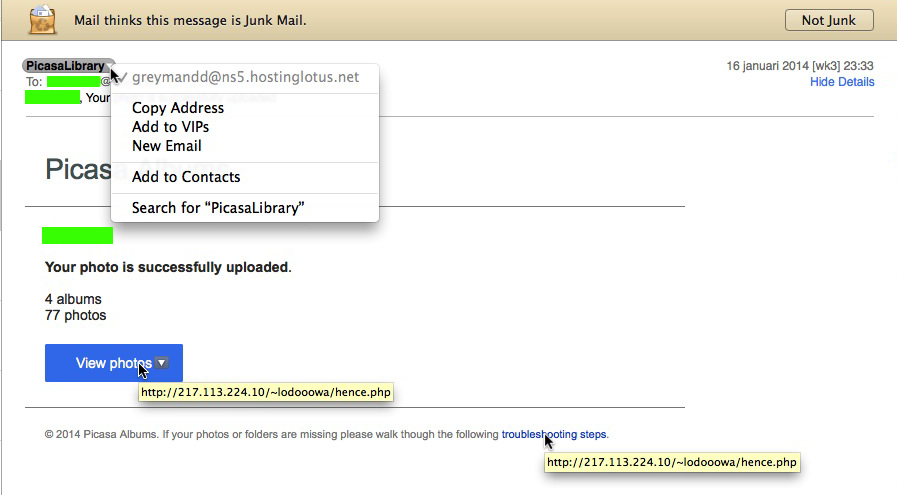
today I got an eMail from PicasaLibrary, stating “Your photo is successfully uploaded”,

on my Mac this was immediately recognizable as a Junk-message (or rather : a Phishing Scam-message), as you can see in the picture below, but on my iPhone that wasn’t so easy to figure out… it was mainly the fact that I haven’t used Picasa in ages that made all alert bells ring in this case… and the fact that I’ve never heard of PicasaLibrary (and would expect it to be written Picasa Library) raised more suspiciousness…picasa_scam…so BEWARE !

Note : this scam eMail comes in various versions, a similar one pretending to be from Picasa Library also states “Damaged photos found”. More info on that one can be found here.


tip : discounted and refurbished Macs, iPads & iPods on Dutch online Apple Store

I don’t have any idea how long this has been around, but I had not yet come across this info :

Apple is now selling refurbished (*) Apple-hardware like Macs, iPads, iPods and accessories though the Dutch online Apple Store.

Go here to see if what you’re looking for is available at more-interesting-than-usual “Special Deal” prices.

(*) “refurbished” would mean that these hardware products have been produced from hardware that was either taken out of the primary production process or returned to Apple, of which all malfunctioning parts have been replaced by (as-good-as-)new parts ; due to the fact that this refurbished hardware has been thoroughly tested, this hardware comes with 1 year of limited Apple-warranty and the option to buy additional AppleCare.

Enjoy !

Donate Button (MacManusNL)