
fixed : can’t connect old printer to new Mac using USB

Question :

A friend gave me a rather old printer that was working great for him, and said that I could easily use it with my MacBook also, using a USB-cable. So I took a USB cable with an old (flat) USB-connector on the one side and an new (small) USB-connetor on the other side and plugged that into the printer and into my MacBook Air (or Pro) that only has those same new (small) USB-ports. The connection feels good, but when I try to print from my Mac, the printer is not recognised…

What is wrong ?


Answer :

From what you are describing, you are using the wrong port on the printer : you are using a ‘regular’ USB-A port, probably on the top, front or side of the printer… you should however use the ‘square’ USB-B printer port that is on the back of your printer.

See the difference between various USB connectors and ports in this image (an Adobe Stock image) :
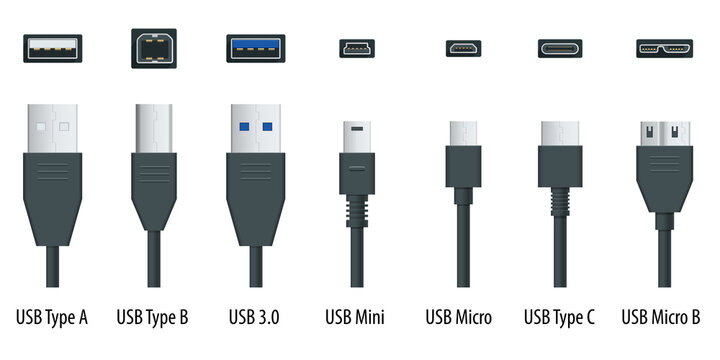
The ports on your Mac are USB-C [ 2nd from the right ].
The port on the printer you were trying to use is USB-A [ 1st from the left ] (or USB 3.0 [ 3rd from the left ] which is the same in size and shape) – that usually is for plugging in a USB-stick to print documents directly from a USB-stick
The port on back of the printer – the one you should use – is USB-B [ 2nd from the left ].

If you don’t have a ‘printer cable’ (USB-A to USB-B) and a USB-C adapter piece (USB-C plug-on cap or cable for USB-A), you can buy them from any electronics store. Or you can buy a ‘modern printer cable’ (USB-B to USB-C).
Here are direct links to buy these from Amazon :

modern printer cable (USB-B to USB-C) from Amazon.com
modern printer cable (USB-B to USB-C) from Amazon.co.uk
modern printer cable (USB-B to USB-C) from Amazon.de

all-in-one modern & regular printer cable (USB-C/USB-A to USB-B) from Amazon.com
all-in-one modern & regular printer cable (USB-C/USB-A to USB-B) from Amazon.co.uk
all-in-one modern & regular printer cable (USB-C/USB-A to USB-B) from Amazon.de

to keep this website online MacManus.nl makes a tiny fee if you buy from these Amazon links

If you plug in the right cable from the back of your printer to your Mac, the printer will berecognised and you will be able to print.

That’s it !

enjoy πŸ˜‰

fixed : open your open pages from macOS Safari on your iPhone

Question :

I overheard someone telling they could open the internet pages they have opened on their Mac from their iPhone also. I’ve never seen it in practice, but I think it would be great to be able to continue browsing on my iPhone what I had started on my Mac. I have asked my colleagues and friends, but no-one could tell me how to do that.

How do I do that ?


Answer :

Yes, you can continue the internet browsing you’ve started on one Apple device on another Apple device, if you use iCloud.
First step is to activate iCloud Safari syncing. To do so, do this :
– on your Mac, goto Apple-icon (top-left in the menu bar)
– select System Settings from the pulldown menu
– in the window that opens, click on Apple ID (just below your name, top left)
– when the Apple ID page opens, click on iCloud
– when the iCloud page opens, click on the “Show more apps” button
– in the popup window that opens, make sure that the slider at Safari is set to ON (green)
– then, exit the System Settings
– now, on your iPhone, open the Settings.app
– in the page that opens, click on your own name (Apple ID, iCloud+, Media & Purchases)
– in the Apple ID page that opens, click on iCloud
– in the iCloud page that opens, click on Show All
– in the Apps using iCloud page that opens, make sure that the slider is te to ON (green)
– then close the Settings.app

With iCloud Safari syncing set, you can now see the webpages you have open on your Mac from Safari on your iPhone. To do so, do this :
– first, make sure you have at least one page open in Safari on your Mac
– then, open the Safari.app on your iPhone
– now, in the Safari.app, click on the Tabs-icon (bottom right – two squares on top of each other)
– then, in the preview page of all open tabs (open pages), click on the Plus-sign (bottom left)
– when the Favourites page opens, scroll down to the bottom
– there you will have at least one chapter named “From Mac…” with “Show All” next to it
– click on “Show All” and find all the pages you have open on your Mac
– if you don’t see the “From Mac..” chapter, click the “Edit” button at the bottom and make sure that the slider at “iCloud Tabs” is set to On (green) and return to the previous page

That’s it !

enjoy πŸ˜‰

fixed : import Google Calendar events in Apple Calendar ( iOS & macOS )

Question :
I am using an online service that can set all appointments I have with them in my Google Calendar… but not in my Apple Calendar… and even though I have a Gmail-account, I never use Google Calendar…

Is there any way to sync or transfer the Google Calendar appointments into my Apple Calendar on iOS and macOS ?


Answer :

YES there is ! And it’s rather simple, but you have to enable your Google Calendar :
– on the online service’s website, click on the ADD TO CALENDAR (or similar) option
– let them set the appointment in your Google Calendar (you might have to login with your Gmail account for that)
– then, on iOS (on your iPhone), open the Settings.app
– scroll down to “Calendar” and click on the triangle on the right
– in the Calendar Settings page that opens, go to “Accounts” and click on the triangle on the right
– in the Accounts page that opens, under ACCOUNTS, go to your Gmail address and click on the triangle on the right
– then, on the settings page of your Gmail account, go to “Calendars” and make sure that the slider is ON (Green)
– then exit the Settings.app
– now, on macOS (on your Mac), open the Calendar.app
– then, in the top menu bar, click on “Calendar” and select “Accounts” from the pulldown menu
– now, in the “Internet Accounts” window that opens, click on your Gmail account’s Gmail address
– in the Gmail account’s settings page that opens, make sure taht at “Calendars” the slider is set to ON (Blue)
– then exit the Settings
– now, in the Calendar.app, you will see the appointments from your Google calendar appear
– then, click on the calendar icon on top of the menu list on the left so all your different calendars are listed on the left
– now, scroll down to the chapter the has the name of your Gmail account, and uncheck (deactivate) the Birthdays, Family and Holidays options (these are the presets from Google Calendar)
– if needed, you can also change the color of the Google Calendar appointments by right-clicking on your Gmail address (that is your main Google Calendar) and selecting a preset or custom color
– if needed, you can also choose “Get Info” from the popup menu to change the name (“Description”) of the calendar or the alerts or how thes appointments effect your availability (as seen by others with whom you share your Calendar/appointments)

That’s it !

enjoy πŸ˜‰

fixed : My Card in iOS Contacts.app is not me

Question :
Something’s gotten mixed up on my iPhone… for some reason, when I click on “My Card” in the top of my Contacts.app… someone else is showing up… it’s not me… it’s someone who is in my contacts, but it is not me… I may have accidentally linked het “My Card” label to that contact, but I can’t remember when that could have happened… if I select the “My Card” entry, I can edit it, but that deletes the contact info of the person that has been linked to “My Card”, and creates a duplicate of my own contact info…. that is not the proper way to do this.. but I can’t find a way to link “My Card” back to me…

How do I link the “My Card” back to my own contact info ?

Answer :
To link the “My Card” back to your own personal contact info on iOS, do this :
– open the Settings.app on your iPhone
– scroll down and select “Siri & Search”
– in the page that opens, scroll down to “My Information”
– there you will see the wrong name listed next to “My Information”
– now, click on “My Information”
– then, your entire list of contacts will be shown, scroll down to your own contact info and select it
– then, you get back in the “Siri & Search” page, there you will now see yourself listed next to “My Information”
– then, exit the Settings.app
– now, open the Contacts.app and scroll to the top, there, you will now see your own contact info listed alt “My Card”
– not that iCloud will now make sure that this update/fix is synced/corrected accross all you Apple devices (Mac, iPad, iPhone)

That’s it !

enjoy πŸ˜‰


fixed : ValiDrive alternative for macOS

Question :
I have purchased a 2TB USB-stick for a discount price. I thought that was an incredible deal and when I received it it looked great and my Mac even recognises the USB-stick as properly and sees 2TB of available disk space. I can even reformat the drive and it will still remain listed as 2TB… incredible !
But as the brand name on the product and the packaging do not add up, I got the feeling that at least something is off… so I googled some and found that it is common practice with USB-sticks with extreme memory sizes to turn out to be fraudulent or even counterfeit products… in-factory the firmware has been hacked to make the USB-stick appear as a large volume drive, but when in use, but when in use the data copying either stops when the maximum amount of actual (hardware) memory capacity is reached (4GB or 8GB or sometimes even more) or the data copying keeps on going endlessly but is at the same time erasing previously copied data…
That is really bad news…
Now there is a tiny piece of software for Windows that can check if a drive has been tampered with like that : ValiDrive by GRC (Gibson Research Company) …but that’s Windows-only…

Is there any app for macOS that can do the same ?

Answer :
YES there is !
Even though there is no official version of ValiDrive for macOS and drive checking apps like Disk Utility, TechTool Pro, CleanMyMac X and WD Drive Utilities are not (yet) able detect these hacked drives… there is a macOS-app that can :
Drive Capacity Tester by Sascha Simon Software ( available on the Mac AppStore )

Here’s how to use Drive Capacity Tester to verify USB drives :
– plug the USB-stick into your Mac
– if there is still data on the USB-stick, backup all data from it, then trash everything or reformat
– when there’s no more data on the USB-stick, open Drive Capacity Tester
– then, in the list, select the USB-stick
– in the popup window that appears, just leave Size at “Full” and Steps at “Write and verify data” and click the “Start Test” button (there is no nessecity to pay for the Pro-version… but it is of course very kind of you to support Sascha Simon by buying the Pro-version)
– now, if the countdown underneath the “Writing Files” status bar just counts down to zero, just let it finish… if it finishes regularly, you’re good : the drive is what it is supposed to be
– but… if the countdown underneath the “Writing Files” status bar counts down extremely fast, then loops and restarts the countdown… you can be sure that it is a faulty USB-stick
– in that case you can stop the “Writing Files” process as it will probably get you nowhere… (or you can let it run till it finishes, if ever, hoping you will find how much memory space there actually is on the drive

That’s it !

enjoy πŸ˜‰

fixed : iCloud syc error – Desktop files on Mac have ‘cloud exclamation mark’-icon

Question :
I was trying to access some files I have created on my Mac from my iPad, but the files that are in folder XYZ on my Mac’s Desktop are different from the ones that I can see in that same Folder XYZ when I access it from the Files.app on my iPad. Some files in Folder XYZ are the same and some are not… closing/quitting the Files.app on my iPad and reopening it doesn’t help… And when I look on my Mac, the files that are invisible on my iPad turn out to have a ‘cloud with an exclamationmark’-icon next to them on my Mac… I’ve also checked on my iPhone, and there I get to see the exact same content of Folder XYZ as on my iPad, but not the ones that are on my Mac…

This appears to be an ICloud syncing problem, but how do I fix it ?

Answer :
Yes, this is a syncing problem that iCloud sometimes runs into…
since there is no forced sync or manual sync option, this is how to fix it :
1- make sure that your Mac, your iPad and your iPhone all run the newest version of their OS (macOS, iPadOS, iOS)
2- make sure that your Mac, your iPad and your iPhone are all connected to a stable internet connection (either over Wifi or Ethernet)
3- make sure that you are logged in on iCloud with exactly the same account on all devices (Mac, iPad, iPhone)
4- if all the above is in place, restart your Mac without remembering open windows (to increase you chances on fixing this iCloud syncing problem, restart your iPad and iPhone as well)
5- wait for your Mac to restart/reboot entirely before doing anything else on it
6- wait for iCloud to sync back and forth amoung your Mac, iPad and iPhone (depending on the amount of files you have in your iCloud folders and your internet speed this may take up to 10 minutes or even longer)

That’s it !
…in 99% of the cases, this simple solution will fix your iCloud syncing problem
enjoy πŸ˜‰