fixed : simple way to play audio backwards

Question :
Is there a simple way to play an audio clip backwards, so reverse the direction of the audio, on macOS ?

Answer :
Reversing the play-direction in QuickTime is very simple on macOS :
– open the audio clip in QuickTime
– slide the indicator to the end of the clip (in the time slider above the Play button) – or just play the audio clip forward once
– when the indicator is entirely at the right end of the slider, press the [CMD] + [LEFT] key combo on your keyboard
– now the sound will be played in reverse

That’s it !

enjoy πŸ˜‰

fixed : get a local ( offline ) version of a YouTube video super fast

Question :
There are some videos on YouTube that I would like to view offline on my MacBook also, since I will be travelling and I will not be having internet access al the time.

Is there a FREE and easy way to view YouTube-videos offline ? or download them ?


Answer :
Yes, there is.
If you can do with a lowres 360p video with sound ( which is easy to store and high enough quality for general use, not for in-depth studying or full-screen presentation ), just do this :
– open the YouTube website
– copy the URL of the page that the video you want to download is on
– go to the EaseUS website : https://multimedia.easeus.com/online-video-downloader/
– paste the URL
– when the video opens in a separate window, you can save it as a .webarchive-video that you can play locally in Safari, even if you don’t have an internet connection

that’s it !

enjoy πŸ˜‰

NOTE : if you need to have an MP4 version, you can paste the .webarchive-file name into a video downloading app like Downie.app ( however, some video downloading apps like 4KVideoDownloader+.app aren’t able to convert the .webarchive file )

fixed : charge and use headphones at the same time on USB-C iPad Pro

Question :

My 2018 iPad Pro is great. I can use it for most of the office work I previously did on my MacBook. I have also started to use my iPad Pro for conference calls. For that I would like to wear my favorite over-ear headphones, which have a 3.5mm mini-jack and noise canceling. I got an official Apple USB-C-to-minijack adapter for that, but then I run into the problem that I cannot charge my iPad Pro at the same time. I have seen that there are various docking stations and port-multipliers that work with the USB-C iPad Pro, but those are very expensive…

Isn’t there a simpler solution ?


Answer :

Yes there is, but your choices are very limited : there are various splitters available that split the USB-C port into a USB-port and an audio-port… but : BEWARE ! nearly every single one of them does NOT work with the iPad Pro !!! (most of them only work on Android devices)

There is only one of the simple (and very affordable) splitters that is tested to work with the 2018 iPad Pro :

ESR 2-in-1 USB-C PD Headphone Jack Adapter ( buy it onΒ Amazon UK / Amazon DE )

Note 1 : this splitter’s USB-C port is only capable of charging, not for a USB-(data)stick or a USB-keyboard or anything other than a USB-C charger

Note 2 : this splitter’s audio mini-jack does support both audio-out and audio-in, so when using headphones with a microphone (like gaming headsets) that microphone is used, but when using a regular headphone, the iPad Pro’s built-in microphone will be used

That’s it !

enjoy πŸ˜‰

fixed : loop a voice recording on iPhone/iPad

Question :

I have a voice recording that I would like to loop continuously on my iPhone, so it will repeat over and over again.

How do I do that ?


Answer :

It is possible to do that on your iPhone (or iPad), but not with any of the pre-installed Apple apps… so you will need to download and install an app like VLCΒ first. You can download VLC for iOS here.

Once you have VLC installed, do this :

  • record your voice memo in Apple’s pre-installed VoiceMemos.app ( Dictafoon.app in Dutch )
  • in VoiceMemos.app, in the list of voice memos, click on the voice memo you want to loop
  • when the voice memo info expands, click on the ‘three blue dots’-button at the left
  • in the popup screen list, click “Share
  • when the list is expanded with app icons, swipe to the far right of the row of app icons and click on the “More“/’three grey dots’-button
  • in the popup list of apps that appears, scroll down and click on “Copy to VLC
  • then click “Done” top left
  • when VLC opens, the voice memo will auto-play
  • tap on the empty black area below the track’s title
  • now, in the black audio control screen that appears, tap the 3 dots (bottom right)
  • in de pop-up menu, click on the loop icon until the β€˜loop 1’ icon is shown (so NOT the β€˜no loop’ or β€˜loop’ icon)
  • now your voice recording will play over and over until you manually stop it

Note : When VLC does not auto-play the voice memo, click the “Audio” button (bottom left), then click on “Unknown Artist” in the list that appears, and the voice memo will be available there (if it was exported properly from VoiceMemos.app)

That’s it !

enjoy πŸ˜‰

fixed : listen to Dutch-language live radio on Google Home or Nest speakers

Question :

We have just gotten ourselves a Google Nest Hub in our Kitchen and a Google Home Mini in our living room. From the info in GoogleHome.app it seems like Spotify, YouTube Music and Google Play Music are the only options to play music on it…

…are we overlooking something ?


Answer :

The info in GoogleHome.app might be quite confusing, but what you’ve found is the list of music services that are supported by Google Assistant (Google’s voice-assistant that is like Apple’s Siri). For now, “Hey Google” can only voice-control Spotify, YouTube Music and Google Play Music…

But… you can use both the Google Nest Hub‘s and the Google Home Mini‘s speaker as a speaker to stream to using the Chromecast protocol from any app that supports it on your iPhone or iPad… (…and on your iPhone/iPad you can use the “Hey Siri” voice-control)

So, if you stream from your iPhone/iPad, you can use any online radio station’s app that supports Chromecast-ing to ‘listen to the radio’ on your Google Nest Hub or Google Home Mini.

If do not want to be limited to one radio station only, your best option probably is the TuneInRadio.app that you can download from the AppStore. Even though you might feel like you get tricked into buying the payed subscription for TuneIn Radio, you can just skip that, as even the FREE version will get what you want (for free !).

Note : the TuneInRadio.app can stream to both Chromecast-compatible and AirPlay-compatible speakers.

Dutch-language Live Radio stations that can be found in TuneInRadio.app are :

  • Radio 538
  • Radio Veronica
  • Q-Music
  • Sky Radio
  • Radio10 Gold
  • 100% NL
  • SLAM!
  • KINK
  • Arrow Classic Rock
  • ClassicNL
  • NPO FunX
  • NPO 2FM Retro
  • NPO 2FM Soul & Jazz
  • NPO 3FM
  • NPO 3FM Alternative
  • NPO Radio 4 Concerten
  • NPO Radio 5
  • VRT Studio Brussel
  • VRT Klara
  • Q-Music BelgiΓ«
  • NRJ BelgiΓ«
  • …and a lot of other local, national and international music stations

Just start the TuneInRadio.app on your iPhone/iPad, turn on the live radio station you want to listen to, and click on the Chromecast-icon (rectangle with WiFi-sign in the bottom left corner) or AirPlay-icon (rectangle with the triangle in the bottom) to select the Chromecast or AirPlay speaker you want to stream to.

That’s it !

enjoy πŸ˜‰


info : comparison of lightning-splitters

Question :

I would like to use two lightning-connections on my new iPhone that only has one lightning-connector. Are the available lightning-splitters any good ?


Answer :

Yes and No.

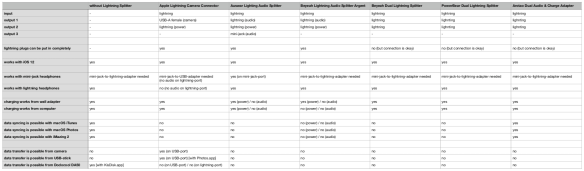
Yes, if you only want to use a pair of wired headphones and chargeΒ your iPhone at the same time, all lightning-splitters I’ve tested are up to the job. And if you have a USB-headphone (or a mini-jack-to-USB-adapter) you couldΒ even use theΒ Apple Lightning Camera Connector.

But if you want to connect anything else, the lightning-splitters that I’ve found won’t do the job… even the ones that claim to support data syncing didn’t support in iOS 12 in my testing…

So, for now it’s only power&audio-splitters…

Here‘s an in-depth comparison [open attached file] of the lightning-splitters I’ve tested :

Apple Lightning Camera Connector

Auswar Lightning Audio Splitter

BeyeahΒ Lightning Audio Splitter Argent

BeyeahΒ Dual Lightning Splitter

PowerBear Dual Lightning Splitter

Arotao Dual Audio & Charge Adapter


My recommendationsΒ would be :

  • if you want aΒ mini-jack-adapterΒ for your headphone : get theΒ AuswarΒ Lightning Audio Splitter
  • if you want data-transfer : get theΒ Apple Lightning Camera Connector

fixed : bad audio – is my iPhone broken ? (iOS 10)

Question :

I have a recent iPhone running iOS10, but lately I can’t hear people calling me and they can’t hear me when I phone them. There is a cracking noise which makes it impossible to use my iPhone for calling.

Is my iPhone broken ?


Answer :

Even though we cannot rule out that your iPhone is actually having a broken audio hardware issue on forehand, it’s more likely to be a software problem.

This problem is usually fixed by doing one of these resets ( first, be sure to keep your SIM’s PIN-code at hand as you might need it ) :

reset option #1 :

  • while your iPhone is on, press the physical MENU (on the front screen) and ON/OFF (on top or on the right side) buttons at the same time until the screen goes black and after a few seconds the white Apple-logo reappears
  • wait for your screen to rebuildΒ ; thenΒ your iPhone has been reset and you can test ifΒ your audio works properly while calling

reset option #2 :

  • while your iPhone is on, press the physical ON/OFF button (on the right side of your iPhone) until the ON/OFF slider appears on screen
  • set the ON/OFF slider to OFF and wait for the screen to go black
  • nowΒ turn your iPhone back on by pressing the ON/OFF button and wait for your screen to rebuild ; then your iPhone has been reset and you can test if your audio works properly while calling

usually, that’s it… that’s all you need to fix this…

…but if neither of these resets work for you, your iPhone’s audio hardware is probably broken and you should have your iPhone repaired at an Apple Store or Apple repair-centre.

Donate Button (MacManusNL)