fixed : which Macs, iPads and iPhones can Apple Intelligence run on ?

Question :
As Apple is starting to roll out it’s own version of AI, entitled Apple Intelligence, the most important question seems to be :

Is my current Mac, iPad or iPhone able to run Apple Intelligence ?


Answer :
Apple has published the specs needed for Apple Intelligence :
– OS specs : iOS 18.4, iPadOS 18.4 or macOS 15.3 Sequoia or newer
– software specs : Siri needs to be turned ON
– CPU specs : A17 Pro, A18 or M1 or newer

translating the CPU specs into device specs :

iPhone : iPhone 16 / 16 Plus (2024) and newer
iPhone Pro : iPhone 15 Pro / 15 Pro Max (2023) and newer
iPhone SE : iPhone 16e (2025) and newer
iPad : -none- !! not even the iPad 11 (2025) !!
iPad mini : iPad mini 7th gen. (2024) and newer
iPad Air : iPad Air 5th gen. (2022) and newer
iPad Pro : iPad Pro 3rd gen. [11″] & 5th gen. [12.9″] (2021) and newer
MacBook : -none- !! the latest MacBooks from 2017 were Intel-based !!
MacBook Air : MacBook Air M1 (2020) and newer
MacBook Pro : MacBook Pro M1 (Late 2020) and newer
iMac : iMac M1 (2021) and newer
Mac mini : Mac mini M1 (2020) and newer
Mac Studio : Mac Studio M1 (2022) and newer
Mac Pro : Mac Pro M2 (2023) and newer

At the time of writing (March 2025) Apple Intelligence does come with the current OS versions in beta only… the general release date planned for April 2025 seems to be postponed.
If the official general release has only been postponed for certain regions (e.g. the EU) is not clear. According to Apple, the initial release will only include English, Chinese, Spanish, German, French, Portuguese, Italian, Japanese and Korean. Other languages will follow later on, but Dutch will probably not be one of the first to join.



fixed : iCloud syc error – Desktop files on Mac have ‘cloud exclamation mark’-icon

Question :
I was trying to access some files I have created on my Mac from my iPad, but the files that are in folder XYZ on my Mac’s Desktop are different from the ones that I can see in that same Folder XYZ when I access it from the Files.app on my iPad. Some files in Folder XYZ are the same and some are not… closing/quitting the Files.app on my iPad and reopening it doesn’t help… And when I look on my Mac, the files that are invisible on my iPad turn out to have a ‘cloud with an exclamationmark’-icon next to them on my Mac… I’ve also checked on my iPhone, and there I get to see the exact same content of Folder XYZ as on my iPad, but not the ones that are on my Mac…

This appears to be an ICloud syncing problem, but how do I fix it ?

Answer :
Yes, this is a syncing problem that iCloud sometimes runs into…
since there is no forced sync or manual sync option, this is how to fix it :
1- make sure that your Mac, your iPad and your iPhone all run the newest version of their OS (macOS, iPadOS, iOS)
2- make sure that your Mac, your iPad and your iPhone are all connected to a stable internet connection (either over Wifi or Ethernet)
3- make sure that you are logged in on iCloud with exactly the same account on all devices (Mac, iPad, iPhone)
4- if all the above is in place, restart your Mac without remembering open windows (to increase you chances on fixing this iCloud syncing problem, restart your iPad and iPhone as well)
5- wait for your Mac to restart/reboot entirely before doing anything else on it
6- wait for iCloud to sync back and forth amoung your Mac, iPad and iPhone (depending on the amount of files you have in your iCloud folders and your internet speed this may take up to 10 minutes or even longer)

That’s it !
…in 99% of the cases, this simple solution will fix your iCloud syncing problem
enjoy 😉

fixed : get an M1 or M2 Mac mini inside a Space Grey housing

Question :

I have a 2018 Mac mini with a Space Grey housing and I love the color. Now time has come to upgrade to a new Mac mini with an M1 or M2 processor, but for some mysterious reasons Apple doesn’t sell the Mac mini in Space Grey any longer… you can get any color as long as it’s old-fashioned aluminium-white…

Is there any way to get the internals of a M1 or M2 Mac mini into a Space Gray Mac mini housing from 2018 ?

Answer :

Mh… well, yes and no… it can be done, but not in the way you would ideally envision it… there are 3 options that get you close and work :

Option 1 :
Get an M1 or M2 Mac mini’s internals out of it’s housing and build that into a Space Grey 2018 Mac mini housing… this can be done, as the size is nearly identical so it will fit inside, but it will not be perfect as the inner suspension and fixation layout is different, the front LED is extremely hard to swop as it has a different connector… and you will loose your Apple warranty…

If you want a ‘proof of concept’, there are some YouTube videos on this, that you should definitely have a look at before you consider attempting this :
https://www.youtube.com/watch?v=I9md09BcQiE

So… if you don’t want to break your Apple warranty, there are 2 alternative options :

Option 2 :
This looks great, if you put a little effort into it (and you probably won’t mind doing so, as you were willing to replace the entire housing yourself). Get yourself a Space Grey vinyl wrapping from Ultra Skins or SlickWraps :
Click here for the M2 Mac mini (2023) skins from Ultra Skins
Click here for the M1 Mac mini (2020) skins from Ultra Skins
>>>> click here to watch te installation video on YouTube <<<<

Click here for the M1 Mac mini (2020) skins from SlickWraps
Click here for the M2 Mac mini (2023) skins form SlickWraps

Note that Amazon offers something similar : the SkinOmi Carbon Fiber TechSkin …but it is officially for the Late 2012 Mac mini, so the outside sizing is the same, but the exact location of the holes for the ports might (and probably will) differ :
Click here to see and buy it from Amazon US
Click here to see and buy it from Amazon UK
Click here to see and buy it from Amazon DE

Option 3 :
This isn’t the most sophisticated option, but it works quick&dirty and is fool-proof : get yourself a Dark Grey bumper skin from Elago for about $20 or €35 :
Click here to see and buy it from Amazon US
Click here to see and buy it from Amazon UK
Click here to see and buy it from Amazon DE

Please note that we get a small kick-back fee from Amazon for referring you to their website, but you will still get their best price so this does not affect you.

fixed : AppleID password not accepted on Apple website

Question :

I am trying to make a reservation for a repair of my iPhone through the Apple website, and I can go through all the steps until I need to give my password to login with my Apple ID… it just won’t accept the correct password !

What is going on ? And How can I fix this ?

Answer :

Yes, it’s bizar that Apple isn’t clear why this doesn’t work the way you would expect it to…
But the solution is simple :

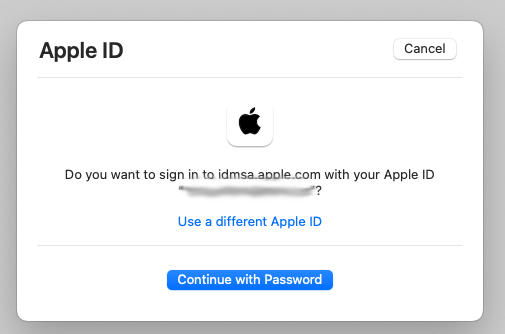
  • when you get the “Do you want to sign in to dims.apple.com with your AppleID?” window, click the blue “Continue with Password” button
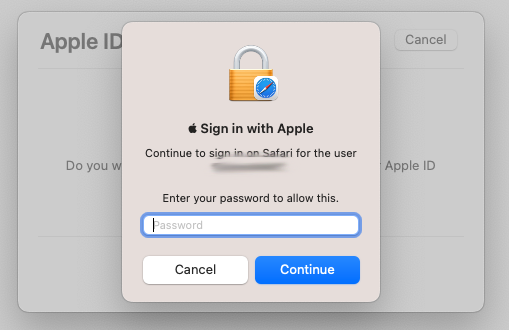
  • then you will get the “Sign in with Apple” window… and then, DO NOT enter your AppleID password !! ; you need to enter the password you use to unlock your Mac !!

…there is some (weird Apple) logic behind this, but it is completely unclear why Apple made this so confusing… [ Apple is asking for your password to unlock your passwords keychain in Safari ; but you will only get that from the text “Continue to login on Safari for the user” AFTER you have figured out some other way what the solution is… ]

On the other hand… that’s it !

enjoy 😉

tested : does the Satechi USB-C hub for Mac mini also work with the iPad Pro ?

Question :

I am looking for a USB-C hub to extend the ports on my iPad Pro. I found this Satechi USB-C hub that is designed for the 2018 Mac mini that looks like an interesting option.

Does the iPad Pro work with this Satechi USB-C hub ?


Answer :

Simply put : Yes, the Satechi USB-C hub for Mac mini works with iPad Pro, but…

What does work :

  • the iPad Pro will recognize the following devices when plugged into the Satechi hub :
    • a mini-jack headphone
    • a USB-keyboard
    • a wireless RF-keyboard (connected through a USB-dongle)
    • a micoSD memory card

What doesn’t work :

  • the Satechi hub’s USB-C port can not be used to charge the iPad Pro
  • the Satechi hub’s USB-C connection cable is too short (when the iPad Pro is in the official Bluetooth keyboard-stand the Satechi hub will not be able to stand on it’s four feet, it will hang from the connection cable)
  • the Satechi hub’s size is large, mainly to fit under a Mac mini and to house a cooling fan, both are completely useless for an iPad Pro… is just too bulky

Final advise : even though it works okay, do not buy this Satechi USB-C hub if you want to use it with an iPad Pro primarily.

That’s it. Sorry. 😉

NOTE : the Satechi USB-C hub works great with the space grey Mac mini (2018 and newer).


fixed : macOS Big_Sur installer hangs at 95%

Question :
I just downloaded the new macOS 11 Big_Sur on my Mac mini (2018) and started installing. But even though it said that installing would take about 28 minutes, it’s now about 40 minutes and the installer hangs, the screen is black with just the white Apple-logo and an installer bar that hangs at about 95%.

What can I do ?


Answer :

Just wait for about 15 to 20 minutes more, and it might just finish the last 5% of the installing process. If it doesn’t, press the power button on your Mac mini until it shuts down completely. Then, restart your Mac mini by pressing the power button again.

Note : this will probably work for any Mac, but it has been tested only on Mac mini (2018).

That’s it !

enjoy 😉


fixed : hi-res icons for the new Mac mini 2018

Question :

I have just gotten my new space grey Mac mini 2018, and as I’ve always done, I would like to change the icon to the official Apple icon, but I can’t find an official logo anywhere…

What can I do ?


Answer :

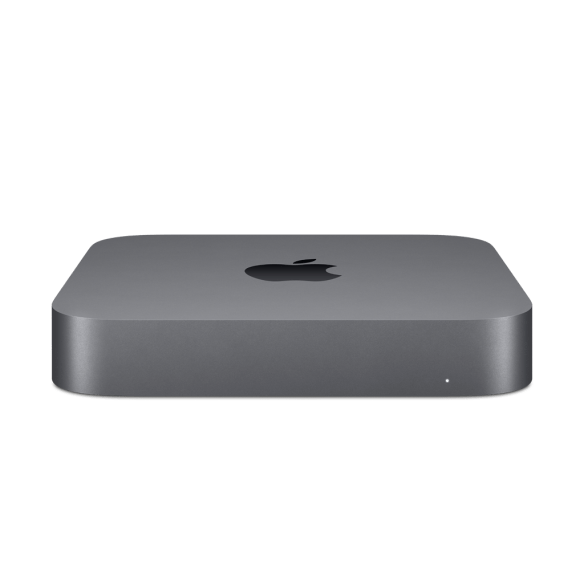
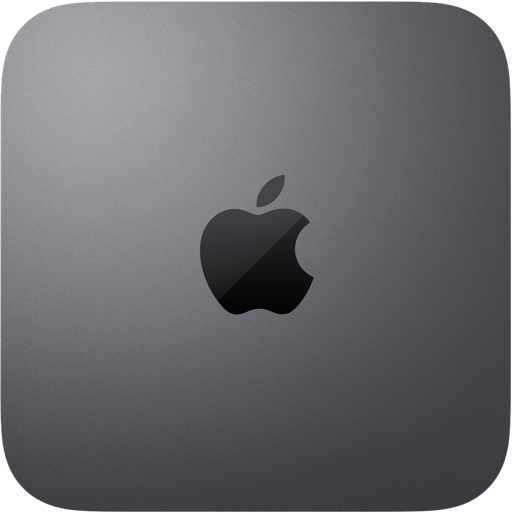
The current version of macOS 10.14 Mojave doesn’t include an official icon for the new space grey Mac mini 2018 yet, but you can use one of these :

  • you can get a ‘front view’ icon here :

  • or you can get a ‘top view’ icon here :

  • after downloading your preferred icon, do this :
  • select the Macintosh HD (or whatever you’ve renamed your internal SSD to) on your Desktop or in the Finder
  • press [CMD]+[I] to open the “Info” popup menu
  • then click on the icon (top left) and a blue outline will open around it
  • then open the file (with the icon as a picture) you’ve just downloaded in Preview
  • in Preview press [CMD]+[A] to select the entire image
  • then return to the Info-popup window, and press [CMD]+[V] to paste the new icon
  • now your Mac mini 2018 has a better looking icon

That’s it !

enjoy 😉