fixed : how many 4K screens can my M1/M2/M3/M4 Mac handle simultaneously ?

Question :
I have an M3 MacBook that I would like to use with 2 external 4K monitors for my work setup, so I bought an extra 4K monitor, but when I tried to connect it to my MacBook, it didn’t work… What is wrong ?

How many displays can I connect to my M3 MacBook simultaneously ?


Answer :
There are hardware limitations to how many additional screens you can connect to a Silicon (M1/M2/M3/M4) Mac, and they are not the same for the basic M-version, the Pro-version and the Max-version. Actually, it’s quite confusing, because there’s also variation in what you can connect using either Thunderbolt or HDMI. Please find the number of external screens you can connect in the tables below [ warning ! the below may contain typos, do doublecheck on the official Apple website ] :

4K-resolutionover Thunderbolt onlyover Thunderbolt + HDMI
M1+1+1
M1 Pro+3+3
M1 Max+3+4
M2+1+1
M2 Pro+2+2
M2 Max+3+4
M3+2 (but only with lid closed)+2 (but only with lid closed)
M3 Pro+2+2
M3 Max+3+4
M4+2+2
M4 Pro+2+2
M4 Max+4+4
6K-resolutionover Thunderbolt onlyover Thunderbolt + HDMI
M1+1+1
M1 Pro+2+2
M1 Max+3+3
M2+1+1
M2 Pro+2+2 (but HDMI max. 4K)
M2 Max+3+4 (but HDMI max. 4K)
M3+2 (but 2nd max. 5K)+2 (but HDMI max. 4K)
M3 Pro+2+2 (but HDMI max. 4K)
M3 Max+3+4 (but HDMI max. 4K)
M4+2+2 (but HDMI max. 4K)
M4 Pro+2+2 (but HDMI max. 4K)
M4 Max+4 (daisy chaining needed)+4 (but HDMI max. 4K)
8K-resolutionover Thunderboltover Thunderbolt + HDMI
M1not possiblenot possible
M1 Pronot possiblenot possible
M1 Maxnot possiblenot possible
M2not possiblenot possible
M2 Pronot possible+1 (over HDMI only)
M2 Maxnot possible+1 (over HDMI only)
M3not possiblenot possible
M3 Pronot possible+1 (over HDMI only)
M3 Maxnot possible+1 (over HDMI only)
M4+1+1
M4 Pro+1+1
M4 Max+2+2

so… generally, all M1/M2/M3/M4 Macs can support at least one external 4K (or even 6K) screen, but if you want connect multiple external screens to your MacBook, you are probably goning to need a multi-monitor-hub, like the BenQ beCreatus DP1310 docking station.

The BenQ beCreatus DP1310 docking station will enable every silicon (M1/M2/M3/M4) MacBook to connect over USB-C to up to 3 external 4K screens (2 over HDMI and the 3rd over DP/DisplayPort).

The regular price of the DP1310 Dock is ca. €300, so check out below if you can get a better price on Amazon [we get a tiny fee if you buy anything using these links, but you will not be paying anything extra] :

BenQ beCreatus DP1310 dock on Amazon US
BenQ beCreatus DP1310 dock on Amazon UK
BenQ beCreatus DP1310 dock on Amazon DE

enjoy 😉

fixed : Power Pete / Mighty Mike game for current macOS

Question :
My kids asked me which computer games I liked to play when I was their age. I said I was most fond of an arcade game of a cartoonish Rambo-guy in camo clothes who fought dinosaurs trying to rescue little bunnies, using various cartoon-guns like a whipped cream shooter… I think it was called Peter Power or something… I would love to show the game to my kids (and play it myself once again)… but if I remember correctly it was no longer playable when OSX abandoned the Calssic mode…

Is there any way to let my kids play it themselves ?

Answer :
Yes, there is.
The game is called Power Pete (released by MacPlay) and was Best Arcade Game of 1995.
The origanal developer Pangea Software re-released the game in 2001 as Mighty Mike.
And recently, Pangea has granted a developer known as Illiyas Jorio the honours of releasing a FREE version of the game that works on all recent computers running current-day versions of macOS, Windows and Linux.
The current version of Mighty Mike can be found on GitHub. The download link is provided on the Pangea website :

Mighty Mike by Pangea Software

Even though Pangea Software’s website states that Jorio’s version of the game will work on “Mac OS X and 11” (probably refering to all Mac OSX 10.x versions up to macOS 11 Big_Sur from 2020) the latest release on GitHub (Mighty Mike 3.0.2) is even playable on the current version of macOS (macOS 15 Sequoia) and not only on Intel-based Macs, but also on the current Silicon-based M1/M2/M3/M4 Macs.

Just keep in mind that the graphics haven’t been updated, so you will get that pixelated retro-feel also… and you can still adjust the settings to play it with a joypad or game controller instead of your keyboard.

Enjoy 😉

fixed : error message -2101F when trying to reinstall macOS

Question :
I have a 2019 MacBook Air and when I tried to install the latest macOS system update, it froze… I called Apple, and they told met to reinstall macOS, but evert time I turn my Mac off and back on with the OPTION+SHIFT+R key-combo pressed on my keyboard, I run into a black screen with a light grey globe with a white triangle with an exclamation mark in it (a warning icon) and a text below it that just says “support.apple.com/mac/startup -2101F”

What can I do to fix this ?

Answer :
The -2101F error message that you are getting means “cannot connect to the internet”, and connection to the internet is essential for your Mac to do a regular reinstallation of macOS nowadays…
There are some options to solve this problem. First try this one :
– check if your WiFi internet is working properly by connecting to your WiFi using your iPhone (or any other mobile phone)
– if it turns out that your WiFi is not functioning properly, restart your modem to make sure all lights on it (like “Power”, “Internet”, “LAN” end “WiFi”) start blinking
– then restart your Mac and try to initiate the reinstallation process again

If that didn’t help, try this :
– connect your Mac to the internet using a UTP/Ethernet-cable
– for this, you need a UTP/Ethernet cable that is has connection to your modem (preferably directly)
if you buy anything from Amazon by using the links below, MacManus.nl makes a tiny profit, but it will not affect the price you pay
– if you don’t have a UTP/Ethernet-cable, you can borrow one or buy one
to buy one from Amazon US, click here
to buy one form Amazon UK, click here
to buy one from Amazon DE, clcik here
– modern MacBooks don’t have a dedicated UTP/Ethernet-port, so you will need a UTP/Ethernet-to-USB(-C)-converter-cable also
– if you don’t have a UTP/Ethernet-to-USB-C-converter, you can borrow or buy one
to buy one from Amazon US, click here
to buy one form Amazon UK, click here
to buy one from Amazon DE, clcik here
– if you have a UTP/Ethernet-to-USB-converter-cable, but you only have USB-C ports on your Mac, you will need a USB-C-to-USB-converter also
to buy one from Amazon US, click here
to buy one form Amazon UK, click here
to buy one from Amazon DE, clcik here
– after you have connected your Mac to the internet using a UTP/Ethernet-cable, restart your Mac and try to initiate the reinstallation process again

If that didn’t work, try this :
– connect the UTP/Ethernet-to-USB(-C)-converter-cable to a different port on your Mac, because sometimes that USB/USB-C port on your Mac may be faulty, misfunctioning of broken
– then restart your Mac and try to initiate the installation process again

If that didn’t work, try this :
– make sure that one of the USB(-C) ports on your Mac is functioning properly by connecting a USB-mouse or USB-keyboard or USB-stick with a light in it (you might also need a USB-C-to-USB-converter-cable for this) and check if the light is switching on
– if the light in the mouse, keyboard or USB-stick doesn’t turn on when connected to your Mac (do make sure that the light is actually working when using it on another computer), your USB-port is broken and you will need a hardware repair (or a new Mac, which might be more tempting in a lot of cases)
– if the light does turn on, disconnect the mouse, keyboard or USB-stick and use that USB(-C)- port for the reinstallation of macOS from a USB-stick
– first you will have to create a USB-stick with a macOS-installer, to do this, you will need another Mac that is the same age or newer than your Mac and if your Mac doesn’t have an M1/M2/M3-or-newer processor, you will need an Intel-based Mac for this
– follow the directions to create a USB-stick with a macOS-installer that are outlined here :
https://www.macworld.com/article/671308/how-to-create-a-bootable-usb-macos-installer.html
or the instructions from Apple itself :
https://support.apple.com/en-us/101578
– if you don’t have an empty USB-stick at hand, you’re best of buying a 32GB USB-C-stick
to buy one from Amazon US, click here
to buy one form Amazon UK, click here
to buy one from Amazon DE, clcik here
– after you have created the USB-stick with the macOS-installer on it (on the other Mac), plug the USB-stick into your faulty Mac (make sure you use the USB(-C)-port that you know is working) and restart your Mac and initiate the installation process

That’s it !

enjoy 😉

fixed : can’t connect old printer to new Mac using USB

Question :

A friend gave me a rather old printer that was working great for him, and said that I could easily use it with my MacBook also, using a USB-cable. So I took a USB cable with an old (flat) USB-connector on the one side and an new (small) USB-connetor on the other side and plugged that into the printer and into my MacBook Air (or Pro) that only has those same new (small) USB-ports. The connection feels good, but when I try to print from my Mac, the printer is not recognised…

What is wrong ?


Answer :

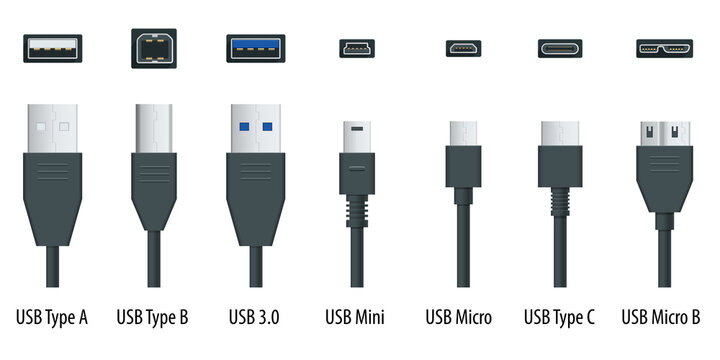
From what you are describing, you are using the wrong port on the printer : you are using a ‘regular’ USB-A port, probably on the top, front or side of the printer… you should however use the ‘square’ USB-B printer port that is on the back of your printer.

See the difference between various USB connectors and ports in this image (an Adobe Stock image) :

The ports on your Mac are USB-C [ 2nd from the right ].
The port on the printer you were trying to use is USB-A [ 1st from the left ] (or USB 3.0 [ 3rd from the left ] which is the same in size and shape) – that usually is for plugging in a USB-stick to print documents directly from a USB-stick
The port on back of the printer – the one you should use – is USB-B [ 2nd from the left ].

If you don’t have a ‘printer cable’ (USB-A to USB-B) and a USB-C adapter piece (USB-C plug-on cap or cable for USB-A), you can buy them from any electronics store. Or you can buy a ‘modern printer cable’ (USB-B to USB-C).
Here are direct links to buy these from Amazon :

modern printer cable (USB-B to USB-C) from Amazon.com
modern printer cable (USB-B to USB-C) from Amazon.co.uk
modern printer cable (USB-B to USB-C) from Amazon.de

all-in-one modern & regular printer cable (USB-C/USB-A to USB-B) from Amazon.com
all-in-one modern & regular printer cable (USB-C/USB-A to USB-B) from Amazon.co.uk
all-in-one modern & regular printer cable (USB-C/USB-A to USB-B) from Amazon.de

to keep this website online MacManus.nl makes a tiny fee if you buy from these Amazon links

If you plug in the right cable from the back of your printer to your Mac, the printer will berecognised and you will be able to print.

That’s it !

enjoy 😉

fixed : import Google Calendar events in Apple Calendar ( iOS & macOS )

Question :
I am using an online service that can set all appointments I have with them in my Google Calendar… but not in my Apple Calendar… and even though I have a Gmail-account, I never use Google Calendar…

Is there any way to sync or transfer the Google Calendar appointments into my Apple Calendar on iOS and macOS ?


Answer :

YES there is ! And it’s rather simple, but you have to enable your Google Calendar :
– on the online service’s website, click on the ADD TO CALENDAR (or similar) option
– let them set the appointment in your Google Calendar (you might have to login with your Gmail account for that)
– then, on iOS (on your iPhone), open the Settings.app
– scroll down to “Calendar” and click on the triangle on the right
– in the Calendar Settings page that opens, go to “Accounts” and click on the triangle on the right
– in the Accounts page that opens, under ACCOUNTS, go to your Gmail address and click on the triangle on the right
– then, on the settings page of your Gmail account, go to “Calendars” and make sure that the slider is ON (Green)
– then exit the Settings.app
– now, on macOS (on your Mac), open the Calendar.app
– then, in the top menu bar, click on “Calendar” and select “Accounts” from the pulldown menu
– now, in the “Internet Accounts” window that opens, click on your Gmail account’s Gmail address
– in the Gmail account’s settings page that opens, make sure taht at “Calendars” the slider is set to ON (Blue)
– then exit the Settings
– now, in the Calendar.app, you will see the appointments from your Google calendar appear
– then, click on the calendar icon on top of the menu list on the left so all your different calendars are listed on the left
– now, scroll down to the chapter the has the name of your Gmail account, and uncheck (deactivate) the Birthdays, Family and Holidays options (these are the presets from Google Calendar)
– if needed, you can also change the color of the Google Calendar appointments by right-clicking on your Gmail address (that is your main Google Calendar) and selecting a preset or custom color
– if needed, you can also choose “Get Info” from the popup menu to change the name (“Description”) of the calendar or the alerts or how thes appointments effect your availability (as seen by others with whom you share your Calendar/appointments)

That’s it !

enjoy 😉

fixed : iCloud syc error – Desktop files on Mac have ‘cloud exclamation mark’-icon

Question :
I was trying to access some files I have created on my Mac from my iPad, but the files that are in folder XYZ on my Mac’s Desktop are different from the ones that I can see in that same Folder XYZ when I access it from the Files.app on my iPad. Some files in Folder XYZ are the same and some are not… closing/quitting the Files.app on my iPad and reopening it doesn’t help… And when I look on my Mac, the files that are invisible on my iPad turn out to have a ‘cloud with an exclamationmark’-icon next to them on my Mac… I’ve also checked on my iPhone, and there I get to see the exact same content of Folder XYZ as on my iPad, but not the ones that are on my Mac…

This appears to be an ICloud syncing problem, but how do I fix it ?

Answer :
Yes, this is a syncing problem that iCloud sometimes runs into…
since there is no forced sync or manual sync option, this is how to fix it :
1- make sure that your Mac, your iPad and your iPhone all run the newest version of their OS (macOS, iPadOS, iOS)
2- make sure that your Mac, your iPad and your iPhone are all connected to a stable internet connection (either over Wifi or Ethernet)
3- make sure that you are logged in on iCloud with exactly the same account on all devices (Mac, iPad, iPhone)
4- if all the above is in place, restart your Mac without remembering open windows (to increase you chances on fixing this iCloud syncing problem, restart your iPad and iPhone as well)
5- wait for your Mac to restart/reboot entirely before doing anything else on it
6- wait for iCloud to sync back and forth amoung your Mac, iPad and iPhone (depending on the amount of files you have in your iCloud folders and your internet speed this may take up to 10 minutes or even longer)

That’s it !
…in 99% of the cases, this simple solution will fix your iCloud syncing problem
enjoy 😉