fixed : photo delete-button greyed out on iPad

Question :

On my iPad, I want to free up some memory space by deleting some old photos, but when I go into the Photos-app, and select the photos I want to delete, the Delete-button is greyed out. At first I thought it might have something to do with restrictions I had set on my iPad, but I couldn’t find any restriction option regarding the deleting of of photos.

When I investigated a little further, it turns out that the Delete-button is available for my newest photos, but not for the older photos… that’s where things get confusing…

How can I make the Delete-option available for all photos ?


Answer :

The exact cause of your problem is not known, but the solution turns out to have something to do with photos that are supposed to be kept in-sync with your Mac (or PC).

The solution is the following :

– connect your iPad (or iPhone) to your Mac (or Windows-PC) using the USB-cable

[note : the computer you connect to should be the one that you have set as the primary computer to connect to when you originally set up your iPad/iPhone from iTunes on MacOSX or Windows]

– on your Mac or PC, open iTunes and go to the iPad/iPhone’s settings and click on the “Photos” tab

– if you’re on a Mac, make sure that there is NO checkmark at “sync to folder” or “sync to iPhoto”

– if you’re on a Windows-PC, make sure there is NO checkmark at “sync to folder”

– wait for the iTunes syncing proces to finish, then disconnect your iPad/iPhone

– when you open the Photos-app on your iPad/iPhone now, you will see that all photos now have the Delete-button available

That’s it !

Good Luck !

Enjoy !

😉

Donate Button (MacManusNL)

fixed : block senders of incoming spam eMails

Question :

I keep getting a lot of spam-eMail lately, most of the time from the same eMail-address.

Is there anything I can do to stop this ?


Answer :

The extend to which you can fix this, depends on the options given by your eMail-host, but bottom line it all comes down to configuring a filter.

– open Safari (or any other browser of your choice)

– go to your eMail-host’s internet page and login using your name/eMail and password

– go to the Preferences-menu and configure a filter there that checks all incoming eMails on the criteria you configure (e.g. the sender’s eMail-address) and sends all filtered-out eMails to the trash straight away (there might be a “block sender” option, but that’s not always the case)

If you manage to set a filter as outlined above, you will not get those annoying eMails on your Mac, nor on your iPad, neither on your iPhone.

Just make sure your filter doesn’t filter too broadly, as that would even ‘desired’ eMails will get placed in the trash without ever getting into your mailbox…

If it’s not possible to set the filter in your eMail-host’s server, you will have to set a filter on any eMail-app you use on every device (so on your Mac, your iPad, your iPhone, etc.).

Setting an eMail-filter on your Mac should be done like this :

– open Apple Mail.app and select the spam eMail in your inbox

– open Mail Preferences, click on the tab “Rules”, and click “New Rule”

– that will set a new filtering-rule, which has the spammer’s eMail address already in it

– additionally configure the action that all eMail of that sender should go straight to the trash [you can include multiple spammers or senders directly or at a later time, and sometimes it is even more effective to filter based on a specific (partial) sentence from the ‘Subject Line’ or ‘Body Text’]

If you think configuring filters is too complicated, you can also decide to keep on tagging unwanted (spam) eMails as ‘Junk’. Since the Junk-mailfilter teaches itself progressively, in due time all similar eMails will be automatically filtered out and placed in the ‘Junk’-mailbox.

Good Luck !

Enjoy !

😉

Donate Button (MacManusNL)

fixed : transfer “on my iPhone” notes to iCloud

Question :

I have notes on my iPhone (in the iOS Notes app), that I was expecting to show up on my Mac also (in the OSX Notes app) since I have both of them connected to iCloud, but only half of my notes seem to sync…

How can I get all of them to sync via iCloud ?

Answer :

When you are using iOS 7 (or iOS 8) and OSX 10.9 Mavericks (or OSX 10.10 Yosemite), you might have multiple accounts that are syncing their notes to Notes, not only through iCloud, but though other IMAP eMail-accounts as well…

Your best option probably is to transfer all your notes to iCloud and then only use iCloud to sync notes…

Here’s how to do that :

1- on your iPhone (or iPad) open the Notes app, and click on “Accounts” ; in the next window you’ll see multiple accounts listed

2- then, on your Mac, open the Notes app, and go to View –> Show Folders List ; if you click that, a menu pane called “All Notes” will open at the left of the Notes-window ; check to see if all those accounts match the ones listed on your iPhone

3- if they match, proceed to step 4 ; if not, go to Notes –> Accounts, and the  “Internet Accounts” window from the System Preferences will open ; there, select the (eMail-) accounts of the missing accounts, an click them ; in the next window, make sure there’s a checkmark at “Notes” for each desired account

4- then, in the Notes.app in OSX, select each non-iCloud account from the menu on the left and click on “Notes” ; if any notes are listed there, select one of them and then type the CMD+A key-combo to select all of them and type the CMD+C key-combo to copy all

5- then, go to the iCloud Notes, and type the CMD+V key-combo to transfer these notes to iCloud

6- repeat this copy process for all accounts listed, until all notes are copied to iCloud

7- only when you’ve double-checked that all notes are now in iCloud (also), delete the ones in the other accounts (and/or disable the accounts on your Mac)

8- then, on your iPhone (where the Accounts pages of the Notes.app is still open), select “On My iPhone” and on the next page, click each note to open the note, and copy it into a new note (to do so, go to iCloud –> Notes ; then create a new note  by clicking the +-button, and copy the info that new note) ; repeat this until all notes are now visible in iCloud –> Notes

9- Now, check on your Mac and iPhone, to make sure that all messages are now in the iCloud account

that should be it…

enjoy !


fixed : calendar entries are transferred, but time is not in sync

Question :

I am trying to get my appointments from my iPhone to sync with my Mac, but something weird is happening… the appointments I create on my iPhone do appear in the Calendar app on my Mac, so they are syncing, but for some reason they are not appearing at the right time of day…

…what can be wrong ?

Answer :

Make sure you have set the same Time Zone on your Mac and on your iPhone.

On your Mac, in OSX, set it correctly in 2 places :

1st- go to System Preferences –> Date & Time –> Time Zone ; and put a checkmark at “Set time zone automatically using your current location” (or choose your current time zone on the map manually)

2nd- in the Calendar app (previously called iCal) go to Calendar –> Preferences –> Advanced –> put a checkmark at “Turn on time zone support”

On your iPhone (or iPad), in iOS, set it correctly in 2 places also :

1st- go to Settings –> General –> Date & Time –> Time Zone

2nd- go to Settings –> Mail, Contacts , Calendars –>  CALENDARS –> Time Zone Support

…if all is set to the same time zone, your syncing problem should be solved

Enjoy !

😉

Donate Button (MacManusNL)

BEWARE ! : Home Video Library phishing scam eMail

! BEWARE !

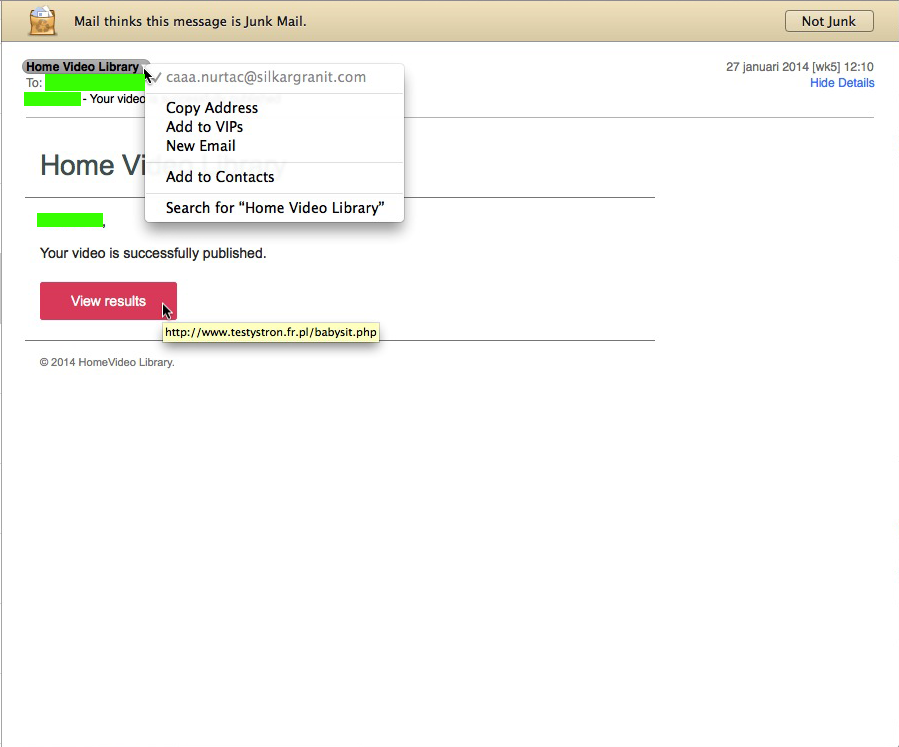
today I got an eMail from Home Video Library, stating “Your video is successfully published”,

on my Mac this was immediately recognizable as a Junk-message (or rather : a Phishing Scam-message), as you can see in the picture below, but on my iPhone that wasn’t so easy to figure out… it was mainly the fact that I haven’t used Picasa in ages that made all alert bells ring in this case… and the fact that I’ve never heard of a company or service called Home Video Library raised more suspiciousness…homevideolibrary_scam…so BEWARE !

Note : this scam eMail comes in various versions, there are similar ones pretending to be from Picasa Library. More info on that can be found here.

BEWARE ! : Picasa Library phishing scam eMail

! BEWARE !


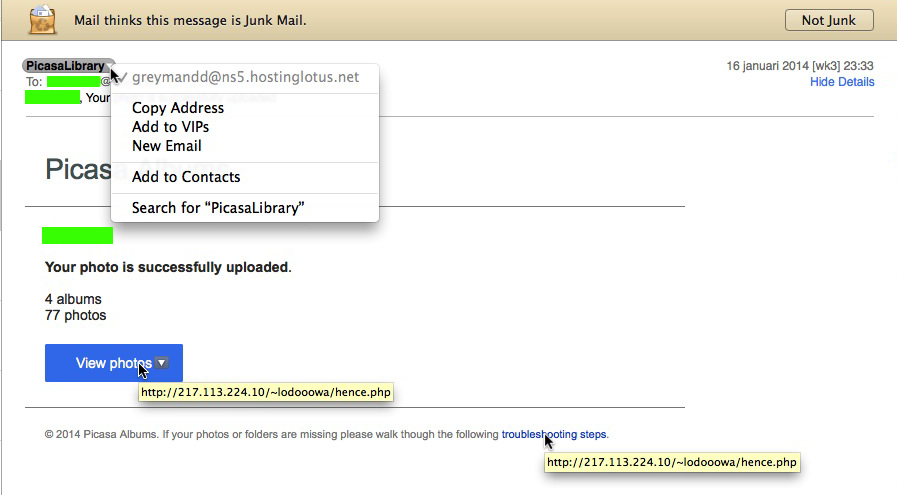
today I got an eMail from PicasaLibrary, stating “Your photo is successfully uploaded”,

on my Mac this was immediately recognizable as a Junk-message (or rather : a Phishing Scam-message), as you can see in the picture below, but on my iPhone that wasn’t so easy to figure out… it was mainly the fact that I haven’t used Picasa in ages that made all alert bells ring in this case… and the fact that I’ve never heard of PicasaLibrary (and would expect it to be written Picasa Library) raised more suspiciousness…picasa_scam…so BEWARE !

Note : this scam eMail comes in various versions, a similar one pretending to be from Picasa Library also states “Damaged photos found”. More info on that one can be found here.


fixed : transfer game progress in iOS (without Game Center)

Question :

I want to transfer the game progress from our iPhone to our iPad, but since it’s our children’s iPad I don’t want to activate Game Center (and some games don’t even support Game Center).

I can’t find a way to do so in iTunes, since iTunes doesn’t seem to back-up game progress…

…is there any way to do this without jailbreaking my iOS-devices ?

Answer :

Yes !

Even though Apple’s Game Center app (and service) is a probably the easiest way to sync your game progress (and in-app purchases) among your iPhones and iPad, there may be various reasons why Game Center is no option for you (e.g. since not all iOS-games have Game Center-support).

The second-easiest way to transfer your game progress from one iPhone/iPad to another is via your Mac (or PC), using either iExplorer or DiskAid. Using either of both works nearly the same, and both can be used in FREE-mode, so here’s an explanation for using DiskAid only :

1- download and install DiskAid from this link (or iExplorer from this link)

2- make sure that every game that you want to transfer game progress file for is installed on both iDevices

3- startup DiskAid on your Mac (or PC) and connect both your iPhone and your iPad (or other iDevices) to your Mac (or PC) using the USB-cable

4- in DiskAid, select the iDevice you want the game progress you want to copy from (from the list on the left), click “Storage”, then “Apps”, then the app you want to copy the game progress from [note : even though all apps are listed alphabetically, the naming might be slightly different from the regular name, so you might not immediately find what you’re looking for where you would expect it…)

5- when the app’s folder opens, select all files displayed, then click the “Copy to Mac” button in the menu bar

6- in the pulldown screen that opens, click the “New Folder”-button to create a folder (for instance on your Desktop) where you want the game progress files to be ‘back-upped’, and call the folder something like “iOS game progress files”, then inside that folder, create another new folder (by clicking “New Folder” again) and give it the app’s name

7- repeat this process until you have folders with game progress back-ups for all games you need

8- then select the iDevice you want to copy the game progress files to (from the list on the left), click on “Apps”, then on the app you want to transfer the game progress files to, and then click the “Copy to Device”-button from the menu bar

9- in the pull-down window that opens, browse to the location where you have the game progress files on your Mac and select all of them, then click “Select”

10- then, check if the game progress files a now visible on your iPhone/iPad from DiskAid ; if not, right-click (or CTRL-click) on the app’s folder in DiskAid and select “Refresh” from the pulldown-menu (you might even have to do this a few times before they will appear)

…that’s it !

enjoy !

note : personally, I like the concept of the ‘both iDevices side-by-side’-layout, and the fact that the transfer is not going through a folder on your Mac, that can be found in the specialised AppTrans (and AnyTrans) app, but I think their pricing is extreme, even with their ‘regular’ discount of about 60%… and I found that they don’t include sales-taxes in their advertised price, so they will charge you about 20% above their price-quote (which I do not regard very transparent, nor consumer-friendly)


Donate Button (MacManusNL)