fixed : quickly free up disk space on MacOSX 10.6.8 Snow Leopard

Question :

My son alarmed me today that his ‘good old’ Mac gives a “your startup disk is full” warning at startup. He has our old Intel CoreDuo MacBook that can only run MacOSX 10.6.8 Snow Leopard.

What is the easiest way to free up the much needed harddrive space ?


Answer :

There  are various programs that can do the job of identifying which files are cluttering your harddrive and deleting unneeded files.

If you have an older Mac that can not run the latest version of OSX, I would suggest using the DiskWave application to do so, because of 4 reasons :

  1. DiskWave is very small in size (only about 1MB), so you can even install and run it on an extremely full harddrive
  2. DiskWave is able to manage external drives, so you can also run it on a newer/faster/other Mac and connect the problematic Mac as an external drive [ in so called “Target Mode” by restarting the problematic Mac with the T-key pressed and connecting it to the other Mac with a FireWire-cable ]
  3. DiskWave is available for various old versions of MacOSX
  4. DiskWave is FREE to download and use

Using DiskWave is rather straight forward. A quick instruction video can be seen here :

DiskWave instruction video

Getting hold of DiskWave might be problematic however, as the developer’s website (Aymeric Barthe) seems to be down :

Aymeric Barthe website

And the DiskWave app is NOT available from the Mac AppStore either… [ beware not too be fooled into thinking it’s the same as the iDiskWave app ! ]

A secondary problem is that the best available version (DiskWave 0.4) does not support any pre-Core2Duo. For now, all (older) versions of DiskWave can be downloaded here :

download any DiskWave version at Mac.FileHorse.com

Note that DiskWave 0.3.2 is the latest version of DiskWave to run on PowerPC (G3/G4/G5) Macs and 1st generation Intel (CoreSolo and CoreDuo) Macs.

And if those links stop working also, you can download DiskWave 0.3.2 here :

DiskWave_0.3.2

[ !! after downloading, replace the .doc file-extension by .dmg to get the installer !! ]

Enjoy !

Donate Button (MacManusNL)

fixed : why am I typing a TM-sign instead of a Euro-sign ?

Question :

Today, I had to type some text that included some financial figures, but for some reason I got a TM-sign on screen every time I typed the Euro-sign by pressing the key-combo [ALT]+[2].

I’ve never had this before.

What is wrong ?


Answer :

How you got this problem is unclear, but the solution is simple.

Have a look at the top menu bar (of the Finder), is there a US-flag next to the current time ?

If so, your keyboard is set to US-layout and in US-keyboardlayout the [ALT]+[2] key-combo will give the TM-sign (Trademark-sign) on screen.

To change that, do this :

  • click on the US-flag in the top menu bar (of the Finder)
  • in the pulldown menu, click on “Open Keyboard Preferences…”
  • in the window that opens, make sure the “Input sources”-tab is selected, then click on de + (Plus-sign) bottom left
  • from the list in the pulldown window that opens, choose “British” (UK-flag)
  • then click “Add”
  • back in the previous window, click on “(UK-flag) British” at the left to select it
  • then close the Preferences window by clicking the red button top left
  • then in the top menu bar (of the Finder) make sure there is a UK-flag
  • if there still is a US-flag, click on it and select the UK-flag from the pulldown menu

…then try typing the [ALT]+[2] key-combo in a text and see if it works

…that’s it ! enjoy 😉

Donate Button (MacManusNL)

BEWARE ! : “Damaged message was restored” phishing scam eMail

! BEWARE !

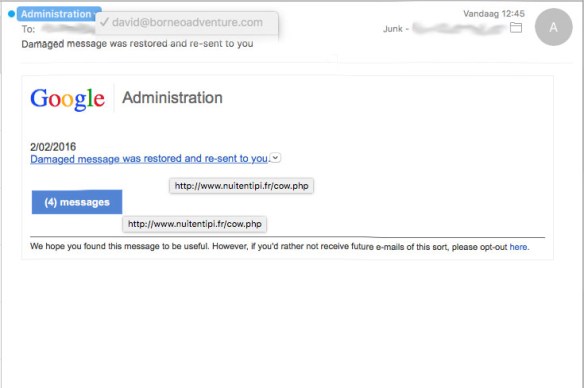
today I got an eMail from Google Administration, stating “Damaged message was restored and re-sent to you”,

on my Mac this was immediately recognizable as a Junk-message (or rather : a Phishing Scam-message), as you can see in the picture below.

DamagedMessage-fakemail

so BEWARE ! and don’t let yourself be fooled or mislead by this eMail scam !

fixed : close that one window that blocks off the rest of Safari

Question :

While browsing the internet using Safari, I suddenly got a popup window which I can’t close. I expect it to be a scam, as there is only one button ; an OK-button.

As I don’t agree with the text I am supposed to agree on, and I don’t trust the sender either, I just want to close this popup-window. But the red ‘Close Window’-button is not responding, and I can’t switch to any other open browser windows either. Safari seems to hang.

I could of course restart Safari, but I have several windows open I haven’t saved yet and it would be a real hassle to loose them…

Isn’t there any way to shut this popup down without loosing any other open windows ?


Answer :

The popup you have encountered is most definitely a scam-popup, as there is no option to ‘not agree’.

It’s rather simple to get out of this awkward situation :

  1. shut down your WiFi-connection : goto the ‘piece-of-pie’ icon in the top menu bar of the Finder –> then select “Turn Wi-Fi Off” from the pulldown menu that appears
  2. pull the ethernet-cable from your Mac
  3. now you’re disconnected from the Internet, you can safely click on the OK-button in the popup-window
  4. the popup-window will now close, and you will now be able to normally use Safari again
  5. now close all other windows you don’t need to have open
  6. even though you could now reconnect to WiFi- or Ethernet-internet, it’s recommended to do the following first
  7. still without internet-connection, open a new browser window : File –> New Window (or just press the CMD + N key-combo)
  8. then open the Reading List sidebar in that fresh window : View –> Show Reading List Sidebar (or just press the SHIFT + CMD + 2 key-combo)
  9. now drag all open browser windows you want to keep to the reading list
  10. when done, clear Safari’s history and website data : Safari –> Clear History…
  11. in the popup window that opens asking you to “Clear history will delete related cookies and other website data.” click on the “Clear History”-button
  12. then close Safari
  13. then reconnect to the Internet (either via WiFi or Ethernet-cable)
  14. and reopen Safari

…you can now find all previously open windows in the Reading List


enjoy !

Donate Button (MacManusNL)

fixed : animated GIFs not playing in Preview.app

Question :

For my work I regularly get animated-GIF for online advertising campaigns send to me offline. As it turns out I can only view them in the Finder’s preview, but when I double-click on them, they open in Preview.app as a static picture…

What can I do ?


Answer :

As any .gif-file is considered as a picture by OSX, both static and animated GIFs will be opened in Preview.app by default. Too bad, but Preview.app can only display static pictures, no movies, nor dynamic pictures…

The solution is simple ; just make OSX by default open all .gif-files in an application that can handle animations, like your web browser.

to do so :

  • locate and select any of your animated .gif-files in the Finder
  • then press the [cmd]+[i] key-combo on your keyboard (a.k.a. “get info”)
  • in the info-window that opens, scroll down to “Open with:”
  • make sure the triangular arrow in front of “Open with:” is pointing down
  • if the triangular arrow is pointing to the right, click on it
  • just below “Open with:” you will see “Preview (default)”
  • click on that, and change it to “Safari” (or any other application that can handle animated GIFs, if you don’t see the application you’re looking for listed, select “Other…” and select the one you prefer from you Applications folder)
  • then, don’t forget to click on the “Change All…”-button also

…that’s it, from now on, any .gif-file on your Mac will be opened in Safari (or your chosen alternative) by default, and you will see all animated-GIFs opened as animations when you lick on them.

enjoy !

😉

Donate Button (MacManusNL)

fixed : install OSX 10.11 El_Capitan on unsupported Macs

Question :

I read somewhere that it is possible to install the latest version of OSX 10.10 Yosemite on my Mac, even though the official installer refuses to install.

Can you give me any directions ?


Answer :

Installing newer versions of OSX on slightly older Macs that do not meet the official system requirements can be done using MacPostFactor (MCPF).

MacPostFactor also supports installing OSX versions up to OSX 10.10 Yosemite on older Macs. And a new version that supports installing OSX 10.11 El_Capitan is in the works.

For more info (and downloads), go to the info page on MacRumors.com :

http://forums.macrumors.com/threads/os-x-yosemite-on-unsupported-macs-guide.1761432/

or see the (less readable) official page of the MacPostFactor team :

http://osxhackers.net/MCPF/

…in short :

!!! THIS IS FOR (RATHER) EXPERIENCED MAC-USERS ONLY, AND SHOULD NOT BE DONE ON YOUR ‘ONE AND ONLY’ MAC !!!

!! REMEMBER : DO FOLLOW THE COMPLETE INSTRUCTIONS THAT CAN BE FOUND HERE : MacPost Factor info page on MacRumors.com

…that should be it !

enjoy !

😉

Donate Button (MacManusNL)