fixed : free currency converter (or unit converter) for iOS

Question :
I used to have a currency converter app on my iPhone which was very handy when travelling the globe. But the free currency converter app that I used to use, doesn’t work with my current iOS version and is no longer available form the AppStore…

Do you have any recommendation ?


Answer :
With the introduction of iOS 18, Apple has. integrated all kinds of conversion options (including currency conversion) into the Calculator app. To use it, do this :
– open the Calculator.app on your iPhone (or iPad or Mac)
– when in the regular calculator mode, click on the Calculator-button (bottom left)
– from the popup list that appears, set the slider to the right (so ‘Convert’ will be chosen and turn orange)
– now the input field will be devided in two : an upper part with white digits and a lower part with grey digits ; the upper part is the input field, the lower part is the result field
– tip 1 : using the orange up/down-sign on the left, you can swap the currency
– tip 2 : using the grey up&down-icon next to the currencies, you can choose any currency you like
– tip 3 : after pressing the grey up&down-icon (next to the currency), you will get the option to convert not only currencies, but also all other sorts of values by choosing another orange chapter : Angle, Area, Data, Energy, Force, Fuel, Length, Power, Pressure, Speed, Temperature, Time, Volume or Weight ; you can scroll though the list or use the search field to find the currency (or other type of unit) you need
– so, after having chosen the sort of conversion you need, just key in the value and the converted value will be shown

That’s it !

enjoy 😉

fixed : add total number of pages to page numbers in Word for Mac

Question :
I am working in Word (from Microsoft Office for Mac) on a multi-page document and I want to include the page numbers including the total number of pages.

How do I do that ?


Answer :
In Word 16 (the current version of the texteditor from Microsoft Office for Mac) it is straight forward to include page numbers. To include page numbers in your Word document, do this :
– have your document open in the Word.app
– click on ‘Insert’, either in the top menu bar or in het document’s menu bar
– then click on ‘Page Numbers’
-and in the small ‘Page Numbers’ popup screen that now opens, set the desired position (Top/Header or Bottom/Footer), the desired alignment (Left, Center, Right, Insides or Outsides) and put a checkmark if you wish to have the ‘Page number shown on first page’ also
– then click ‘OK’ and page numbers will automatically appear on all pages

However… if you also want to include the total number of pages next to the page numbers, you cannot do that this way or any similar way… you will need a completely different method :
– have your document open in Word.app
– first make sure you are on the first page of your document
– now, click on ‘View’ in the top menu bar
– then, in the pulldown menu, click on ‘Header and Footer’
– then, click with your cursor in either the Header or the Footer, depending on where you want the page numbers
– click on ‘Insert’ in the top menu bar
– in the pulldown menu, click on ‘AutoText’
– and in the next pulldown menu, click on ‘Auto-text’
– in the ‘AutoCorrect’ popup window that now appears, click on the ‘AutoText’ tab/button
– then scroll though the alphabetical list and choose “Page X of Y” andd click the blue ‘Insert’ button
– now, eacht page will have both page number and total number of pages in the Footer (or Header) of each page
– so, basically you’re done now
– but… if you want do do some customization, you can…
– to change the font of the page numbering, just select the text “Page 1 of 22” (if your document has 22 pages) and choose the desired font and font size
– to change the “Page 1 of 22” into something like “1 of 22” or “1 ( 22 )”, just select the part of the “Page 1 of 22” text that you want to change and adjust it to your liking [ and if you accidentally delete either the page number or the total number of pages, just redo from start ]

That’s it !

enjoy 😉

fixed : error message -2101F when trying to reinstall macOS

Question :
I have a 2019 MacBook Air and when I tried to install the latest macOS system update, it froze… I called Apple, and they told met to reinstall macOS, but evert time I turn my Mac off and back on with the OPTION+SHIFT+R key-combo pressed on my keyboard, I run into a black screen with a light grey globe with a white triangle with an exclamation mark in it (a warning icon) and a text below it that just says “support.apple.com/mac/startup -2101F”

What can I do to fix this ?

Answer :
The -2101F error message that you are getting means “cannot connect to the internet”, and connection to the internet is essential for your Mac to do a regular reinstallation of macOS nowadays…
There are some options to solve this problem. First try this one :
– check if your WiFi internet is working properly by connecting to your WiFi using your iPhone (or any other mobile phone)
– if it turns out that your WiFi is not functioning properly, restart your modem to make sure all lights on it (like “Power”, “Internet”, “LAN” end “WiFi”) start blinking
– then restart your Mac and try to initiate the reinstallation process again

If that didn’t help, try this :
– connect your Mac to the internet using a UTP/Ethernet-cable
– for this, you need a UTP/Ethernet cable that is has connection to your modem (preferably directly)
if you buy anything from Amazon by using the links below, MacManus.nl makes a tiny profit, but it will not affect the price you pay
– if you don’t have a UTP/Ethernet-cable, you can borrow one or buy one
to buy one from Amazon US, click here
to buy one form Amazon UK, click here
to buy one from Amazon DE, clcik here
– modern MacBooks don’t have a dedicated UTP/Ethernet-port, so you will need a UTP/Ethernet-to-USB(-C)-converter-cable also
– if you don’t have a UTP/Ethernet-to-USB-C-converter, you can borrow or buy one
to buy one from Amazon US, click here
to buy one form Amazon UK, click here
to buy one from Amazon DE, clcik here
– if you have a UTP/Ethernet-to-USB-converter-cable, but you only have USB-C ports on your Mac, you will need a USB-C-to-USB-converter also
to buy one from Amazon US, click here
to buy one form Amazon UK, click here
to buy one from Amazon DE, clcik here
– after you have connected your Mac to the internet using a UTP/Ethernet-cable, restart your Mac and try to initiate the reinstallation process again

If that didn’t work, try this :
– connect the UTP/Ethernet-to-USB(-C)-converter-cable to a different port on your Mac, because sometimes that USB/USB-C port on your Mac may be faulty, misfunctioning of broken
– then restart your Mac and try to initiate the installation process again

If that didn’t work, try this :
– make sure that one of the USB(-C) ports on your Mac is functioning properly by connecting a USB-mouse or USB-keyboard or USB-stick with a light in it (you might also need a USB-C-to-USB-converter-cable for this) and check if the light is switching on
– if the light in the mouse, keyboard or USB-stick doesn’t turn on when connected to your Mac (do make sure that the light is actually working when using it on another computer), your USB-port is broken and you will need a hardware repair (or a new Mac, which might be more tempting in a lot of cases)
– if the light does turn on, disconnect the mouse, keyboard or USB-stick and use that USB(-C)- port for the reinstallation of macOS from a USB-stick
– first you will have to create a USB-stick with a macOS-installer, to do this, you will need another Mac that is the same age or newer than your Mac and if your Mac doesn’t have an M1/M2/M3-or-newer processor, you will need an Intel-based Mac for this
– follow the directions to create a USB-stick with a macOS-installer that are outlined here :
https://www.macworld.com/article/671308/how-to-create-a-bootable-usb-macos-installer.html
or the instructions from Apple itself :
https://support.apple.com/en-us/101578
– if you don’t have an empty USB-stick at hand, you’re best of buying a 32GB USB-C-stick
to buy one from Amazon US, click here
to buy one form Amazon UK, click here
to buy one from Amazon DE, clcik here
– after you have created the USB-stick with the macOS-installer on it (on the other Mac), plug the USB-stick into your faulty Mac (make sure you use the USB(-C)-port that you know is working) and restart your Mac and initiate the installation process

That’s it !

enjoy 😉

fixed : MS Auto Updater warning saying I need to upgrade eventhough I am already on the latest version

Question :
every time I restart my Mac, I get an error message from Microsoft saying that I can’t update, but I can’t find what’s wrong. When I click the link provided for more information, I get a page on the Microsoft website telling that support for MS Office 2019 for macOS has ended and that I should either updagrade to MS Office 365 or MS office 2021 for macOS… but as far as I know I am already running MS Office 2021 for macOS…

What is wrong ?

Answer :
Eventhough there is a very small chance that something completely different is going on, in the majority of cases, your problem will be that you are running the MS Office apps that you primarily use (e.g. Word, PowerPoint and Excel) in the 2021 version and some of the MS Office apps that you never use (e.g. Outlook, OneNote or OneDrive) are still on the 2019 version.

To solve this problem, do this :
– open the Finder
– go to [your Mac] > Library > Application Support > MAU2.0 > Microsoft Autoupdate
– doubleclick on Microsoft Autoupdate to run the MS Autoupdate.app
– click on the pulldown-button (top-right ; the downward-pointing triangular arrowhead)
– now the pulldown list of recent updates will fold out
– in the list, spot the apps that aregiving an error
– then click on the ‘Check for Updates’-button and wait for other updating errors to appear
– if the MS Office apps that you regularly use (e.g. Word, PowerPoint and/or Excel) are giving an update error saying you need to upgrade, your version of MS Office for macOS is outdated and you should buy the newest version or switch to an Office 365 (now called Microsoft 365) subscription
– if you only get updating errors for apps that you never use (e.g. Outlook), open a new Finder window
– then, goto [your Mac] > Applications
– then, type the name of the app you are looking for (e.g. Outlook) in the search field top right
– in the list of applications that appears, select the app you are looking for
– right-click on it’s name and choose Delete from the pulldown menu
– in the warning window that appears, typ your computer password (the password you use to startup & unlock your Mac) and click OK to allow the app to be deleted from you Mac

That’s it !

Enjoy 😉

fixed : can’t connect old printer to new Mac using USB

Question :

A friend gave me a rather old printer that was working great for him, and said that I could easily use it with my MacBook also, using a USB-cable. So I took a USB cable with an old (flat) USB-connector on the one side and an new (small) USB-connetor on the other side and plugged that into the printer and into my MacBook Air (or Pro) that only has those same new (small) USB-ports. The connection feels good, but when I try to print from my Mac, the printer is not recognised…

What is wrong ?


Answer :

From what you are describing, you are using the wrong port on the printer : you are using a ‘regular’ USB-A port, probably on the top, front or side of the printer… you should however use the ‘square’ USB-B printer port that is on the back of your printer.

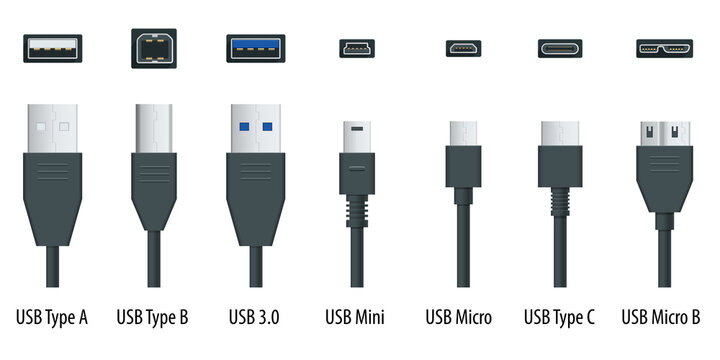
See the difference between various USB connectors and ports in this image (an Adobe Stock image) :

The ports on your Mac are USB-C [ 2nd from the right ].
The port on the printer you were trying to use is USB-A [ 1st from the left ] (or USB 3.0 [ 3rd from the left ] which is the same in size and shape) – that usually is for plugging in a USB-stick to print documents directly from a USB-stick
The port on back of the printer – the one you should use – is USB-B [ 2nd from the left ].

If you don’t have a ‘printer cable’ (USB-A to USB-B) and a USB-C adapter piece (USB-C plug-on cap or cable for USB-A), you can buy them from any electronics store. Or you can buy a ‘modern printer cable’ (USB-B to USB-C).
Here are direct links to buy these from Amazon :

modern printer cable (USB-B to USB-C) from Amazon.com
modern printer cable (USB-B to USB-C) from Amazon.co.uk
modern printer cable (USB-B to USB-C) from Amazon.de

all-in-one modern & regular printer cable (USB-C/USB-A to USB-B) from Amazon.com
all-in-one modern & regular printer cable (USB-C/USB-A to USB-B) from Amazon.co.uk
all-in-one modern & regular printer cable (USB-C/USB-A to USB-B) from Amazon.de

to keep this website online MacManus.nl makes a tiny fee if you buy from these Amazon links

If you plug in the right cable from the back of your printer to your Mac, the printer will berecognised and you will be able to print.

That’s it !

enjoy 😉

fixed : open your open pages from macOS Safari on your iPhone

Question :

I overheard someone telling they could open the internet pages they have opened on their Mac from their iPhone also. I’ve never seen it in practice, but I think it would be great to be able to continue browsing on my iPhone what I had started on my Mac. I have asked my colleagues and friends, but no-one could tell me how to do that.

How do I do that ?


Answer :

Yes, you can continue the internet browsing you’ve started on one Apple device on another Apple device, if you use iCloud.
First step is to activate iCloud Safari syncing. To do so, do this :
– on your Mac, goto Apple-icon (top-left in the menu bar)
– select System Settings from the pulldown menu
– in the window that opens, click on Apple ID (just below your name, top left)
– when the Apple ID page opens, click on iCloud
– when the iCloud page opens, click on the “Show more apps” button
– in the popup window that opens, make sure that the slider at Safari is set to ON (green)
– then, exit the System Settings
– now, on your iPhone, open the Settings.app
– in the page that opens, click on your own name (Apple ID, iCloud+, Media & Purchases)
– in the Apple ID page that opens, click on iCloud
– in the iCloud page that opens, click on Show All
– in the Apps using iCloud page that opens, make sure that the slider is te to ON (green)
– then close the Settings.app

With iCloud Safari syncing set, you can now see the webpages you have open on your Mac from Safari on your iPhone. To do so, do this :
– first, make sure you have at least one page open in Safari on your Mac
– then, open the Safari.app on your iPhone
– now, in the Safari.app, click on the Tabs-icon (bottom right – two squares on top of each other)
– then, in the preview page of all open tabs (open pages), click on the Plus-sign (bottom left)
– when the Favourites page opens, scroll down to the bottom
– there you will have at least one chapter named “From Mac…” with “Show All” next to it
– click on “Show All” and find all the pages you have open on your Mac
– if you don’t see the “From Mac..” chapter, click the “Edit” button at the bottom and make sure that the slider at “iCloud Tabs” is set to On (green) and return to the previous page

That’s it !

enjoy 😉