Question : Someone send me a link to a TikTok-post that apparently is a must-see for me… but when I click the link on my iPhone, the TikTok.app opens and telles me I need to login… I do have the Tiktok.app installed on my iPhone, but I can’t remember if I even have a TikTok-account… I checked in my iCloud-saved password-keychain, but there is no TikTok-apssword there… maybe I had an account, but I can’t find the password, so I chose ‘sign up’ to create a new account using my eMail-address… now everything seemd to go okay, I actually get a verification code send to my eMail-address, but when I use the 6-digit code, I get an error message saying “Couldn’t create account. Try again.” So, I tried again… same problem, same outcome… And this problem seems to persist after multiple tries…
What can I do ?
Answer : This error message problably comes up because the TikTok verification system is seeing ‘something out of the ordinary’ in your attempt to create a new account… (which could just be that you didn’t input your date of birth because it wasn’t asked… you started creating an account when you installed the TikTok.app long ago, and then you quit during the account creation process, and never got to creating the account then…) Anyway, the solution is this : – on your iPhone, long-press on the TikTok.app icon – when the popup window appears, choose “Delete” (not “Delete from Home Screen”) – then check if the Tiktok.app has been deleted from your iPhone – now, open the AppStore.app and lookup the TikTok.app there – then, reinstall the Tiktok.app – when done, open the TikTok.app and create a new account (using your tel.nr. of eMail-address) – now you will be asked to give your date of birth before you get the verification code, so fill out you date of birth – then, on the next page, typ or paste the verification code that was send to you via eMail (or SMS) – now, the verification code will be accepted, so proceed completing the account creation process and you’re good to go
Question : I used to have a currency converter app on my iPhone which was very handy when travelling the globe. But the free currency converter app that I used to use, doesn’t work with my current iOS version and is no longer available form the AppStore…
Do you have any recommendation ?
Answer : With the introduction of iOS 18, Apple has. integrated all kinds of conversion options (including currency conversion) into the Calculator app. To use it, do this : – open the Calculator.app on your iPhone (or iPad or Mac) – when in the regular calculator mode, click on the Calculator-button (bottom left) – from the popup list that appears, set the slider to the right (so ‘Convert’ will be chosen and turn orange) – now the input field will be devided in two : an upper part with white digits and a lower part with grey digits ; the upper part is the input field, the lower part is the result field – tip 1 : using the orange up/down-sign on the left, you can swap the currency – tip 2 : using the grey up&down-icon next to the currencies, you can choose any currency you like – tip 3 : after pressing the grey up&down-icon (next to the currency), you will get the option to convert not only currencies, but also all other sorts of values by choosing another orange chapter : Angle, Area, Data, Energy, Force, Fuel, Length, Power, Pressure, Speed, Temperature, Time, Volume or Weight ; you can scroll though the list or use the search field to find the currency (or other type of unit) you need – so, after having chosen the sort of conversion you need, just key in the value and the converted value will be shown
Question : I have an electrical S1 VanMoof bicycle and can only unlock the lock that’s build into the fram with the app on my iPhone or AppleWatch. This used to work great for years, but now, every time I try to use the VanMoof.app on my AppleWatch, I immediately get a warning screen saying “No Data – First, open the VanMoof app on your phone.”, but when I open the VanMoof.app on my iPhone nothing changes on my AppeWatch, not even after restarting the app or restarting the AppleWatch… and I can’t find any option in the VanMoof.app on my iPhone to reconnect with the AppleWatch or give access to data…
What can I do ?
Answer : If you encounter these problems, the solutions outlined in this post will probably not fix your problem., so you are best off doing a complete reinstall of your AppleWatch. Since your AppleWatch is automatically being backed-up to your (synced) iPhone, there’s no need too worry about data-loss …according to Apple – especially if your iPhone itself is continuously being backed-up to iCloud or to your Mac/PC.
To do a complete reinstall of your AppleWatch, do this : – on AppleWatch, press te crown once – in your collection of apps, find the Settings.app (grey circle icon with a white sprocket/gear in it) – click on the Settings.app – in the Settings screen that opens, scroll slightly down to ‘General’ and click on it – in the General screen that opens, scroll down to ‘Reset’ and click on it – in the Reset screen that opens, click on ‘Erase All Content and Settings’ – in the next screen, typ your AppleWatch unlock code – in the next screen, scroll down and click on the red ‘Erase All’ button – then the AppleWatch restarts and the white Apple logo will appear – eventually there will also appear a timer circle around the Apple logo – wait until the entire circle has turned from grey to white – now, on your iPhone a pop-up screen will appear, saying “Apple Watch – Use your iPhone to set up this Apple Watch.” – then, click on the “Continue’-button – now the “Set Up Apple Watch” screen will appear on your iPhone – click the ‘Set Up For Myself’-button (assuming your AppleWatch was originally set up for your own personal use) – the screen of the AppleWatch will now have turned into the blue pulsating pixel blob used for pairing – when the “Hold Apple Watch up to the Camera” screen appears on your iPhone, point the iPhone’s camera at your AppleWatch to start the pairing – if the pairing goes wrong, use the “Pair Apple Watch Manually” option and you will need to input the number code that appears on your AppleWatch (after swiping the blob away) into the field on your iPhone – when the pairing is done, you will get the “Make This Your New Apple Watch” screen on your iPhone – click the Continue-button and follow the on-screen instructions that will guide you through the rest of the reinstalling process (which is fairly straight-on from there) – when done, you will have your AppleWatch setup exactly as it used to be …with one big difference : the ‘No Data’ warning in the VanMoof.app will be gone and you can now use it as it was intended
Question : I have an app on my AppleWatch that isn’t working properly. I want to reinstall it.
How do I do that ?
Answer : There are 3 ways of reinstalling an app on your AppleWatch. If you have problems with an app on your AppleWatch, try these first (in any order you like). If the app still doesn’t work properly after trying these 3 options, you should try an erase and reinstall of your entire AppleWatch (outlined in this post).
OPTION #1 The targeted app reinstall via the iPhone‘s AppleWatch.app: – on your iPhone, open the AppleWatch.app – click on the ‘My Watch’ button (bottom left) – scroll down to the ‘INSTALLED ON APPLE WATCH’ chapter and find the app that isn’t working properly – click on it – in the next page that opens, turn the slider at “Show App on Apple Watch’ to OFF (grey-black, not green) – then, click ‘Back’ (top-left) and exit and close the AppleWatch.app – now check on your AppleWatch if the app has been removed from your AppleWatch – if it hasn’t, give it a few minutes to sync and check again – if it’s been removed, reopen the AppleWatch.app on your iPhone – click on the ‘My Watch’ button (bottom-left) – scroll down to the ‘AVAILABLE APPS’ chapter and find the app you want to reinstall – click on it (on the INSTALL-button at the right of the app icon) – see the INSTALL-botton turn into a download progress circle and wait for the downloading to finish – scroll up to the ‘INSTALLED ON APPLE WATCH’ chapter and see that the app is now listed there – then, click ‘Back’ (top left) and exit and close the AppleWatch.app – now, check on your AppleWatch to see that the app has been reinstalled – then, on your AppleWatch, open the app and check if it works properly – if it does, your good to go – if it does not, try one of the other reinstall options
OPTION #2 The complete app reinstall via the iPhone‘s AppStore.app : – on your iPhone, find the corresponding iOS-app of the app that isn’t working properly on your AppleWatch – long-press sonwhere on the screen inbetween the app icons until all icons start to jiggle – click on the small circle with a minus-sign in it (on the top-left) of the icon of the app that is not working properly – when the Remove-popup appears, click on ‘Delete App’ – now, the app will be deleted from your iPhone …and also from your AppleWatch ! – check your AppleWatch to verify that the app has also been deleted there – if not, wait a little until your iPhone and AppleWatch have synced – if so, proceed on your iPhone – open the AppStore.app on your iPhone – find the app that you have just deleted (and that used to give problems on your AppleWatch) – reinstall the app by clicking on the ‘download from cloud’-icon/button next to it – wait for the download to complete and the icon to chang into an ‘Open’-button – click the ‘Open’-button – go to your AppleWatch and see that the app has been reinstalled there also – if not, wait a little longer until the syncing is done – then proceed, by opening the app on your AppleWatch – now check if the app works properly – if it does, you’re good to go – if it does not, try one of the other reinstall options
OPTION #3 The targeted app reinstall via the AppleWatch‘s AppStore.app : – on your AppleWatch, press the Digital Crown once to see your collection of apps – touch and hold anywhere on the display until all app icons begin to jiggle – click on the icon of the app that is not working properly (when the icon is jiggling, it also has a tiny grey circle with an X in it top-left on it) – you will now see a black screen with white letters “Are you shure you want to delete… ?’ and a ‘Delete APP’ and a ‘Cancel’ button – click the ‘Delete App’ button – then your collection of apps will be shown, check that the app is no longer there – now, in your collection of apps, find the AppStore icon (the blue circle with the distinctive white AppStore A in it ; if your vcan’t find it at first, look again, since it will be there as it cannot be deleted) – if you’ve never used the AppStore on your AppleWatch before, you need to activate it by clicking the blue ‘Continue’ button first – then, in the AppStore screen, click the Search-icon (the looking glass top-left) – in the Search screen, skip up the triangular arrow from the bottom (below the word ‘SPACE’) – on the next screen, choose to input the search word using Scribble (writing letters on-screen one-by-one) or Dictation (speaking the search word) – using your input manner of choice, see to it that the search word is somthing like the apps name, it doesn’t have to be exactly righ ( it’s just that the pronounciation should resemble the name of the app you’e rearching for) – then, click the blue ‘Search’-button (top-right) – in the list of reach results, scroll down to the app you want to reinstall and clikc on it’s name – on the page that opens, click on the ‘download from cloud’-icon on the right side – it will now turn into a download progress circle that will finally turn into a blue ‘Open’-button – click on the blue ‘Open’-button – now check if the app works properly – if it does, you’re good – if it does not, try one of the other reinstall options
FINAL OPTION if neither of the 3 reinstall options outlined above has worked to get the app working properly, you will need to erase and resinstall your AppleWatch entirely… To do so, see this post : fixed : VanMoof.app keeps giving No Data error message
That’s it ! One of the above options will help you to reinstall (and fix) an AppleWatch-app
Question : On my Mac, in the Mail.app, I’ve always been fond of the option to select multiple eMails (mostly junk-mail) and delete them at once… but on my iPhone I have to delete each mail one-by-one (swipe left, click More, scroll down, click Delete Message) …that’s no problem if it’s only 5 eMails, but when it’s 10 or 20 eMails that I want to delete, it takes a lot of time and a lot of swiping… Now a friend adviced me to sart using the Gmail.app to do this… and Gmail.app has this as a standard feature, and Mail.app doesn’t (as far as I know) …but I love using Mail.app and prefer to keep using Apple’s own stuff…
Isn’t there any way to do this in Mail.app ?
Answer : YES, there is ! Okay – it’s slightly more complicated than in the Gmail.app for some unknown reason… but the option is there – to use it, do this :
in iOS / on iPhone : – open Mail.app – if you’re not already in the mailbox that you want to delete the eMails from, open the proper mailbox in the Mailboxes list window – in the window where all eMails are listed, click Edit (top-right) – now all eMails will slide slightly to the right and at the left, a round checkbox will apear in front of each eMail – then, check all eMails that you want to delete (or move) – when all are selected, click Move (bottom-centre) – from the popup, select Move Message – then, on the next screen click on Bin (or Trash) to delete all selected eMails – the screen will automatically close and go back to the previous screen (your selected mailbox)
in iPadOS / on iPad : – open Mail.app – make sure you are in the right mailbox, if not, click the menu icon (top-left) and select the desired mailbox from the list that appears on the left, and click on the menu icon (top-left) again to close the list of mailboxes that had appeared on the left – in the window of your desired mailbox, the list of eMails will be visible on the left and the preview of the selected eMail will be in the middle and right – then click on Edit (top-right-in-the-left-column), above the list of eMails – now all eMails will slide slightly to the right and at the left of them, a round checkbox will appear in front of each eMail – then, check all eMails that you want to delete (or move) – when all are selected, click Move (bottom-centre-in the left-column) – from the popup, select Move Message – then, in the list that appears on the left, click on Bin (or Trash) to delete all selected eMails – the slide-in menu will automatically close and you will be back in the regular screen of the active mailbox
Note : both on iPhone and iPad, you can also use this method to move multiple eMails to the junk-mailbox or archive them to any desired mailbox
Today is World Yoga Day. So I got a reminder from the Fitness.app on my iPhone that I can get a special award named “Yoga Day Challenge” if I do at least 10 minutes of yoga exercise today. So I did, but nothing happende. Then I found out that I need to do the exercise with the Workout.app running… I’ve searched on my iPhone and in the AppStore, but I can’t find the Workout.app…
Where can I find the Workout.app ?
Answer :
Yes, that’s a tricky one : the Workout.app is only available on your AppleWatch. So, unl;ock your AppleWatch and look for the app-icon that is bright yellow-green with a black stylized running man in it. Click on that, and the Workout.app will open.
That’s it !
In your case, you will also need to start and record a Yoga workout. To do so, do this : – on your AppleWatch, open the Workout.app (bright yellow-green icon with a black running man in it) – when the app opens, scroll down to the bottom – if Yoga is not in the list, click on the “Add Workout” button at the very bottom – on the next page, you get a list of additional workout types to add to the Workout.app – for Yoga you will need to scroll all the way down (the first group contains some much-used workouts and sports, and all others are grouped alphabetically – so you will need to scroll a long way down for the Y-section, there you will find Yoga) – click on Yoga to pin Yoga workouts to the workout.app’s begin screen – then exit the Workout.app – now, if you want to record a Yoga workout, open the Workout.app and click on Yoga in the begin screen – the Yoga Workout will now start with a 3 second countdown and switch to the recording screen – if you swipe this screen to the right, you will get the options to stop or pause your Yoga workout
A friend gave me a rather old printer that was working great for him, and said that I could easily use it with my MacBook also, using a USB-cable. So I took a USB cable with an old (flat) USB-connector on the one side and an new (small) USB-connetor on the other side and plugged that into the printer and into my MacBook Air (or Pro) that only has those same new (small) USB-ports. The connection feels good, but when I try to print from my Mac, the printer is not recognised…
What is wrong ?
Answer :
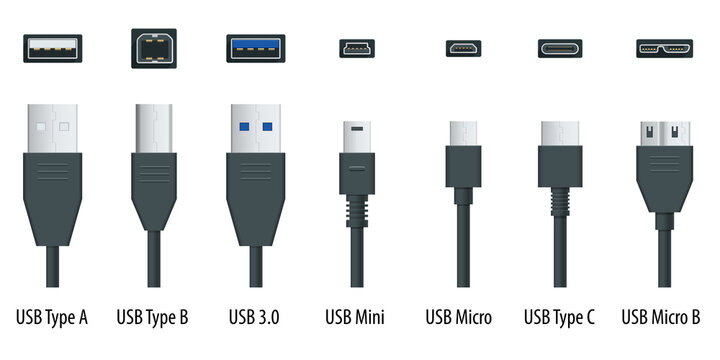
From what you are describing, you are using the wrong port on the printer : you are using a ‘regular’ USB-A port, probably on the top, front or side of the printer… you should however use the ‘square’ USB-B printer port that is on the back of your printer.
See the difference between various USB connectors and ports in this image (an Adobe Stock image) :
The ports on your Mac are USB-C [ 2nd from the right ]. The port on the printer you were trying to use is USB-A [ 1st from the left ] (or USB 3.0 [ 3rd from the left ] which is the same in size and shape) – that usually is for plugging in a USB-stick to print documents directly from a USB-stick The port on back of the printer – the one you should use – is USB-B [ 2nd from the left ].
If you don’t have a ‘printer cable’ (USB-A to USB-B) and a USB-C adapter piece (USB-C plug-on cap or cable for USB-A), you can buy them from any electronics store. Or you can buy a ‘modern printer cable’ (USB-B to USB-C). Here are direct links to buy these from Amazon :




 MacManus.nl