fixed : wake MacBook from deep sleep

Question :

Whenever I think I am only closing the lid on my MacBook for a few minutes, but get distracted and end up not turning back to it for about an hour, my MacBook seems to have fallen into deep sleep. Then nothing seems to help to get it ‘back to life’, and even though the battery is still indicating about ‘half full’, the usual click on the SPACE-bar doesn’t help, and neither does typing any key or key-combo on the keyboard…

My MacBook’s sleep is actually so deep my wife calls it ‘hibernation’, and my children call it ‘zombie Mac’…

So I always end up either taking out the battery to completely restart my MacBook or keeping the power-button pressed until it finally restarts…

Isn’t there any other way to wake my MacBook from deep sleep ?

Answer :

Yes, there is.

The solution you have been so near to the simplest solution, but you didn’t recognize it…

Instead of keeping the power-button pressed, you should just press the power-button for one quick second

…that’s is. Then your MacBook will slowly wake from deep sleep… it will first show a faded white-ish screen with a progress bar… and if that’s finished loading, your MacBook (Pro) will be right back were you left off…

Donate Button (MacManusNL)

BEWARE ! : WhatsApp voicemail eMails are fake !

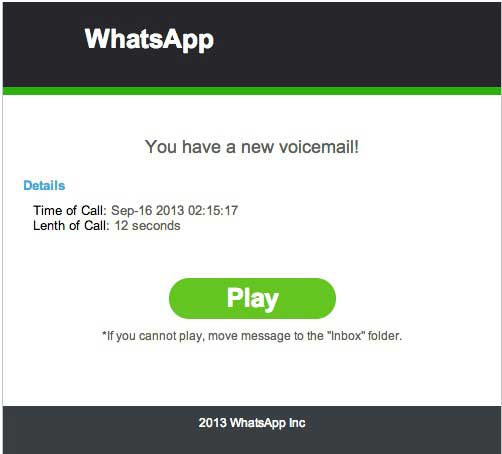
Lately, more and more people are being spammed with (fake) eMail messages, suggesting that there is a WhatsApp voicemail for them.

Beware : clicking on the (green) “Play” or “Listen” button will NOT enable you to listen to any newly recorded voicemail…

…this is a phishing-scam that instals malware (= malicious software) !!

DO NOT INSTALL !!

Note : the fact that this malware-installer makes use of a stolen Authentication Certificate (which is still valid) makes it extremely hazardous, as that will tick your computer/mobile phone into allowing the malware to be installed

The devices that suffer from this are mainly Android-mobile phones, but jailbroken iPhones, PCs and Macs also. Any original (not-jailbroken) iPhone will only install software from the iTunes App Store, so they are secured against this kind of malware.

HOW TO EASILY DETECT THESE PHISHING EMAILS :

The subject will read something like “Incoming voicemail at [date]”, and the sender will appear to be (*) “Whats App Notifier”, and there will be a big (green) button inside the eMail  named “Listen” or “Play”…

(*) on a Mac this can easily be detected, because of 2 simple indications :

1- in the senders name it is written “Whats App”, in stead of the official “WhatsApp” (one word)

2- when clicking on the senders name in Apple Mail.app, it turns blue and in yellow an eMail address will appear, which will not have “WhatsApp” in it, but will look like a regular private or business eMail-address

If you get one of these fake eMails, just mark them as SPAM and delete them a.s.a.p.

They look something like these :

whatsapp-malware-1whatsapp-malware-2

Note : if you happen to click on the “Play or “Listen” button, what will happen will (slightly) depend on the version of the eMail you have encountered and the type of device you are using :

– malware will be downloaded directly onto your device

– you will be redirected to a website which will scam you into installing malware

The Malware reportedly is WinWebSec and installs Fareit and Ursnif, which are info-stealers that send your private info to internet criminals, enables them to make your computer call paid telephone numbers and send these same type of phishing eMails on your behalf to anyone in your Contacts…

And once installed, you will also be spammed with messages by a fake antivirus-software called Antivirus Security Pro to pay for getting (in-existend) infections removed form your computer…

More on this scam be found here :

http://www.spamfighter.com/News-18612-Bogus-WhatsApp-Voicemail-Messages-Employed-to-Spread-Malware.htm

http://www.threattracksecurity.com/it-blog/kuluoz-voicemail-spam-drops-signed-certificate-winwebsec/

Donate Button (MacManusNL)

fixed : set IMAP eMail for Hotmail.com, Live.com and Outlook.com in MacOSX Mail.app

Question :

I’ve always though it was extremely annoying that Microsoft only allowed POP eMail for Hotmail.com for MacOSX, but I kept my Hotmail-account alive for al these years since I actually liked it, even after I switched to Mac…

Recently I heard that Microsoft is finally allowing IMAP access to Hotmail.com eMail, but I can’t figure out how to set it up on my Mac…

Can you please help ?

Answer :

Yes, you’re correct : IMAP eMail has finally come to Hotmail.com, Live.com and Outlook.com eMail.

Setting it up in MacOSX is not as straight forward as one might have hoped however…

The tricky part is that MacOSX will automatically set-up a POP-account if you are setting up a new account in Mail.app using a Hotmail.com, Live.com or Outlook.com eMail-address.

note : instructions for setting-up Hotmail/Live/Outlook-eMail on iPhone/iPad can be found here.

That being said…

If you follow these steps, you will be able to succeed anyway :

( if you are on OSX 10.9 Mavericks, read this first )

1- in OSX Mail.app, go to Preferences, then to Accounts and (if you have one) select your current POP-setup for Hotmail/Live/Outlook from the list, then go to the Account Information tab, and there un-check the “Enable this account” option

2- then use the Plus-button (bottom left) to add a new account

3- in the pulldown-window “Add Account” that appears, fill in your Full Name, type a fake eMail address ( e.g. nobody@blabla.com ) and leave the Password blank, then click on Create

4- in the next window, set the Account Type to “Exchange IMAP” (only if you don’t have that option choose “IMAP”) and use the following info, depending on what eMail-address you have :

for Hotmail.com-eMail, use :

Description : Hotmail IMAP ( or if you perfer your eMail-address, make sure to add “IMAP” or something like that to it, else it will conflict with your previously set-up Hotmail POP )

Incoming Mail Server : imap-mail.outlook.com [ will automatically select Port 993 ]

User Name : username@hotmail.com [ replace “username” by your own username ]

Password : ••••• [ your Hotmail-password ]

Outlook Web Access Server : m.hotmail.com

for Live.com-eMail, use :

Description : Live.com IMAP ( or if you perfer your eMail-address, make sure to add “IMAP” or something like that to it, else it will conflict with your previously set-up Live.com POP )

Incoming Mail Server : imap-mail.outlook.com [ will automatically select Port 993 ]

User Name : username@live.com [ replace “username” by your own username ]

Password : ••••• [ your Live.com-password ]

Outlook Web Access Server : m.live.com

for Outlook.com-eMail, use :

Description : Outlook IMAP ( or if you perfer your eMail-address, make sure to add “IMAP” or something like that to it, else it will conflict with your previously set-up Live.com POP )

Incoming Mail Server : imap-mail.outlook.com [ will automatically select Port 993 ]

User Name : username@outlook.com [ replace “username” by your own username ]

Password : ••••• [ your Outlook.com-password ]

Outlook Web Access Server : m.outlook.com

5- then click “Continue”, and if you get an error-message, just click “Continue” again

6- in the next window put a check-mark in front of “Use SSL”, set Authentication to “Password” and click “Continue” again

7- in the next window, use these settings :

for Hotmail.com-eMail, use :

Description : Hotmail SMTP ( or anything you like )

Outgoing Mail Server : smtp.live.com [ will automatically select Port 25 or Port 465 ]

you can check “Use only this server”, but it’s not obligatory

do check “Use Authentication”

User Name : username@hotmail.com [ replace “username” by your own username ]

Password : ••••• [ your Hotmail.com-password ]

for Live.com-eMail, use :

Description : Live.com SMTP ( or anything you like )

Outgoing Mail Server : smtp.live.com [ will automatically select Port 25 or Port 465 ]

you can check “Use only this server”, but it’s not obligatory

do check “Use Authentication”

User Name : username@live.com [ replace “username” by your own username ]

Password : ••••• [ your Live.com-password ]

for Outlook.com-eMail, use :

Description : Outlook SMTP ( or anything you like )

Outgoing Mail Server : smtp-mail.outlook.com [ will automatically select Port 587 ]

you can check “Use only this server, but it’s not obligatory

do check “Use Authentication”

User Name : username@outlook.com [ replace “username” by your own username ]

Password : ••••• [ your Outlook.com-password ]

8- then click “Continue” and if you get an error message, just click “Continue” again

9- in the next window, put a check-mark at “Use SSL”, select Authentication “Password” ( or “External (TSL client Certificate)” if you happen to have that ), and click “Continue”

10- in the next window, put a check-mark at “Take account online” and click on “Create”

11- then, back in Mail.app’s Prefecences, under Accounts, select your newly created eMail-account and click on the “Account Information”-tab and re-type your correct eMail-address in “Email Address:” (replacing the nobody@blabla.com you had originally entered) and check if all settings are as they need to be according to the above

12- then exit the Mail.app Prefecences (click the red button upper left) and click “Save” when the “Save changes” pulldown window appears

13- now, back in Mail.app itself (if you do not see the normal Mail window, go to File –> New Viewer Window), you will see the new Hotmail/Live/Outlook account has appeared, and it is looking for your old & new eMails on the Hotmail/Live/Outlook-mail servers

…most people will have lots of old eMails to import, so this might take some time (don’t be surprised if this takes 15, 20 or maybe even 30 minutes…)

14- if the import of the old & new eMails from the Hotmail/Live/Outlook-mail servers is complete, they will appear in the Inbox window and you’re done…

Congratulations !

…if you do not see your old & new eMails appearing, but you do see an “Unread eMails”-number next to the name of the Hotmail/Live/Outlook-inbox in the listing on the left, you have run into a bug in Mail.app that was only recently solved in OSX 10.8.5

to manually solve this problem, quit Mail.app, open Disk Utility (from the Applications –> Utilities folder), run “Repair Disk Permissions” on your Hard Drive’s main partition and when that’s finished, re-open Mail.app and all should be solved

Enjoy !

Donate Button (MacManusNL)

fixed : AirDrop from Mac to iPhone/iPad

Question :

I’ve just installed iOS 7 on my iPhone 5, and since I was reading about AirDrop being one of the new features, I immediately thought of using AirDrop to get this picture I just made onto my iPhone…

But when I turn on AirDrop on both my Mac and my iPhone, they can’t seem to see each other…

Is there any way to get this to work ?

Answer :

No – at least : officially not.

So far, AirDrop is only available on Macs with supported AirPort-cards running MacOSX 10.7 “Lion” or newer and on the iPhone 5 and newer running iOS 7…

Furthermore, AirDrop is only supported Mac-to-Mac or iPhone/iPad-to-iPhone/iPad…

Maybe this situation will change with the introduction of OSX 10.9 “Mavericks”, but for now there is no (official) option to use AirDrop from Mac-to-iPhone/iPad and vice-versa…

But…

There is an alternative that works the same basically : AirDisk Pro

(note : seems like Phone Drive and Phone Drive FREE are exactly the same app as AirDisk Pro, but at a lower price, even free…)

With this AirDrop-alternative, file transfer is very quick …and it’s even more compatible than the official AirDrop : the app can be installed on any iPhone or iPad running iOS 4.3 and the WiFi-connection can be made from any Mac or PC using a web browser…

In short, the app works like this :

– install the app on your iPhone/iPad

get AirDisk Pro
get Phone Drive FREE [stores max. 10 files]
get Phone Drive

– make sure your iPhone/iPad and your Mac/PC are on the same WiFi-network

– run the app

– enter the IP-address (or network name) that the app gives you as a URL in your Mac/PC’s web browser

– drag the file you want to transfer onto the webpage

done !

enjoy 😉

Donate Button (MacManusNL)

fixed : HP DeskJet 930c can’t print PDF

Question :

I got an eMail-attachment in PDF, and when I tried to print it from my OSX 10.8 “Mountain Lion” MacBookPro, a completely blank page came out of my HP DeskJet 930c…

And when I tried printing the entire mail (including the preview of the PDF), the eMail-bodytext got printed, but there was a blank spot where the PDF-preview should have been…

What can I do ?

Answer :

For some unknown reason, the HP DeskJet 930c seems to have problems printing PDFs from OSX 10.8 “Mountain Lion”. The only remedy seems to be to install Adobe Reader and print every PDF from there…

…to make printing from Adobe Reader a little easier for you (and something you will not forget when you do not print PDFs for some time), it would be good to set Adobe Reader as the preferred software to open any PDF on your Mac. To do so, do this :

– select any PDF-document’s icon on your Mac

– then press [CMD]+[I] on your keyboard

– in the ‘Get Info’ window that opens, go to the chapter called “Open with:”

– if the grey triangular arrow in front is pointing to the right, click on it to make it point downward and reveal the pulldown-menu that you can should choose “Adobe Reader” from

– after you’ve done that, make sure you also click the “Change All…” button

…now any PDF-document you get on your Mac or in your Mac will open up in Adobe Reader, and you can print it from there

That’s it !

Donate Button (all)

Enjoy !