fixed : Power Pete / Mighty Mike game for current macOS

Question :
My kids asked me which computer games I liked to play when I was their age. I said I was most fond of an arcade game of a cartoonish Rambo-guy in camo clothes who fought dinosaurs trying to rescue little bunnies, using various cartoon-guns like a whipped cream shooter… I think it was called Peter Power or something… I would love to show the game to my kids (and play it myself once again)… but if I remember correctly it was no longer playable when OSX abandoned the Calssic mode…

Is there any way to let my kids play it themselves ?

Answer :
Yes, there is.
The game is called Power Pete (released by MacPlay) and was Best Arcade Game of 1995.
The origanal developer Pangea Software re-released the game in 2001 as Mighty Mike.
And recently, Pangea has granted a developer known as Illiyas Jorio the honours of releasing a FREE version of the game that works on all recent computers running current-day versions of macOS, Windows and Linux.
The current version of Mighty Mike can be found on GitHub. The download link is provided on the Pangea website :

Mighty Mike by Pangea Software

Even though Pangea Software’s website states that Jorio’s version of the game will work on “Mac OS X and 11” (probably refering to all Mac OSX 10.x versions up to macOS 11 Big_Sur from 2020) the latest release on GitHub (Mighty Mike 3.0.2) is even playable on the current version of macOS (macOS 15 Sequoia) and not only on Intel-based Macs, but also on the current Silicon-based M1/M2/M3/M4 Macs.

Just keep in mind that the graphics haven’t been updated, so you will get that pixelated retro-feel also… and you can still adjust the settings to play it with a joypad or game controller instead of your keyboard.

Enjoy 😉

fixed : AppleID password not accepted on Apple website

Question :

I am trying to make a reservation for a repair of my iPhone through the Apple website, and I can go through all the steps until I need to give my password to login with my Apple ID… it just won’t accept the correct password !

What is going on ? And How can I fix this ?

Answer :

Yes, it’s bizar that Apple isn’t clear why this doesn’t work the way you would expect it to…
But the solution is simple :

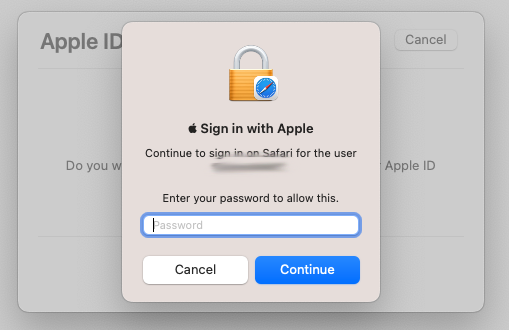
  • when you get the “Do you want to sign in to dims.apple.com with your AppleID?” window, click the blue “Continue with Password” button
  • then you will get the “Sign in with Apple” window… and then, DO NOT enter your AppleID password !! ; you need to enter the password you use to unlock your Mac !!

…there is some (weird Apple) logic behind this, but it is completely unclear why Apple made this so confusing… [ Apple is asking for your password to unlock your passwords keychain in Safari ; but you will only get that from the text “Continue to login on Safari for the user” AFTER you have figured out some other way what the solution is… ]

On the other hand… that’s it !

enjoy 😉

fixed : quick slideshow of a folder of pictures

Question :
Someone sent me a bunch of photos that I need to review. I have them in a folder, but I don’t want to import them into Photos.app, Keynote or PowerPoint or even Preview.app to have a look at them and select the most important ones.

Is there any option or simple app to do this ?


Answer :

Yes there is, there is an option for this in macOS (and OSX) called Quick Look. In previous versions of OSX and Mac OSX the Quick Look option was visible in any Finder window as a ‘button with an eye icon on it’, in macOS it is slightly hidden in the pulldown menu that opens when you click the ‘button with a sprocket (gear) icon on it’.

There’s even a shortcut for this :

  • open a Finder window
  • open the folder with the photos in it
  • select the photos you want to review (hold the CMD-key while picking photos one-by-one, hold the SHIFT-key to select multiple photos in a row, or press the CMD + A key combo to select all photos)
  • then press the SPACEBAR to view all selected photos as a slideshow
  • or press the ALT + SPACE key combo to view all selected photos as a full screen slideshow
  • note : the file names are shown with each photo, so if you need to review and select photos you will know which photos you have chosen

That’s it.

enjoy 😉


fixed : use old iPad as an extra screen for your Mac (or PC)

Question :

Since we are working from home a lot (and the children are home schooling), and we have several old iPads and iPhones lying around gathering dust, we were wondering if it would be possible to use them as second screens on our Macs and Windows PCs to make our work and homework easier by being able to do this (and more) :

  • manage our music playlist (iTunes, Apple Music, Spotify) on our old iPad/iPhone whilst running  MS Office on our Mac/PC without switching apps
  • use our old iPad/iPhone’s touchscreen to put a signature under a PDF-document whilst typing it on our Mac/PC
  • use our old iPad/iPhone as a drawing tablet for our Mac/PC
  • videochat or view an online presentation onour Mac/PC whilst making notes on our old iPad/iPhone using a full-size keyboard (and easily swapping the two around when needed)

We noticed Apple has introduced this great feature called Sidecar that enables you to use your iPad (or iPhone) as a second screen for your Mac. But when I looked at the Sidecar requirements on the Apple website, I found that our older iPads/iPhones aren’t supported.

Is there any way to use Sidecar (or something similar) on our old iPads/iPhones ?


Answer :

Yes, even though you cannot use Sidecar on any unsupported iPad, iPhone or Mac, there is an alternative that works just as great for any old iPad (or iPhone) and is not limited to a Mac, but does support Windows PCs also… and best of all : it’s FREE.

This is ideal for working from home and home schooling since you can do all this (and more) :

  • manage your music playlist (iTunes, Apple Music, Spotify) on your iPad whilst running  MS Office on your Mac/PC without switching apps
  • use your iPad/iPhone’s touchscreen to put a signature under a PDF-document whilst typing it on your Mac/PC
  • use your iPad/iPhone as a drawing tablet for your Mac/PC
  • videochat or view an online presentation on my Mac/PC whilst making notes on my iPad/iPhone using a full-size keyboard (and easily swapping the two around when needed)

This FREE alternative for Apple Sidecar is Splashtop Wired XDisplay. It enables you to use any iPad/iPhone running iOS 7 or newer as a second or third (touch)screen for any Mac running OSX 10.9 Mavericks (or PC running Windows 7) or newer.

This means that all these iPhone / iPad / Mac models are supported :

  • iPhone 4 or newer
  • iPad 2 or newer
  • any iPad mini
  • any iPad Air
  • any iPad Pro
  • any aluminum iMac (iMac “Mid 2007” or newer)
  • any iMac Pro
  • Mac mini “Early 2009” or newer
  • Mac Pro “Early 2008” or newer
  • white MacBook “Early 2009” or newer
  • any aluminum MacBook
  • MacBook Air “Late 2008” or newer (2nd gen MacBook Air or newer)
  • MacBook Pro “Mid 2007” or newer

To install, do this :

  • install the Splashtop Wired XDisplay app on you Mac/PC
    • you can download Splashtop Wired XDisplay for Mac or Windows here
  • install iTunes on your PC if you have done so yet
    • you can download iTunes for Windows here
    • on a Mac you don’t need additional software for your iPad/iPhone to be recognized
  • install Splashtop Wired XDisplay on your iPad/iPhone
    • you can download Splashtop Wired XDisplay for iPhone here
    • you can download Splashtop Wired XDisplay for iPad here
  • then, plug your iPad/iPhone’s USB-cable into your Mac/PC
  • then run the Splashtop Wired XDisplay app on your Mac/PC
  • then run the Splashtop Wired XDisplay app on your iPad/iPhone
  • then goto the Settings on your Mac/PC, find the Screen Settings and arrange your screens the way you like
    • you can choose “Mirror Screen” to see exactly the same on your MAc/PC and your iPad/iPhone
    • you can choose “Extend Screen” to arrange the iPad/iPhone as an add-on for your desktop
    • if you already have a second screen attached to your Mac/PC, you can use your iPad/iPhone as an additional third screen also

That’s it !

enjoy 😉

fixed : compress video for WhatsApp (or eMail)

Question :

I would like to send a small piece of a video I just shot at a birthday party to a group of friends on WhatsApp, but it’s too big to upload.

How can I compress it for easy viewing on Whatsapp ?


Answer :

If you have shot the video on your iPhone you can send it right away, and iOS will do the compression for you.

However, if you already have the video on your Mac and you want to compress it before you send it using WhatsApp Desktop (for macOS), do this :

  • make sure you trim down the length of the video to a clip that only includes the most relevant part of the video
    • you can do this in QuickTime Player (included in macOS for FREE)
  • use Smart Converter (FREE from Mac AppStore) and choose ‘for iPhone or iPod’, then click ‘Convert’ to convert
    • this will convert to an .mp4 video with 1280×720 resolution at 30 frames per second and AAC sound (file size ca. 10MB per 10 seconds)
  • use Handbrake (FREE from handbrake.fr) and choose ‘Presets’ > ‘Gmail Large 3 minutes 720p30’, then click ‘Start’ to convert
    • this will convert to an .mp4 video with 1280×720 resolution at 30 frames per second and AAC sound (file size ca. 2MB per 10 seconds)

Note : even though the frame rate and screen size are the same, the ‘Gmail’-ready file will be much smaller than the ‘iPhone’-ready file, even though (or rather ‘because’) this comes with the downside that quick-moving objects will blur in the ‘Gmail’-ready video (compared to the ‘iPhone’-ready video that hardly has any blur and is similar in size and quality to the ‘Fast 720p30’ preset in Handbrake) 

That’s it !

enjoy 😉

fixed : quickly rotate a movie file in macOS 10.15 Catalina

Question :

I have a movie-file that was shot on an iPhone in portrait-mode, but I think it will look better  when viewed in landscape-mode. It’s a video of you cat playing on the carpet, shot from above, so both portrait-mode and landscape-mode are okay for viewing, but as we prefer to view video’s on out TV it would make more sense to have it in landscape-mode.

How do I do that ?


Answer :

In MacOSX and OSX rotating photos was easily done in iPhoto or Photos.app, but rotating video couldn’t be done in iPhoto or Photos.app – that had to be done in video editing software like iMovie, or a dedicated video-rotation-app.

In macOS 10.15 Catalina, rotating video 90 degrees can be done extremely simple in the Finder :

  • open the Finder (click out of all apps until you have only the Desktop to look at)
  • open a New Finder Window by typing CMD and N keys on your keyboard simultaneously (or goto Finder > File > New Finder Window)
  • locate the video-file (if you know it’s name, typ it in the Search-bar, else browse to the file if you know where it’s located)
  • then click on the file name to select it
  • the video preview will now come up on the right side, with various info and some buttons below it
  • to rotate your video 90 degrees counter-clockwise, click on Rotate Left
  • to rotate your video 90 degrees clockwise, press the ALT key on your keybord and click on Rotate Right (in the same spot where the Rotate Left button used to be)
  • then wait for the processing to end…

…and you’re done 😉

That’s it – enjoy !