fixed : get very old iPhoto Library to open in macOS Mojave Photos.app

Question :

On my old PowerPC G4 (or G5) Mac I found some old photos in iPhoto.

Is it possible to copy the database and open it in the Photos.app on my new Mac that runs macOS 10.14 Mojave ?

Or do I have to import the photos as just photos and lose all additional info and edit that was done in iPhoto long ago ?


Answer :

Of course, the easiest and quickest way to get the original photos into your new Photos.app would be to just import all the old photos into Photo.app. But… as you already mentioned, you will loose all additional info and edits that you added in iPhoto back in the days.

The best way to get as much info and edits into Photos.app as possible is to do the following :

  • connect an external HD, external SSD or USB-stick with plenty of GBs to your old PowerPC G4 or G5 Mac
  • go to Users –> [your account name] –> Pictures –> iPhoto Library
  • copy the iPhoto Library (or even the entire Pictures folder) onto your external HD/SSD or USB-stick
  • when done, eject the external HD/SSD or USB-stick (by dragging it’s icon to the trash or clicking the eject-icon besides it’s name in the Finder) and disconnect it from your old Mac
  • then connect the external HD/SSD or USB-stick to your new Mac
  • download the iPhoto Library Upgrader software from Apple :

https://support.apple.com/en-us/HT202358

  • install the iPhoto Library Upgrader Tool
  • go to Applications –> Utilities –> iPhoto Library Upgrader Tool
  • run the iPhoto Library Upgrader Tool
  • in the window that opens, click on the Choose Library button
  • then select the iPhoto Library that is now on your external HD/SSD or USB-stick
  • then click Continue
  • when done, exit the iPhoto Library Upgrader Tool
  • then go to Apple-menu (Apple-icon top-left in the Finder) –> System Preferences –> iCloud
  • make sure you are Signed In into iCloud
  • then, in the list on the right at “Photos” click on the Options button
  • then make sure that there is a check mark at “iCloud Photos”
  • then exit System Preferences
  • now, double-click the Photos.app while holding down the [ALT]-key on your keyboard
  • now, while starting up Photos.app will ask you which Photos/ iPhoto Library to open
  • then choose the iPhoto Library that’s on your external HD/SSD or USB-stick
  • now, Photos.app will start converting the iPhoto Library to an up-to-date Photos Library
  • when done, Photos.app will display your old iPhoto photos
  • then, in Photos.app, goto Preferences, then General-tab and at Library Location click the ‘Use as System Photo Library’-button, to (temporarily) make the old iPhoto/Photos Library the one that syncs with iCloud
  • then Photo.app will start uploading the old photos to iCloud
  • now, in iCloud, these photos will be merged with the ones that were already in iCloud and they will be sent out to your iCloud (or rather iCloud Photos) connected devices
  • when the uploading is complete, you can quit Photos.app
  • now, double-click the Photos.app while holding down the [ALT]-key on your keyboard
  • now, while starting up Photos.app will ask you which Photos/ iPhoto Library to open
  • then choose the iPhoto Library that used to be your main Photos Library previously (usually the one that is in your current user’s Pictures folder)
  • then, in Photos.app, goto Preferences, then General-tab and at Library Location click the ‘Use as System Photo Library’-button, to make make your main Photos Library the one that syncs with iCloud again and be the one that opens when you startup Photos.app
  • then wait for the ‘new’ (additional old) photos to sync from iCloud and you will have an integrated Photos Library of old and new Photos and iPhoto’s databases

that’s it !

enjoy 😉

fixed : gmatevents prevented updates from being installed

Question :

I have auto-updating turned on in macOS 10.14 Mojave, but today I got an error message that “gmatevents” prevented updates from being installed”.

What is wrong and how do I fix it ?


Answer :

Gmatevents is an application that runs in the back of macOS when you install iTrash Ghost Mode. To get rid off it, do this :

  • go to Apple-menu (the Apple-icon top-left in the Finder)
  • open System Preferences from the pull-down menu
  • in the window that opens, click on Users & Groups
  • in the window that opens, click on the account of the person who is the Current User (on the left)
  • then click on the “Login Items” tab
  • in the list that opens, you will see “iTrashGhost”
  • select “iTrashGhost” then click the -(minus) button below the list
  • the “iTrashGhost” will now disappear from the list
  • exit System Preferences
  • you should no longer get the error message now

that’s it… enjoy 😉

fixed : can’t connect new iPhone (iOS 12) to MacBook Air Late 2010

Question :

I have a new iPhone 8 (running iOS 12) and I want to connect it to iTunes on my MacBook Air (Late 2010), but when I connect them using the Lightning-to-USB-cable I get an error message saying the software on my Mac should be updated.

I found that I had OSX 10.10 Yosemite installed, so I used the Mac AppStore-app to upgrade to macOS 10.13 High_Sierra. That went smoothly, so I also installed all available updates for my apps from the Mac AppStore. Then, I ran into a strange error : I can’t upgrade to the newest version of iMovie because my version of macOS doesn’t meet the minimal system requirements…

I also ran iTunes, but even now my iPhone 8 isn’t recognised when I connect it…

I found that for some reason macOS 10.13.4 is installed, and not 10.13.6, but still : Mac AppStore says “no updates available”…

Is my MacBook Air late2010 not meeting the minimal system requirements for macOS 10.13.6 for some reason ?

I looked up my MacBook Air late 2010 in MacTracker, and found that is should be able to run macOS 10.13.6 so why won’t it install ?

How can I fix this ?


Answer :

For reasons unknown, you need to upgrade your MacBook Air to macOS 10.13.5 manually using this download :

download macOS 10.13.5 upgrade

And only after macOS 10.13.5 is installed, you can manually upgrade to macOS 10.13.6 using this download (this is an incremental upgrade, not a combo upgrade) :

download macOS 10.13.6 upgrade

After macOS 10.13.6 is installed, you should be able to update to the latest versions of iMovie and iTunes via the Mac AppStore.

If iTunes won’t update, you need to (re)install it manually, using this download :

download iTunes

After installing the latest version of iTunes, connect your iPhone to your Mac using a Lighting-to-USB-cable. Now, an extra update will be downloaded, which will put an extra Devices-button in the iTunes and your iPhone will be recognised in iTunes.

That’s it !

enjoy 😉

fixed : Birthdays not showing in macOS Calendar.app

Question :

I just did a clean install of macOS on my Mac and everything works fine. Except for one thing…

The birthdays of my contacts are not showing up in Calendar.app even though they were properly showing in Calendar.app on my previous version of macOS and they are still showing up properly in Calendar.app on my iPhone.

I’ve already tried unchecking and re-checking the checkmark at “Birthdays” in the list of available calendars (at “Other”), login out of iCloud and back in, restarting my Mac, adjusting some birthdays in Contacts.app, etc. Simply put : I’ve tried any solution I could think of…

How can I fix this ?

Answer :

The solution might be simple, but easily overlooked :

in Calendar.app on macOS, go to “View” in the menu-bar and when the pulldown-menu appears, put a checkmark at “Show All-Day Events”, then click “Refresh Calendars”.

Now check if that solves your problem. If it doesn’t, try this :

  • goto Calendar.app
  • select Calendar (in the top menu-bar)
  • select Preferences (from the pull-down menu)
  • select General (the left tab)
  • put a checkmark at “Show Birthdays calendar”
  • note : if you already had a checkmark at “Show Birthdays calendar”, do this also :
    • remove the checkmark
    • close the Calendar-app
    • restart your Mac
    • open the Calendar-app
    • put the checkmark back at “Show Birthdays calendar”

That’s it.

enjoy 😉

fixed : MacBook Pro hangs during final stage of macOS startup

Question :

I have macOS 10.14 Mojave installed on my MacBook Pro ‘Mid 2012’, but every time I try to start up my Mac, it hangs when the progress bar (on the white startup screen with the Apple logo) is at 99%…

On the TechRadar-website I found some startup key-combos to try : https://www.techradar.com/how-to/computing/apple/how-to-use-os-x-boot-options-to-troubleshoot-your-mac-1305645

I have tried the following, but it didn’t help :

  • restarting my MacBook
  • zapping the PRAM / NVRAM
  • running Disk First Aid in Recovery Mode
  • running Disk First Aid from another Mac while in Target Mode
  • reinstalling macOS Mojave from Recovery Mode
  • reinstalling macOS Mojave from a USB installer

So far, no problems where found, but the exact same problem keeps occuring :

When I startup my MacBook Pro, the progress bar goes quickly to 50%, then slows down but still keeps progressing up to 99% or even 100% and then hangs…

What can I do to solve this ?


Answer :

You have already tried most of the options that usually give success when you encounter these types of problems, so you have little options left to choose from.

——————- U P D A T E ——————-

If you get to see a progress bar while your Mac hangs, do as outlined below, but  if your Mac hangs before you see a progress bar below the Apple logo, have a look at this post first :

fixed : MacBook Pro sighs then hangs during startup without progress bar over and over again

——————- ORIGINAL POST ——————-

The first thing to try would be ‘Verbose Mode’ so you will be able to figure out what problems are encountered during startup :

  • shut down you Mac using the power button
  • startup your Mac in Verbose Mode by pressing the [CMD]+[V] keycombo on your keyboard during startup
  • now, your Mac starts up without a GUI (Graphic User Interface) but just displays lines of code (like in the Terminal.app and Console.app)
  • note that you might see a screen of code flashing by and than face your regular inlog screen… if so, just login and you will get to the Console-like black screen with white lines of code…
  • wait for the lines of code to halt and see what error messages are displayed in the final lines of code
  • if the error is “too many corpses being created”, use the solution outlined below (additional error terms are “Process”, “crashed:” and “opendirectoryd.”)
  • if you get any different error message : lookup the error message and the solution on the internet

The solution to the “too many corpses being created” startup-error :

  • shut down your Mac using the power button
  • startup your Mac in Recovery Mode by pressing the [CMD]+[R] key combo on your keyboard during startup
  • if FireVault is on, mount the HardDisk by clicking Disk Utility.app and then typing your password
  • then, go to Utilities in the top menu bar and click Terminal in the pulldown menu
  • in Terminal.app type this line of code (in which “Macintosh\ HD” is replaced by the name your have given your HardDisk ; the default name is “Macintosh HD”, and note that all spaces in the name of your HardDisk should be replaced by “\ ” (a backslash + a space) when typing these lines of code) :

cd /Volumes/Macintosh\ HD/var/db/caches/opendirectory

  • then press the [Enter]-key to run the code
  • when the cursor returns on the very next line you’re good, if you get an extra line in between, you’ve run into an error (e.g. “command not found” usually means you mistyped something, so you should just try again ; if you forgot to replace the space in your HardDisk’s name by “\ “ you’ll also get an error and you should just try again)
  • on the next line, type this :

mv ./mbr_cache ./mbr_cache-old

  • then press the [Enter]-key
  • when the cursor returns on the very next line you’re good
  • again, if you get an extra line in response, you’ve made an error and trying again with greater accuracy will probably solve it…
  • then, exit Terminal.app by pressing the [cmd]+[Q] key-combo
  • then restart your Mac by clicking on the Apple-icon top left in the top menu bar and clicking “Restart” from the pull down menu
  • now your Mac should startup without problems
  • note that the first startup will take a little longer, as all system settings need to be rebuilt

That’s it !

enjoy 😉

fixed : hi-res icons for the new Mac mini 2018

Question :

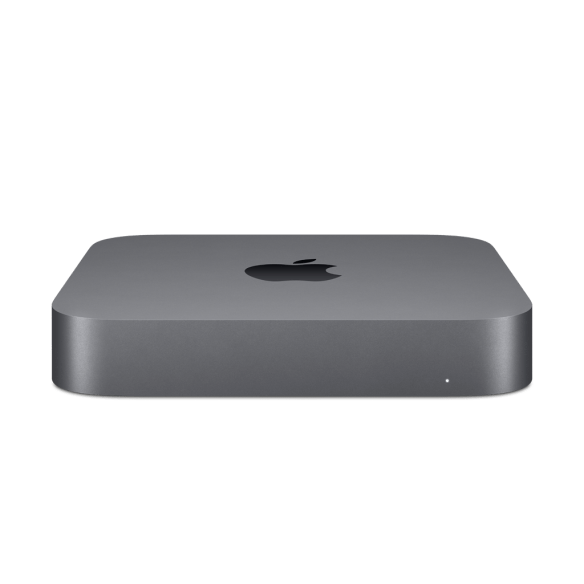
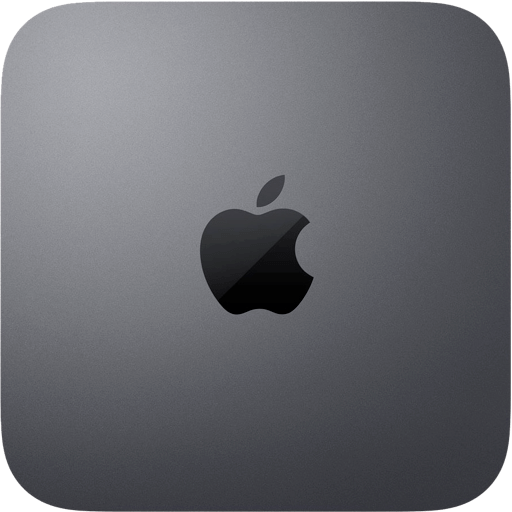
I have just gotten my new space grey Mac mini 2018, and as I’ve always done, I would like to change the icon to the official Apple icon, but I can’t find an official logo anywhere…

What can I do ?


Answer :

The current version of macOS 10.14 Mojave doesn’t include an official icon for the new space grey Mac mini 2018 yet, but you can use one of these :

  • you can get a ‘front view’ icon here :

  • or you can get a ‘top view’ icon here :

  • after downloading your preferred icon, do this :
  • select the Macintosh HD (or whatever you’ve renamed your internal SSD to) on your Desktop or in the Finder
  • press [CMD]+[I] to open the “Info” popup menu
  • then click on the icon (top left) and a blue outline will open around it
  • then open the file (with the icon as a picture) you’ve just downloaded in Preview
  • in Preview press [CMD]+[A] to select the entire image
  • then return to the Info-popup window, and press [CMD]+[V] to paste the new icon
  • now your Mac mini 2018 has a better looking icon

That’s it !

enjoy 😉


fixed : new hi-res icon for Scanmarker.app

Question :

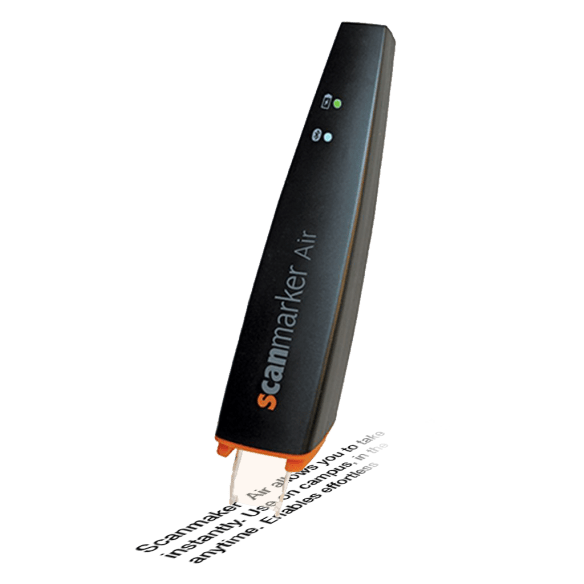
I have recently bought an Scanmarker Air scanner-pen. Seems like a great device. I’ve also installed the macOS-app. Strange thing is that the app’s icon is very pixelated.

How can I change that ?


Answer :

Scanmarker has released new colorful versions of the Scanmarker Air pen that can be bought here. It’s a great device for :

  • reading out written text from a book (very handy for anyone having dyslexia)
  • translating text on-the-fly
  • scanning text (or just portions of text) from textbooks

The official icon of the current Scanmarker app for macOS is still a 32x32pixels icon, which is a very old that shouldn’t be used in macOS (where 1024x1024pixels icons are standard).

Simplest way to fix this is to download an appropriate icon of higher resolution and paste that onto the app. Here’s how to :

  • either download my custom made 1024×1024 icon here :
  • or download the original icon here (still fuzzy since it is a 300x300pixels icon enlarged to OSX-native 152x152pixels) :  Scanmarker Android app icon
  • or download the icon of the iOS app here : ScanmarkerAir iOS icon
  • or download the diap desktop icon here :ScanmarkerAir OSX icon
  • after downloading your preferred icon, do this :
  • select the Scanmarker app in your Applications folder
  • press [CMD]+[I] to open the “Info” popup menu
  • then click on the icon (top left) and a blue outline will open around it
  • then open the file (with the icon as a picture) you’ve just downloaded in Preview
  • in Preview press [CMD]+[A] to select the entire image
  • then return to the Info-popup window, and press [CMD]+[V] to paste the new icon
  • now your Scanmarker app has a better looking icon
  • to make sure it also shows on the Desktop, delete the old Scanmarker alias from the Dock, then open the Scanmarker app again and right-click on it’s icon in the Dock and select “Keep in Dock” from the popup menu

That’s it !

enjoy 😉

Donate Button (MacManusNL)