
fixed : can’t connect old printer to new Mac using USB

Question :

A friend gave me a rather old printer that was working great for him, and said that I could easily use it with my MacBook also, using a USB-cable. So I took a USB cable with an old (flat) USB-connector on the one side and an new (small) USB-connetor on the other side and plugged that into the printer and into my MacBook Air (or Pro) that only has those same new (small) USB-ports. The connection feels good, but when I try to print from my Mac, the printer is not recognised…

What is wrong ?


Answer :

From what you are describing, you are using the wrong port on the printer : you are using a ‘regular’ USB-A port, probably on the top, front or side of the printer… you should however use the ‘square’ USB-B printer port that is on the back of your printer.

See the difference between various USB connectors and ports in this image (an Adobe Stock image) :
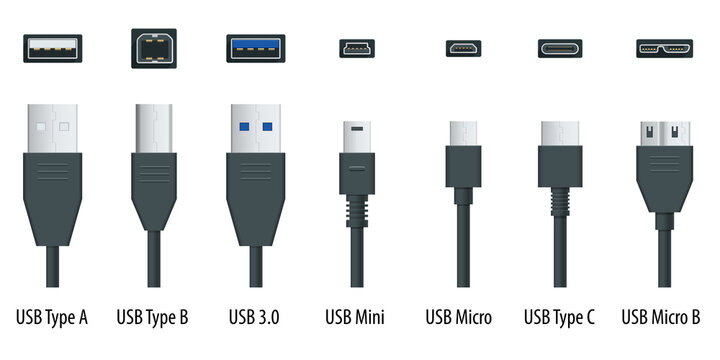
The ports on your Mac are USB-C [ 2nd from the right ].
The port on the printer you were trying to use is USB-A [ 1st from the left ] (or USB 3.0 [ 3rd from the left ] which is the same in size and shape) – that usually is for plugging in a USB-stick to print documents directly from a USB-stick
The port on back of the printer – the one you should use – is USB-B [ 2nd from the left ].

If you don’t have a ‘printer cable’ (USB-A to USB-B) and a USB-C adapter piece (USB-C plug-on cap or cable for USB-A), you can buy them from any electronics store. Or you can buy a ‘modern printer cable’ (USB-B to USB-C).
Here are direct links to buy these from Amazon :

modern printer cable (USB-B to USB-C) from Amazon.com
modern printer cable (USB-B to USB-C) from Amazon.co.uk
modern printer cable (USB-B to USB-C) from Amazon.de

all-in-one modern & regular printer cable (USB-C/USB-A to USB-B) from Amazon.com
all-in-one modern & regular printer cable (USB-C/USB-A to USB-B) from Amazon.co.uk
all-in-one modern & regular printer cable (USB-C/USB-A to USB-B) from Amazon.de

to keep this website online MacManus.nl makes a tiny fee if you buy from these Amazon links

If you plug in the right cable from the back of your printer to your Mac, the printer will berecognised and you will be able to print.

That’s it !

enjoy 😉

fixed : HP LaserJet M254dw not printing and giving error message “low memory”

Question :
I have a HP LaserJet M254dw that works great, but when I was trying to print a PDF yesterday, it took an enormous time to print and finally only printed the first page was printed, and the second wasn’t…
There was no error message on my Mac or on the small printer display, so I tried again, this time only printing the second page. Since it was a page filled with lots of graphics and colours, I wasn’t surprised that it took a long time to print, so I left the printer to do it’s job for a while… when I returned after an hour or so, there was nothing printed and there where no error messages…
So I tried again, this time I reduced the PDF to only the one page I wanted to print, made sure I would hear the printer startup (as it always does after receiving a new printing job) and I waited next to the printer to see wat happened…
This time it also took a long time and nothing was printed, but before the display on the printer went black, I noticed a “low memory” warning being displayed….

What can I do to resolve this ?

Answer :
HP has an explanation page on this “low memory” type of problem on it’s website, but if you don’t have any extra fonts installed, the first step I would recommend is installing new firmware if there is any.
Here’s how to do that :
– unplug the printer form power (to reset it – not strictly needed, but just to be sure)
– plug the power back into the printer
– download the latest firmware form the HP website by going to this webpage
– then, find & open the “Software & Drivers” chapter
– then, find & open the “Printer” chapter
– then, typ “m254dw” in the search field
– click on “HP Color LaserJet M254dw” when presented
– then, find & open the link to “Firmware”
– when the latest firmware version is displayed, click the “Download” button if you are sure you haven’t upgraded the firmware on your printer since the date it was released ( e.g. the current version number 20230822 means it is the firmware version created on 22nd of August 2023, but you can also check the official release date that is also listed )
– then, on your Mac, open the firmware installer you’ve just downloaded and follow the on screen instructions guiding you through the installation
– when the firmware upgrade is done, try to print the PDF page again
– if it is printed okay now : great ! …if not, try printing some other, page that has a simple layout, first
– if that doesn’t work, check your printer as something simple might be wrong like an open tray or a loose cable (aside from the very small chance that your printer is actually broken)
– if you are able to print something else, just try printing the problematic page again and make sure you check “Scale” (and not “Scale to Fit”) and set it to “100” in the “Preview” chapter of the Printing options before printing
– then wait…
– if that works (note that you might have to wait 10 minutes or so), you’re okay !
– if your page original was too large, and it has now been printed across multiple pages, try printing again, now with “Scale to Fit” checked
– if “Scale to Fit” turns out to cause problems, open the PDF in Preview.app and (re)save a new version as JPEG or PNG (choose “Export” from the “File”-menu to get these options) that you can print

That should be it !
enjoy 😉

fixed : put printing & scanning shortcuts in the Dock

Question :

Whenever I need to scan (or sometimes even to print) anything, I need to go into System Preferences, then Printers & Scanners, then click Open Scanner…

Isn’t there a one-click solution to do this ?

Answer :

Yes there is.

Back in the days of MacOSX there used to be an option for this called “Desktop Printer” : that would put a shortcut-link of your printer on the Desktop. And you could do the same for your scanner.

——————– UPDATE ———————–

With the introduction of macOS 14 Sonoma the solution outlined in this post is no longer possible – if you are running macOS 14 Sonoma, go here for the current solutions :

fixed : create a Desktop Printer (one-click printer access) in macOS 14 Sonoma

fixed : create a Desktop Scanner (one-click scanner access) in macOS 14 Sonoma

——– if you are using macOS 13 Ventura or previous you can also use the solution below —–

Nowadays, for some reason, this option is gone, and no easy alternative is given by macOS… so you will have to create some thing yourself… the easiest way is to put both your Printer’s and your Scanner’s icon in the Dock. To do so, do this :

  • go to Apple menu (Apple-icon top-left in the top menu bar)
  • when the pulldown menu appears, select “System Preferences”
  • in the window that opens, click “Printers & Scanners”
    • if there is no such option, click on the raster-icon (top-center) first and it will appear
  • in the window that opens, click on your scanner (in the list on the left)
    • if your scanner is not yet in the list, add it first by clicking the Plus-icon at the bottom and following the on-screen instructions
  • now your scanner opens in the main part of the screen (on the right)
  • click the “Open scanner” button
  • now, the Scanner-window will open, and the scanner’s icon will appear in the Dock
  • CTRL-click (right mouse button) on the Scanner’s icon in the Dock
  • from the popup-menu, select “Options”, then “Keep in Dock”
  • now, the scanner’s icon will be moved to the left and it will stay in the Dock even after you close the scanner software
  • so, next time you want to scan anything, just click on the scanner’s icon in the Dock to open the scanner software

    That’s it !

Note : creating a direct link icon in the Dock for your printer can be done in the same way

enjoy 😉

fixed : Canon scanner error -21345 on M1 Mac

Question :

I have have just upgraded to a new MacBook Air M1 2020 (with an Apple M1 processor) running macOS 11.0 Big_Sur. Now, I am trying to get my Canon PIXMA MG3250 All-in-one printer-scanner to work with it… but even though I can get the printer function to work, when I want it to scan I get an error…

Installing the Canon MG3250 through System Preferecens > Printers & Scanners > Add Printer was really simple as it was immediately seen through Bonjour. After installing, the MG3250’s icon is listed on the left, and when I click it, the window opens where I can choose either the “Print” or the “Scan” tab. After choosing the later, I get the “Open scanner”-button, and when I click that, the built-in macOS scanner-app opens the “Scanner” window… which gives this error : “Failed to open a connection to the device (-121345)” each time I try. I just can’t get it to work.

What is wrong ?

Answer :

When you get this error in this setup, you will probably have gotten an error saying “IJScanner3” also. Do this to fix it :

  • goto the Canon UK website : https://www.canon.co.uk
  • there, browse to the PIXMA MG3250’s Driver Support-page or go there directly using this link : https://www.canon.co.uk/support/consumer_products/products/fax__multifunctionals/inkjet/pixma_mg_series/pixma_mg3250.html?type=drivers&language=en&os=macos%2010.15%20(catalina)
    • Yes, that’s right, even though you are running macOS 11.0 Big_Sur and Canon tells you there is no driver for such an advanced OS, the macOS 10.15 Catalina driver still works
  • when you see the ICA Driver Ver. 4.0.0a (Mac) version listed, click the blue download button to download
  • in your downloads folder, you will now find a file called miss-mac-ijscanner3-4_0_0-ea19_2.dmg
  • click that file and it will mount an installer called Canon IJScanner3_040000.pkg
  • click that file and the 2020-version of the scanner driver will be installed
  • when done, make sure the System Preferences are closed
  • then open System Preferences > Printers & Scanners > MG3250 again and click the “Open Scanner”-button
  • now, the built-in scanner-app will open the Scanner-window again, but hits time without the error… so you are good to go !

That’s it !

enjoy 😉

fixed : SPL-C ERROR page printed by Samsung printer

Question :

when I tried to print to my Samsung printer via my Home-network today, the spooling process was very slow, then hung, and then a printed page rolled out of the printer with this text only :

SPL-C ERROR – Disconnected from Host. Please check the connection and try again.

POSITION : 0x3dc5 (252981)

SYSTEM : src_5.59/os_hook

LINE : 1978

VERSION : SPL-C 5.59 05-04-2012

So I restarted the printer, made sure there wasn’t any paper stuck, and tried again. This time I the spooling process was very slow again, hung again, and a similar page rolled out of the printer with this text :

SPL-C ERROR – Disconnected from Host. Please check the connection and try again.

POSITION : 0x15ea5 (89765)

SYSTEM : src_5.59/os_hook

LINE : 1978

VERSION : SPL-C 5.59 05-04-2012

So despite the difference in ‘position’, the problem remained.

What can I do to solve this ?


Answer :

This seems to be a weird bug popping up on some Samsung printers connected to Macs once in a while. To solve this problem, do this :

  • quit any printing jobs that are active
  • shut down the printer (take the power cable out)
  • on your Mac, go to System Settings > Printers & Scanners
  • there, delete the problematic printer (by selecting it in the list and clicking the minus-button)
  • then, restart your Mac
  • switch the printer back on (reconnect the power cable)
  • login on your Mac
  • go to System Settings > Printers & Scanners
  • add the printer to the list again (by clicking on the plus-button, and selecting it from the printers found)
  • then close the System Preferences and try printing your document again

That’s it !

enjoy 😉

fixed : PowerPoint presentation too large for eMail

Question :

I just made a beautiful PowerPoint presentation which I want to eMail to my friend. When I tried to eMail it, that seemed to work okay at first, but a few moments later I got an error message saying that the eMail could not be sent.

How can I fix this ?


Answer :

eMail providers have set a limit to the attachments’ file size per eMail to prevent cluttering the eMail traffic and flooding the recipient’s eMail inbox. For most providers this limit is set to about 5MB of attached files per eMail message. Some providers have expanded this limit to 10MB, and providers like Gmail, Hotmail and Yahoo! even allow you to attach up to 25MB of files to each eMail.

But if your PowerPoint presentation is even larger than 25MB (which might easily occur if you have done your best to make it a beautiful presentation), you will probably do the recipient  a pleasure if you send a smaller file, especially if they are planning on viewing it on a mobile device. The easiest way to ‘shrink’ the size of a presentation is to convert it into a PDF-file. (a PDF-file is even more versatile than a PowerPoint-presentation, as it also can be viewed by people that don’t have PowerPoint software installed)

To convert your PowerPoint-presentation into a PDF-file, do this :

In MacOSX :

– open your presentation in PowerPoint

– then go to “File” in the upper menu bar and select “Print” from the pulldown menu that appears

– in the “Print” menu that appears, adjust everything as desired, then click on the “PDF” button (bottom left)

– in the pulldown menu that appears, choose “Mail PDF” and a new eMail message will be made for you including your Presentation as an attachment

…or you can choose “Save as PDF…” to first save the PDF-version of your presentation to your Mac so you can attach it to any eMail later on

Note : the above procedure also works in other OSX programs like Word, Excel, Pages, Numbers, Keynote, etc.

For Windows users, the general idea is similar but slightly different :

http://office.microsoft.com/en-001/powerpoint-help/save-as-pdf-HA010064992.aspx

If the standard conversion of your PowerPoint into a PDF still turns up with a PDF-file that is too large to eMail, you can adjust the conversion settings, as described here :

How to create even smaller PDFs in OSX

You might also want to try the “Reduce File Size” that is in the “File”-tab of each Office 2011 application (so in Word, PowerPoint and Excel). This option will only reduce the size of the pictures inside the document. The smallest this option can reduce to is 96ppi a.k.a. “Best for sending in e-mail”. This is an interesting option, but converting to PDF usually leads to even more file size reduction.

And if the recipient insists on getting the original PowerPoint-file, you could do as a lot of professionals do, and send your presentation trough the FREE WeTransfer service :

http://www.wetransfer.com

that’s it !

enjoy !

😉

Donate Button (MacManusNL)

tip : which scanners are compatible with OSX 10.9 Mavericks ?

Question :

Which scanners will work with OSX 10.9 Mavericks ?

Answer :

Just like with previous versions of MacOSX, the built-in compatibility with older scanners is rather low…

…in the specs of OSX 10.9 Mavericks there isn’t any indication of extended scanner support, so it is expected that “wireless scanning” (over WiFi/AirPort) isn’t supported either, just as was the case (or should I say “problem”) in previous versions of MacOSX…

Apple hasn’t published a list of pre-installed scanner-drivers either, so there’s nothing official on this…

…there is however, a (very short) list of supported scanners pre-installed in OSX 10.9 Mavericks itself :

CanoScan 5600F             find it in the US, UK or Germany
CanoScan 9000F             find it in the US, UK or Germany
CanoScan LiDE 100         find it in the US or Germany
CanoScan LiDE 110         find it in the US, UK or Germany
CanoScan LiDE 200         find it in the US, UK or Germany
CanoScan LiDE 210         find it in the US, UK or Germany
CanoScan LiDE 700F       find it in the US, UK or Germany

This list can be found in :

/Library/Printers/Canon/IJScanner/Resources/CIJIcons

…strangely, there are no such icons installed for scanners from other brands like EPSON and HP… so support for those scanners is either not included (yet) or left up to the individual manufacturers…

NOTE #1 : in MacOSX 10.7 Lion, OSX 10.8 Mountain Lion and OSX 10.9 Mavericks scanner-compatibilty can be extended by installing the SANE-scannerdrivers, as outlined here.

NOTE #2 : if you are a professional and/or heavy user, you could also try using the SilverFast 8 scanner-suite, which adds support for these scanners to OSX 10.9 Mavericks (since even the cheapest version, SilverFast SE 8, will cost you €50, this only is a relevant solution for professional and/or heavy users…)

Donate Button (MacManusNL)
