fixed : Canon scanner error -21345 on M1 Mac

Question :

I have have just upgraded to a new MacBook Air M1 2020 (with an Apple M1 processor) running macOS 11.0 Big_Sur. Now, I am trying to get my Canon PIXMA MG3250 All-in-one printer-scanner to work with it… but even though I can get the printer function to work, when I want it to scan I get an error…

Installing the Canon MG3250 through System Preferecens > Printers & Scanners > Add Printer was really simple as it was immediately seen through Bonjour. After installing, the MG3250’s icon is listed on the left, and when I click it, the window opens where I can choose either the “Print” or the “Scan” tab. After choosing the later, I get the “Open scanner”-button, and when I click that, the built-in macOS scanner-app opens the “Scanner” window… which gives this error : “Failed to open a connection to the device (-121345)” each time I try. I just can’t get it to work.

What is wrong ?

Answer :

When you get this error in this setup, you will probably have gotten an error saying “IJScanner3” also. Do this to fix it :

  • goto the Canon UK website : https://www.canon.co.uk
  • there, browse to the PIXMA MG3250’s Driver Support-page or go there directly using this link : https://www.canon.co.uk/support/consumer_products/products/fax__multifunctionals/inkjet/pixma_mg_series/pixma_mg3250.html?type=drivers&language=en&os=macos%2010.15%20(catalina)
    • Yes, that’s right, even though you are running macOS 11.0 Big_Sur and Canon tells you there is no driver for such an advanced OS, the macOS 10.15 Catalina driver still works
  • when you see the ICA Driver Ver. 4.0.0a (Mac) version listed, click the blue download button to download
  • in your downloads folder, you will now find a file called miss-mac-ijscanner3-4_0_0-ea19_2.dmg
  • click that file and it will mount an installer called Canon IJScanner3_040000.pkg
  • click that file and the 2020-version of the scanner driver will be installed
  • when done, make sure the System Preferences are closed
  • then open System Preferences > Printers & Scanners > MG3250 again and click the “Open Scanner”-button
  • now, the built-in scanner-app will open the Scanner-window again, but hits time without the error… so you are good to go !

That’s it !

enjoy 😉

fixed : Canon scanner “Cannot communicate with scanner” error in macOS 10.15 Catalina

Question :

I have been using my Canon CanoScan 5600F scanner for many years with my Mac, and it has always been working great. However : now, in macOS 10.15 Catalina I keep getting error messages that the scanner cannot be found…

The exact error message is this : “Scanner reported an error Cannot communicate with scanner for these reasons: – Scanner is turned off. – USB cable is disconnected. Please check and try again.”

Sometimes I manage to get things working by replugging the USB-cable and switching the scanner OFF and back ON, but that solution doesn’t last…

What can I do to solve this ?


Answer :

even though Canon does not list support for your the CanoScan 5600F for macOS 10.15 Catalina, the Canon driver that used to work in MacOSX 10.7 Lion through macOS 10.14 Mojave still works in macOS 10.15 Catalina, so if you do not have this driver already, download it here

NOTE : this solution is tested to work for the Canon CanoScan 5600F scanner, but will probably work as well for other CanoScan and LiDE scanners that run into the same problem and error message

To solve your problem, do this :

  • go to Apple-icon (top left in the menu bar) and click on “System Preferences” from the pulldown menu
  • in the “System Preferences” window, click on “Printers & Scanners”
  • in the list on the left, at “Scanners”, select your CanoScan scanner
  • then, click on the Minus-button at the bottom of the list on the left, to delete the scanner from the list
  • now, switch OFF your scanner and unplug the USB-cable from the scanner and from your Mac
  • then, go to Apple-icon (top left in the menu bar) and click on “Restart…” from the pulldown menu
  • when prompted, UNcheck the option to reopen all open windows and restart your Mac
  • then, plug the USB-cable back into your scanner and your Mac and switch your scanner back ON
  • when your Mac has restarted, open System Preferences
  • in the “System Preferences” window, click on “Printers & Scanners”
  • in the list on the left, at the bottom, click on the Plus-button
  • in the window that opens, select your CanoScan scanner from the list and click the “Add”-button
  • you can now select your CanoScan scanner from the list on the left and click on the “Open Scanner” button on the right to open it
  • now, the “Scanner” window will open and you will be able to scan

You could be okay now, but you still might encounter this ‘Cannot communicate with scanner’ error again… in that case, do this :

  • click the OK button in the pulldown window that reports the error
  • then, option-click (right-click) on the scanner icon in the Dock
  • if your Scanner icon is not always visible in the Dock, do this first :
    • in the popup-list, select “Options”
    • in the next popup-list, make sure that there is a checkmark at “Keep in Dock”
  • now, close the Scanner window by clicking on the red button top left
  • then, reopen the Scanner window (by clicking on the scanner icon in the Dock)
  • now, the Overview Scan (preview scan) will start automatically as expected
  • if not, just repeat this process a little slower than you did before 😉

Note 1 : it seems like this problem is caused by macOS 10.15 Catalina cutting off all USB-connected devices when it puts your Mac in sleep mode (at the moment of writing there seems to be no simple way to adjust this in macOS…)

Note 2 : if you cannot live with getting this error once in a while, and you cannot wait for Apple and/or Canon to come up with a definite solution… have a look at the VueScan scanner-app

That’s it !

enjoy 😉

fixed : cannot print PDF form from macOS Preview.app

Question :

I have received an eMail from a vendor that includes a dispatchnote PDF that I need to print.

The PDF opens fine in Preview.app, but when I try to print it, everything seems to work fine, only the print doesn’t come out of the printer…

I can’t find the problem : the PDF appears in the printer’s Job List, the status bar fills up completely, the printer makes some noise to indicate that it is receiving data, the print job is deleted from the Job List, and nothing comes out of the printer… there are no error messages, no indication what so ever that something went wrong… the pint just won’t come out of the printer…

I checked to see if there is something special about the PDF-file that might be causing this, but I can’t find anything special about it… the PDF is not locked or anything…

What can I do ?


Answer :

Even though it is not clear where this problem comes from, the solution is simple : use Adobe Reader (a.k.a. Adobe Acrobat Reader DC) or Adobe Acrobat Pro if you have it.

To do so, do this :

  • go to https://get.adobe.com/uk/reader/otherversions/
  • at Step 1, 2 and 3 set the right OS, language and version, then click the Download Now button to download Adobe Reader
  • when the download is done, install Adobe Reader on your Mac
  • then, open Adobe Reader
  • and open the hard-to-print PDF from Adobe Reader
  • as soon as it starts appearing on-screen, you can press [CMD] + [P] to get to the printing screen
  • from there, just try to print again…
    • note that this is not your regular macOS printing screen, so you might want to check if all settings are to your liking before you give the actual print-commando (you might have to set things like double sided printing again)

The fact that the file is not printing from Preview.app, but it is from Adobe Reader, might indicate that the PDF was created by Adobe Acrobat Pro on Windows and that there is a problem in the version of Acrobar Reader that was used that causes this problem to arise…

That’s it !

enjoy 😉

fixed : new hi-res icon for Scanmarker.app

Question :

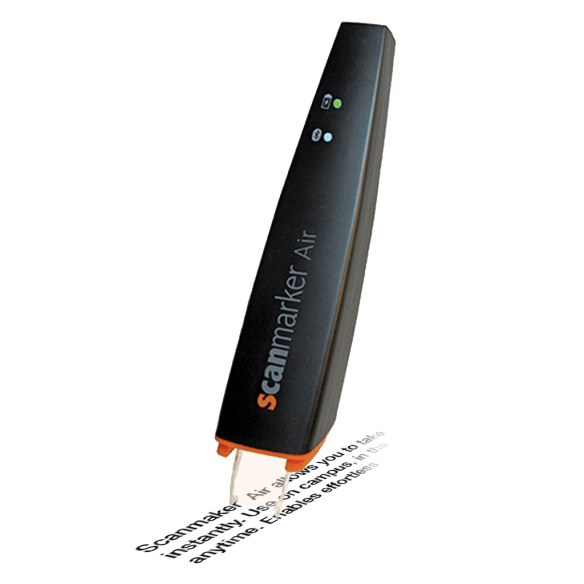
I have recently bought an Scanmarker Air scanner-pen. Seems like a great device. I’ve also installed the macOS-app. Strange thing is that the app’s icon is very pixelated.

How can I change that ?


Answer :

Scanmarker has released new colorful versions of the Scanmarker Air pen that can be bought here. It’s a great device for :

  • reading out written text from a book (very handy for anyone having dyslexia)
  • translating text on-the-fly
  • scanning text (or just portions of text) from textbooks

The official icon of the current Scanmarker app for macOS is still a 32x32pixels icon, which is a very old that shouldn’t be used in macOS (where 1024x1024pixels icons are standard).

Simplest way to fix this is to download an appropriate icon of higher resolution and paste that onto the app. Here’s how to :

  • either download my custom made 1024×1024 icon here :
  • or download the original icon here (still fuzzy since it is a 300x300pixels icon enlarged to OSX-native 152x152pixels) :  Scanmarker Android app icon
  • or download the icon of the iOS app here : ScanmarkerAir iOS icon
  • or download the diap desktop icon here :ScanmarkerAir OSX icon
  • after downloading your preferred icon, do this :
  • select the Scanmarker app in your Applications folder
  • press [CMD]+[I] to open the “Info” popup menu
  • then click on the icon (top left) and a blue outline will open around it
  • then open the file (with the icon as a picture) you’ve just downloaded in Preview
  • in Preview press [CMD]+[A] to select the entire image
  • then return to the Info-popup window, and press [CMD]+[V] to paste the new icon
  • now your Scanmarker app has a better looking icon
  • to make sure it also shows on the Desktop, delete the old Scanmarker alias from the Dock, then open the Scanmarker app again and right-click on it’s icon in the Dock and select “Keep in Dock” from the popup menu

That’s it !

enjoy 😉

Donate Button (MacManusNL)


fixed : SPL-C ERROR page printed by Samsung printer

Question :

when I tried to print to my Samsung printer via my Home-network today, the spooling process was very slow, then hung, and then a printed page rolled out of the printer with this text only :

SPL-C ERROR – Disconnected from Host. Please check the connection and try again.

POSITION : 0x3dc5 (252981)

SYSTEM : src_5.59/os_hook

LINE : 1978

VERSION : SPL-C 5.59 05-04-2012

So I restarted the printer, made sure there wasn’t any paper stuck, and tried again. This time I the spooling process was very slow again, hung again, and a similar page rolled out of the printer with this text :

SPL-C ERROR – Disconnected from Host. Please check the connection and try again.

POSITION : 0x15ea5 (89765)

SYSTEM : src_5.59/os_hook

LINE : 1978

VERSION : SPL-C 5.59 05-04-2012

So despite the difference in ‘position’, the problem remained.

What can I do to solve this ?


Answer :

This seems to be a weird bug popping up on some Samsung printers connected to Macs once in a while. To solve this problem, do this :

  • quit any printing jobs that are active
  • shut down the printer (take the power cable out)
  • on your Mac, go to System Settings > Printers & Scanners
  • there, delete the problematic printer (by selecting it in the list and clicking the minus-button)
  • then, restart your Mac
  • switch the printer back on (reconnect the power cable)
  • login on your Mac
  • go to System Settings > Printers & Scanners
  • add the printer to the list again (by clicking on the plus-button, and selecting it from the printers found)
  • then close the System Preferences and try printing your document again

That’s it !

enjoy 😉

fixed : use one printer in two networks at the same time

Question :

I have a network printer on my (private) network that I would like to make available to the people on my AirPort Guest Network, but I don’t want guests to access my private network.

Is there a way to do this ?


Answer :

There are options to do this, but it can’t be done the way you would find most elegant probably… the problem is the restriction in AirPort Guest Networks that users can’t connect to each other, so adding the printer to the AirPort Guest Network won’t make it available to any AirPort Guest Network user.

On the other hand, an other restriction on most network printers is that they only have one Ethernet-card that is shared between the UTP-cable port and the WiFi connection, so the cable-connection and the WiFi-connection will always have the same IP-address, making it impossible to connect the cable to your private network and joining the Guest Network using the WiFi-connection at the same time…

Your best option is to connect the Ethernet/UTP-cable and/or the printer’s WiFi to your private network and creating a separate network to be used as a Guest Network to which the printer can be connected using it’s USB-cable. Since you will need an extra wireless router or an extra (secondhand) AirPort Base Station or Time Capsule to create this separate Guest Network, you can plug the printer’s USB-cable into that wireless router / AirPort Base Station / Time Capsule.

You could also use a printer server, if it isn’t possible to connect the printer’s USB-cable into the wireless router / AirPort Base Station / Time Capsule. You can find relatively cheap print servers on Amazon.com, Amazon.co.uk or Amazon.de

Regarding the setup of your networks, you will probably be best off doing it like this :

  • set your internet modem in router mode (if you would set it in bridge mode, you wouldn’t be able to connect two separate networks behind it)
  • connect both routers (or AirPort Base Station or Time Capsule) to the internet modem
  • setup one router (or AirPort Base Station or Time Capsule) to create the private network and private WiFi network
  • setup the other router (or AirPort Base Station or Time Capsule) to create the Guest Network and Guest WiFi Network
  • make sure that the IP-ranges issued by both routers are completely different (to prevent easy connection from the Guest Network to your private network (and the other way around)
  • if any of your routers give a “Double NAT” error, just ignore it

That’s it !

the only downsite is that having such a complex network setup with multiple routers will have negative influence on your (internet) connection speed ; this difference in speed will probably not be very big if you have few devices connected, but if you have a lot of devices connected that also use a lot of bandwidth (like video streaming) you will probably have slower internet speed than you used to…

enjoy !

fixed : Scanmarker app icon is very pixelated


UPDATE : an updated version of this post can be found here ; it features an all-new custom made icon !


Question :

I have recently bought an Scanmarker Air scanner-pen. Seems like a great device. I’ve also installed the OSX-app. Strange thing is that the app’s icon is very pixelated.

How can I change that ?


Answer :

The official icon of the current Scanmarker app for OSX is still a 32x32pixels icon, which is a very old that shouldn’t be used in OSX (where 152x152pixels icons are standard).

Simplest way to fix this is to download an appropriate icon of higher resolution and paste that onto the app. Here’s how to :

  • either download the original icon here (still fuzzy since it is a 300x300pixels icon enlarged to OSX-native 152x152pixels) :  Scanmarker Android app icon
  • or download the icon of the iOS app here : ScanmarkerAir iOS icon
  • or download the diap desktop icon here :ScanmarkerAir OSX icon
  • after downloading your preferred icon, do this :
  • select the Scanmarker app in your Applications folder
  • press [CMD]+[I] to open the “Info” popup menu
  • then click on the icon (top left) and a blue outline will open around it
  • then open the file (with the icon as a picture) you’ve just downloaded in Preview
  • in Preview press [CMD]+[A] to select the entire image
  • then return to the Info-popup window, and press [CMD]+[V] to paste the new icon
  • now your Scanmarker app has a better looking icon
  • to make sure it also shows on the Desktop, delete the old Scanmarker alias from the Dock, then open the Scanmarker app again and right-click on it’s icon in the Dock and select “Keep in Dock” from the popup menu

That’s it !

enjoy 😉

Donate Button (MacManusNL)