tip : most basic car stereo with good iPhone & iPod compatibility

Question :

The car stereo in my (rather old) car has broken down, so now I need a new one…

What is the (most) basic one that has good compatibility with a recent iPhone for playing music ?

Answer :

Considering that the relevance of any suggestion regarding buying electronics is always a temporary advise, as technology keeps progressing rather quickly and always depends on the way and intensity of your use…

…the best value-for-money deal you can get is :

Pioneer MVH-160UI car stereo (2014 model)                     find it in the UK or Germany

or it’s predecessor which is technically similar, for which you might get a better discount deal :

Pioneer MVH-150UI car stereo (2013 model)                     find it in the UK or Germany

The main advantages of these are :

  • certified iPod & iPhone compatibility, including “Direct Control” of your iOS7-device from the car stereo’s interface
  • front-accessible USB (for use with iOS-device, Android-device or USB-stick) that will also charge your iPhone or iPod during driving
  • AUX-in (for any other music player)
  • no CD (or cassette) player
  • quality radio tuner (with RDS, Traffic Announcement & Radiostation-presets)
  • quality sound output (with 5-band graphic equalizer and 4x 50W RCA pre-amp output)

Of note is that there is also a Sony car stereo with similar pricing and similar capabilities, but unconfirmed rumors say it’s not compatible with the latest iOS7-devices…

Sony DSX A30 car stereo (model 2013)                         find it in the US, UK or Germany

If you are in need of a telephone carkit also, your will be even more happy with a car stereo  that adds Bluetooth connectivity to your iPhone also :

JVC KD-X250BT car stereo                                          find it in the US, UK or Germany

or the Bluetooth car-kit versions of the Pioneer car stereos mentioned above :

Pioneer MVH-X360BT car stereo (model 2014)             find it in the US, UK or Germany

or it’s predecessor :

Pioneer MVH-350BT car stereo (model 2013)               find it in the UK or Germany

Donate Button (MacManusNL)

tip : discounted and refurbished Macs, iPads & iPods on Dutch online Apple Store

I don’t have any idea how long this has been around, but I had not yet come across this info :

Apple is now selling refurbished (*) Apple-hardware like Macs, iPads, iPods and accessories though the Dutch online Apple Store.

Go here to see if what you’re looking for is available at more-interesting-than-usual “Special Deal” prices.

(*) “refurbished” would mean that these hardware products have been produced from hardware that was either taken out of the primary production process or returned to Apple, of which all malfunctioning parts have been replaced by (as-good-as-)new parts ; due to the fact that this refurbished hardware has been thoroughly tested, this hardware comes with 1 year of limited Apple-warranty and the option to buy additional AppleCare.

Enjoy !

Donate Button (MacManusNL)

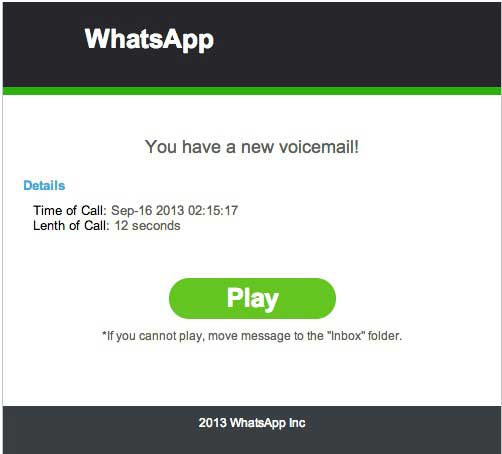
BEWARE ! : WhatsApp voicemail eMails are fake !

Lately, more and more people are being spammed with (fake) eMail messages, suggesting that there is a WhatsApp voicemail for them.

Beware : clicking on the (green) “Play” or “Listen” button will NOT enable you to listen to any newly recorded voicemail…

…this is a phishing-scam that instals malware (= malicious software) !!

DO NOT INSTALL !!

Note : the fact that this malware-installer makes use of a stolen Authentication Certificate (which is still valid) makes it extremely hazardous, as that will tick your computer/mobile phone into allowing the malware to be installed

The devices that suffer from this are mainly Android-mobile phones, but jailbroken iPhones, PCs and Macs also. Any original (not-jailbroken) iPhone will only install software from the iTunes App Store, so they are secured against this kind of malware.

HOW TO EASILY DETECT THESE PHISHING EMAILS :

The subject will read something like “Incoming voicemail at [date]”, and the sender will appear to be (*) “Whats App Notifier”, and there will be a big (green) button inside the eMail  named “Listen” or “Play”…

(*) on a Mac this can easily be detected, because of 2 simple indications :

1- in the senders name it is written “Whats App”, in stead of the official “WhatsApp” (one word)

2- when clicking on the senders name in Apple Mail.app, it turns blue and in yellow an eMail address will appear, which will not have “WhatsApp” in it, but will look like a regular private or business eMail-address

If you get one of these fake eMails, just mark them as SPAM and delete them a.s.a.p.

They look something like these :

whatsapp-malware-1whatsapp-malware-2

Note : if you happen to click on the “Play or “Listen” button, what will happen will (slightly) depend on the version of the eMail you have encountered and the type of device you are using :

– malware will be downloaded directly onto your device

– you will be redirected to a website which will scam you into installing malware

The Malware reportedly is WinWebSec and installs Fareit and Ursnif, which are info-stealers that send your private info to internet criminals, enables them to make your computer call paid telephone numbers and send these same type of phishing eMails on your behalf to anyone in your Contacts…

And once installed, you will also be spammed with messages by a fake antivirus-software called Antivirus Security Pro to pay for getting (in-existend) infections removed form your computer…

More on this scam be found here :

http://www.spamfighter.com/News-18612-Bogus-WhatsApp-Voicemail-Messages-Employed-to-Spread-Malware.htm

http://www.threattracksecurity.com/it-blog/kuluoz-voicemail-spam-drops-signed-certificate-winwebsec/

Donate Button (MacManusNL)

fixed : SMS (iMessage) not delivered from iOS 7 iPhone to iOS 6 iPhone

Question :

Lately, some of my friends have complained to me that they did not receive my recent SMS-es at all…

…I was completely sure I had send them, and when I look inside the Messages-app, they’re properly listed as a blue SMS (= an iMessage).

Any idea what could be wrong ? …and how to fix this ?

Answer :

There seems to be a problem/bug/incompatibility between iOS 7 and iOS 6 when sending iMessages from iOS 7 to people who have not yet upgraded to iOS 7 and are still on iOS 6.

FYI : in iOS 7 and iOS 6, the Messages-app auto-detects if you’re sending a text message to an iPhone or not :

– if your text message turns Blue, it has been sent as an FREE Apple iMessage

– if your text message turns Green, it has been sent as a ‘good-old’ (payed) SMS

Fixing this problem/bug/incompatibility is rather simple, even though it’s really annoying…

But the real problem for you-as-a-user is that it’s really hard to tell on forehand if your ‘SMS’ (iMessage) will be delivered or not…

The only thing you can do ‘as an iOS 7 user’ is this :

– in Messages-app, select the recipient and type a text message as you normally would

– when it turns Green, just send it out (it will be send as a regular SMS)

– when it turns Blue, and you’re not 100% sure the recipient is using iOS 7, hold your finger on the text until a few extra options appear, then choose “Send as text message”… now your text message will turn Green and be send (as a regular SMS)

– when it turns Blue, and you’re 100% sure the recipient is using iOS 7, just send it out (it will be send as a FREE Apple iMessage)

…and when you’re not sure if this did go okay after you’ve send the text message : see if there is a red circle with a white exclamation mark next to your (Blue) text message…

…if there is, click on it and choose the option “Send as text message”

…and if you get any complaints from people that they didn’t receive your SMS since you’ve upgraded to iOS 7, select the text message again, hold your finger on it a little longer and select “Send as text message” from the options that appear.

Good Luck !

Donate Button (MacManusNL)

fixed : set IMAP eMail for Hotmail.com, Live.com and Outlook.com on iPhone/iPad

Question :

I would like to setup my Hotmail-eMail on my iPhone, but rather as an IMAP-account than as the usual POP-account.

Is there any way to do that in iOS ?

Answer :

Yes, IMAP eMail has finally come to Hotmail.com, Live.com and Outlook.com eMail.

To set up a Hotmail/Live/Outlook-eMail account on your iPhone/iPad, do this :

note : instructions for setting-up Hotmail/Live/Outlook-eMail on MacOSX can be found here.

if you’re running iOS 7 [ scroll down for iOS 6 and iOS 4.2.1 ] :

1- open the Settings app, go to “Mail, Contacts, Calendars” and in the “ACCOUNTS” chapter, click on “Add Account”

2- in the window that opens, click on “Outlook.com”

3- in the next window,  type your Hotmail/Live/Outlook-eMail address, your Password and any Description you like, then click “Next”

4- in the window that follows, select the options you want (at least keep “Mail” switched “ON”) and click “Save”

That’s it… congratulations ! 😉

if you’re running iOS 6 [ scroll down for iOS 4.2.1 ] :

1- open the Settings app, go to “Mail, Contacts, Calendars” and in the “Accounts” chapter, click on “Add Account”

2- in the window that opens, click on “Microsoft Hotmail”

3- in the next window,  type your Hotmail/Live/Outlook-eMail address, your Password and any Description you like, then click “Next”

4- in the window that follows, select the options you want (at least keep “Mail” switched “ON”) and click “Save”

That’s it… congratulations ! 😉

if you’re running iOS 4.2.1 (if you’re on an iPhone 3G ; iOS5.5 instructions for iPad 1 are expected to be very similar) :

1- open the Settings app, go to “Mail, Contacts, Calendars” and in the “Accounts” chapter, click on “Add Account”

2- in the window that opens, click on “Microsoft Exchange”

3- in the next window,  type the following :

at “Email” type your Hotmail/Live/Outlook-eMail address

at “Domain” type hotmail.com (if you have a Hotmail.com-eMail address)

at “Domain” type live.com (if you have a Live.com-eMail address)

at “Domain” type outlook.com (if you have an Outlook.com-eMail address)

at “Username” type your Hotmail/Live/Outlook-eMail address

at “Password” type your Hotmail/Live/Outlook-Password

and at “Description” type any description you like

then click “Next”

4- then the same window updates and an extra chapter appears named “Server”, it will be  automatically filled out with either m.hotmail.com or m.outlook.com ( and probably sometimes even m.live.com ) ; don’t bother, just click “Next”

5- in the window that follows, select the options you want (at least keep “Mail” switched “ON”) and click “Save”

That’s it… congratulations ! 😉

Note : if you want to change the settings of your Hotmail/Live/Outlook-accont in iOS, open the Settings app and go to “Mail, contacts, Calendars”, there you can click on the eMail-account you want to edit, and you will be able to change things like :

• “Mail Folders to Push” ; which mailboxes (besides your Inbox, so your Sent or even your Trash maybe) to Push (= auto-update) to your iPhone/iPad

• “Mail Days to Sync” ; how many days ‘backwards in time’ you want your iPhone/iPad to sync to Hotmail/Live/Outlook

• do you also want to sync your Contacts and/or Calendars to Hotmail/Live/Outlook ?

• do you want to change specific settings of the account itself ? (like the Server, SSL on/off, the Description, etc.)

Donate Button (MacManusNL)